![support.png]](https://help.prevuehr.com/hs-fs/hubfs/support.png?height=40&name=support.png)
Open settings
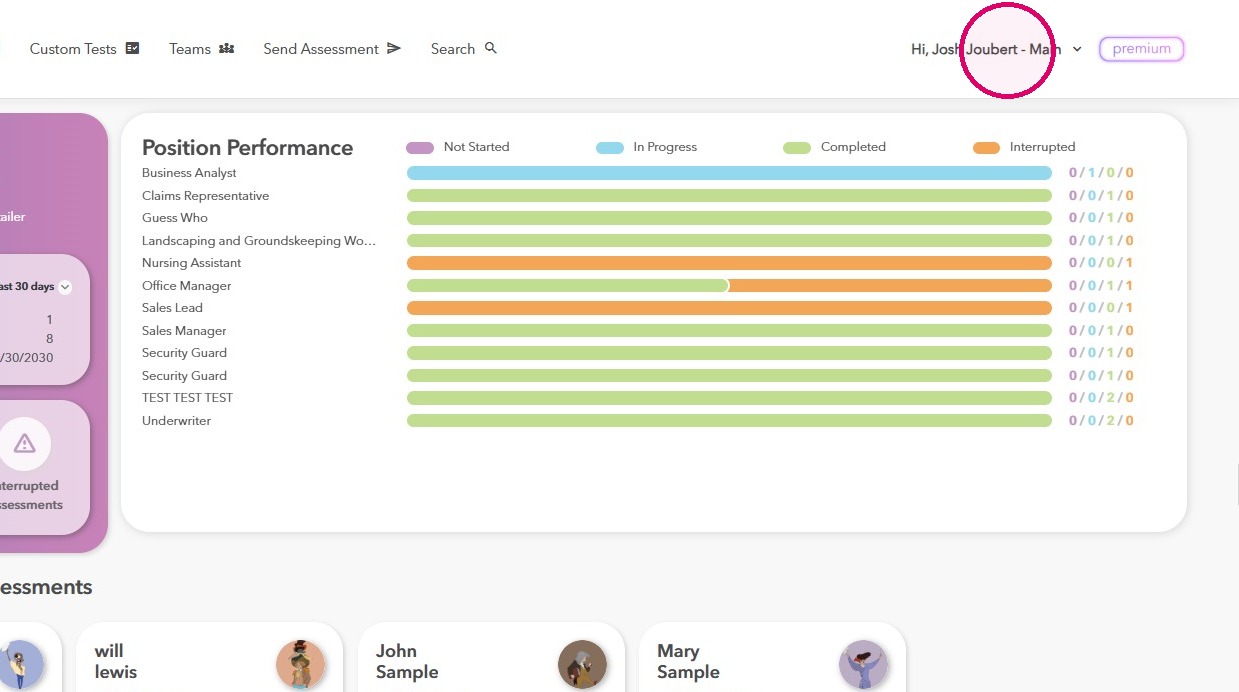
1. Open the Account Menu by clicking on your name.
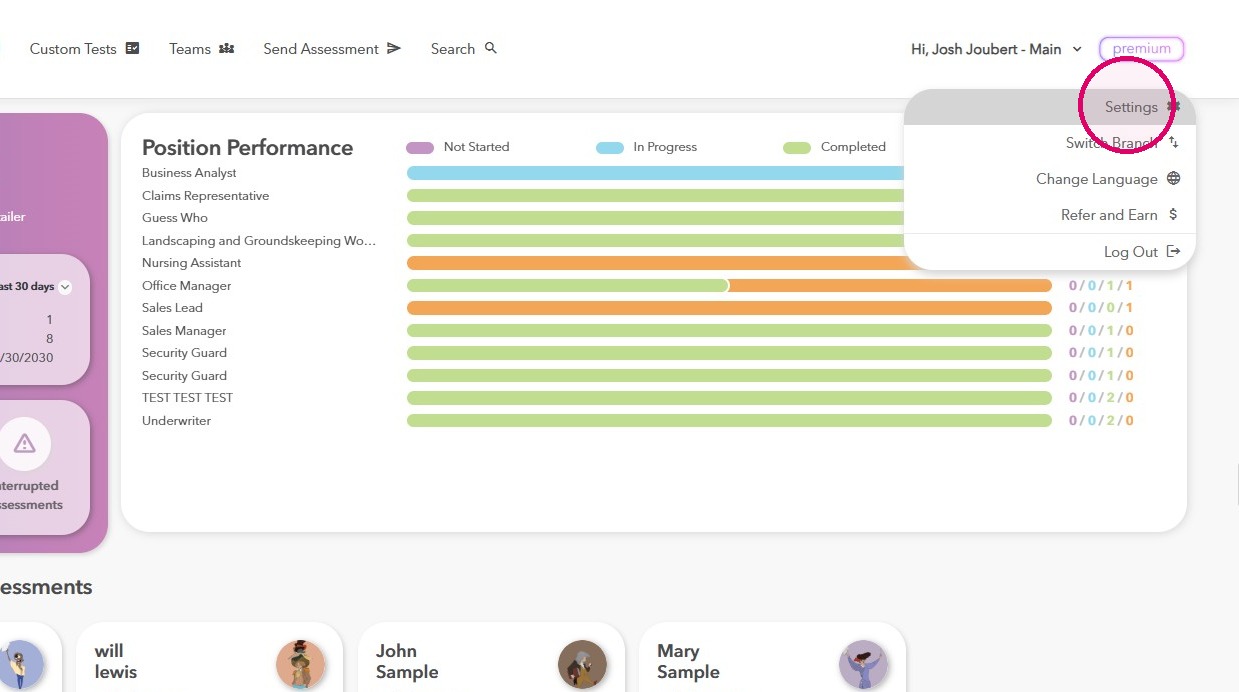
2. Click Settings.
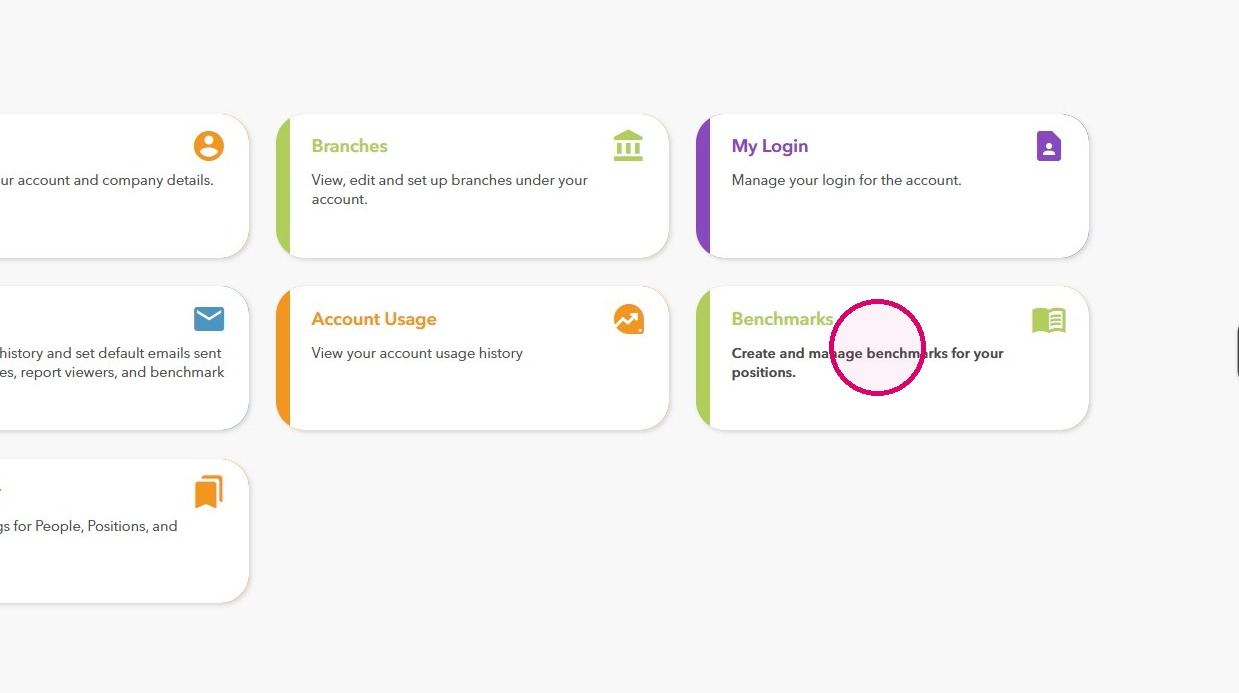
3. Click Benchmarks.
Create benchmark
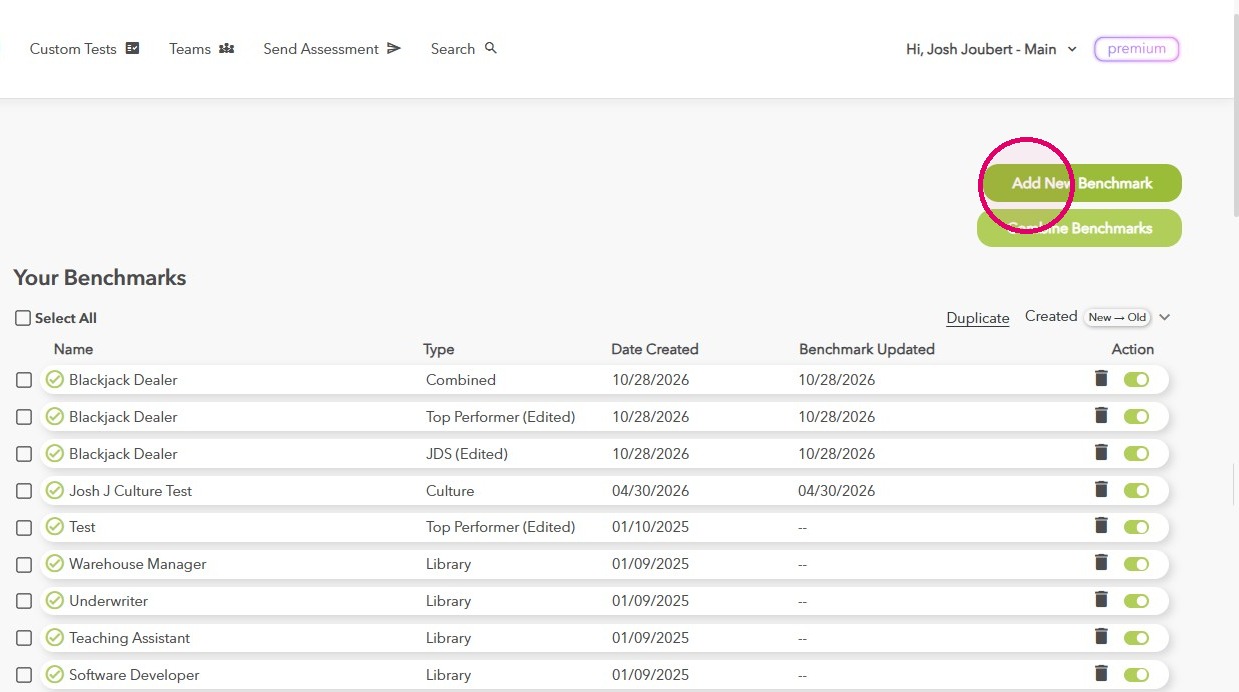
4. Click Add New Benchmark.
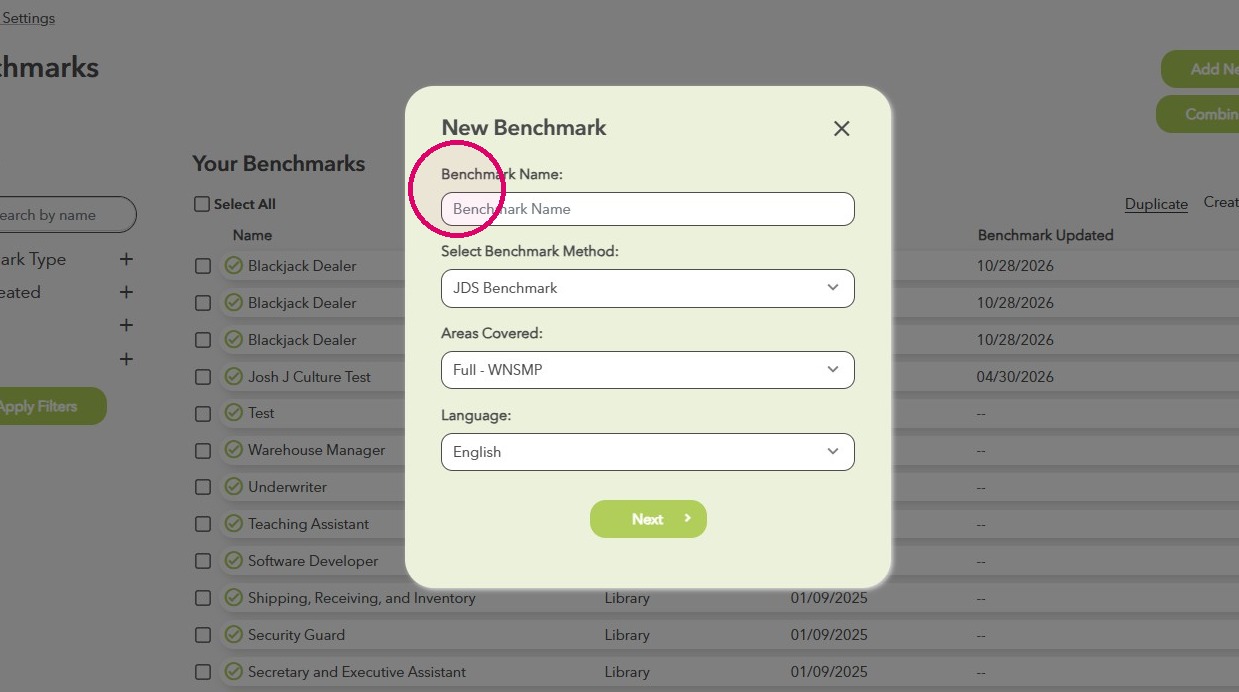
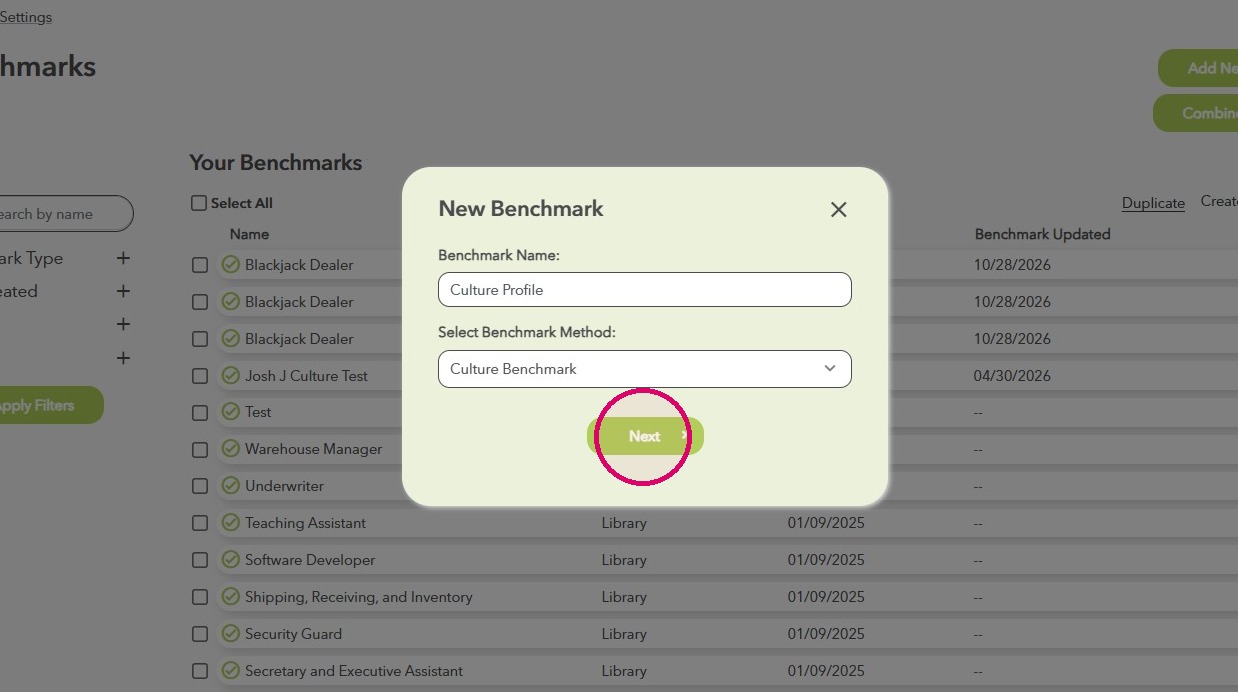
5. Enter the benchmark name.
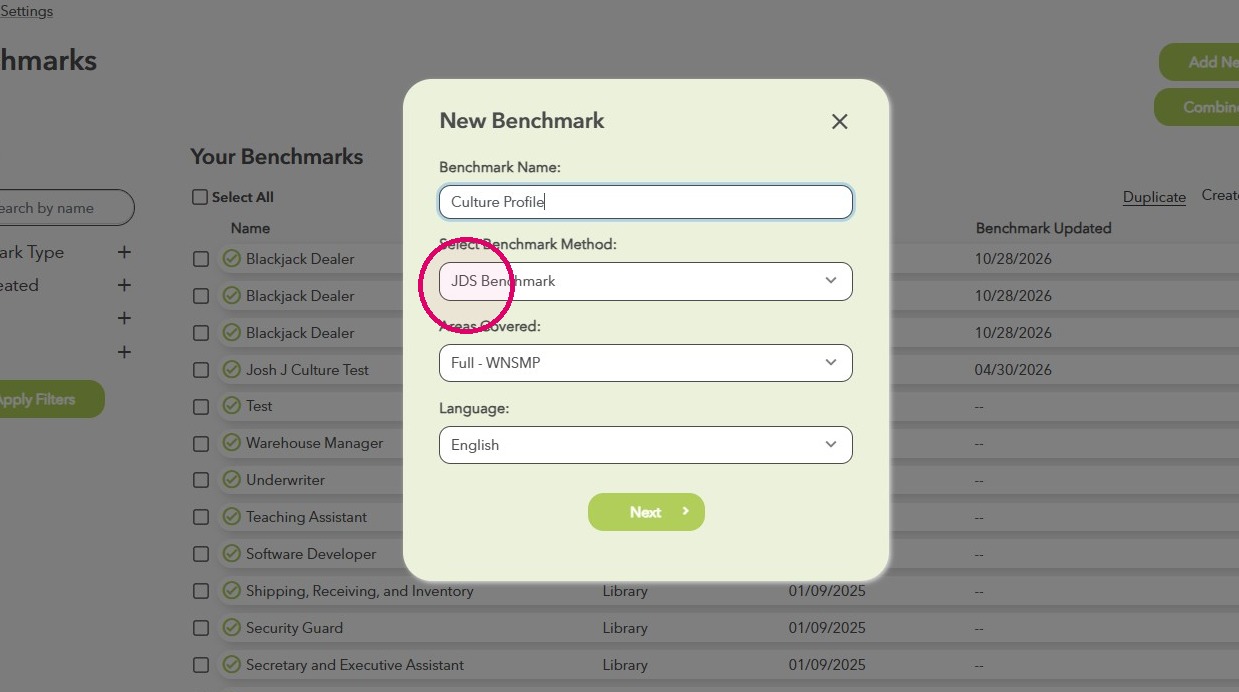
6. Click the Benchmark Method dropdown.
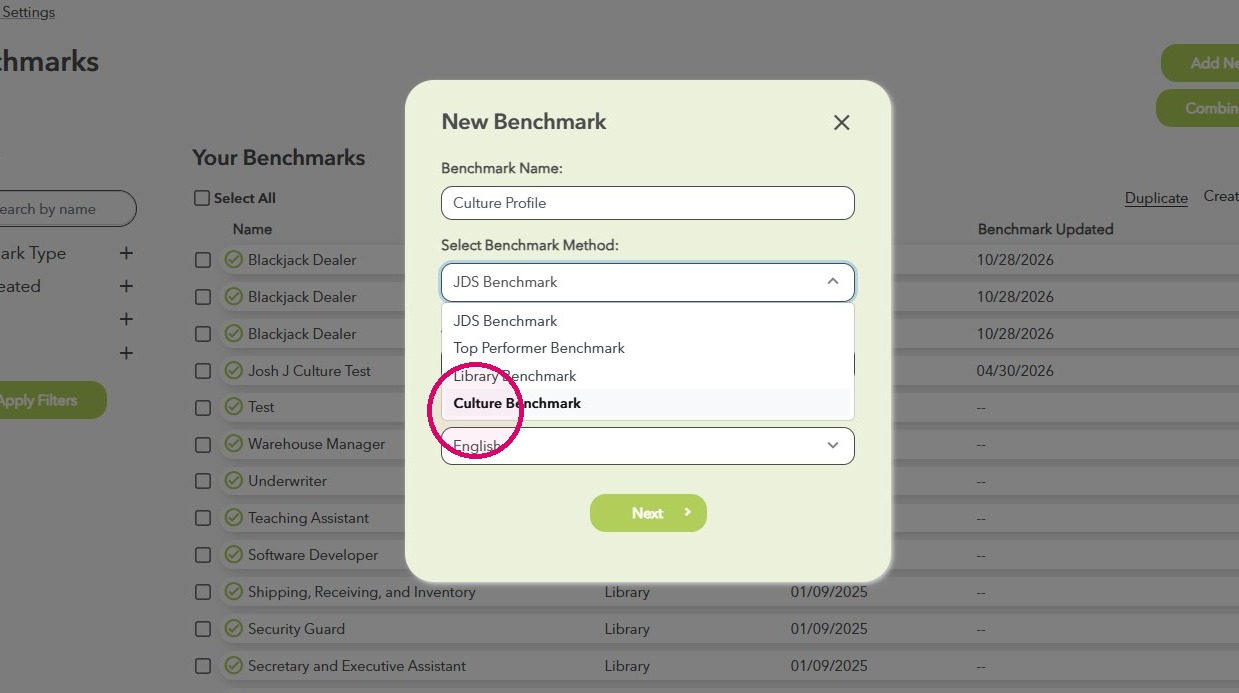
7. Select Culture Benchmark.
8. Click Next.
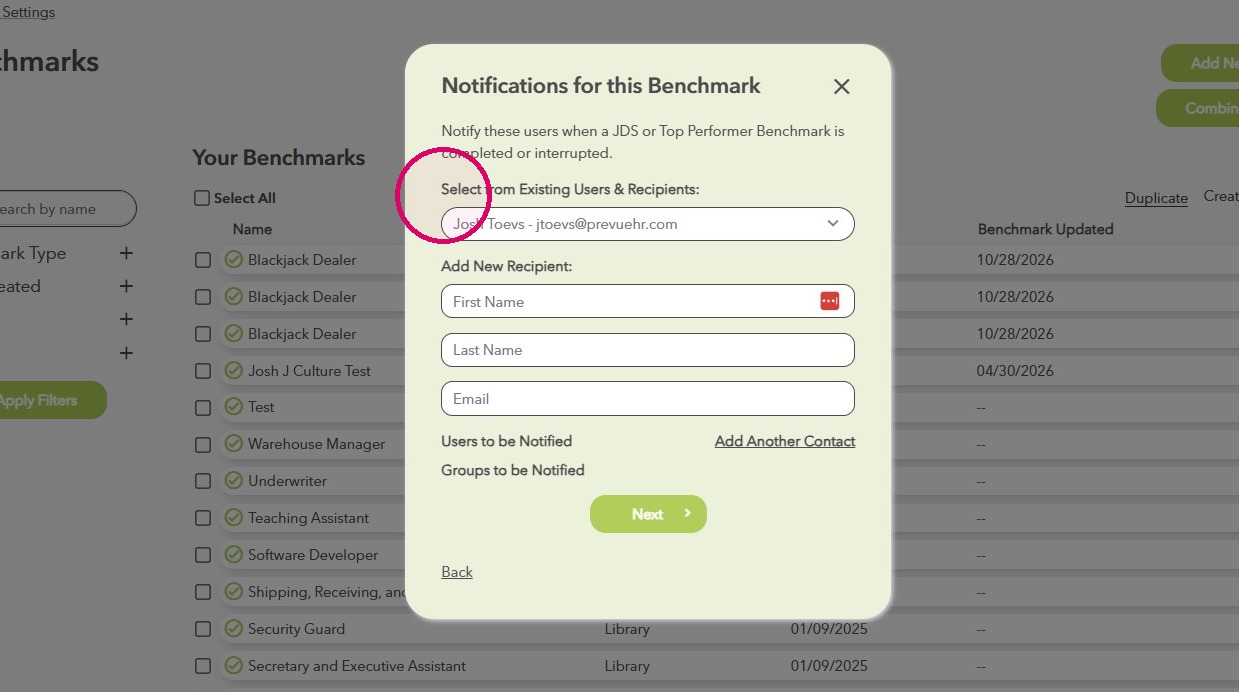
9. Click Select from Existing Users & Recipients to add recipients for this benchmark.
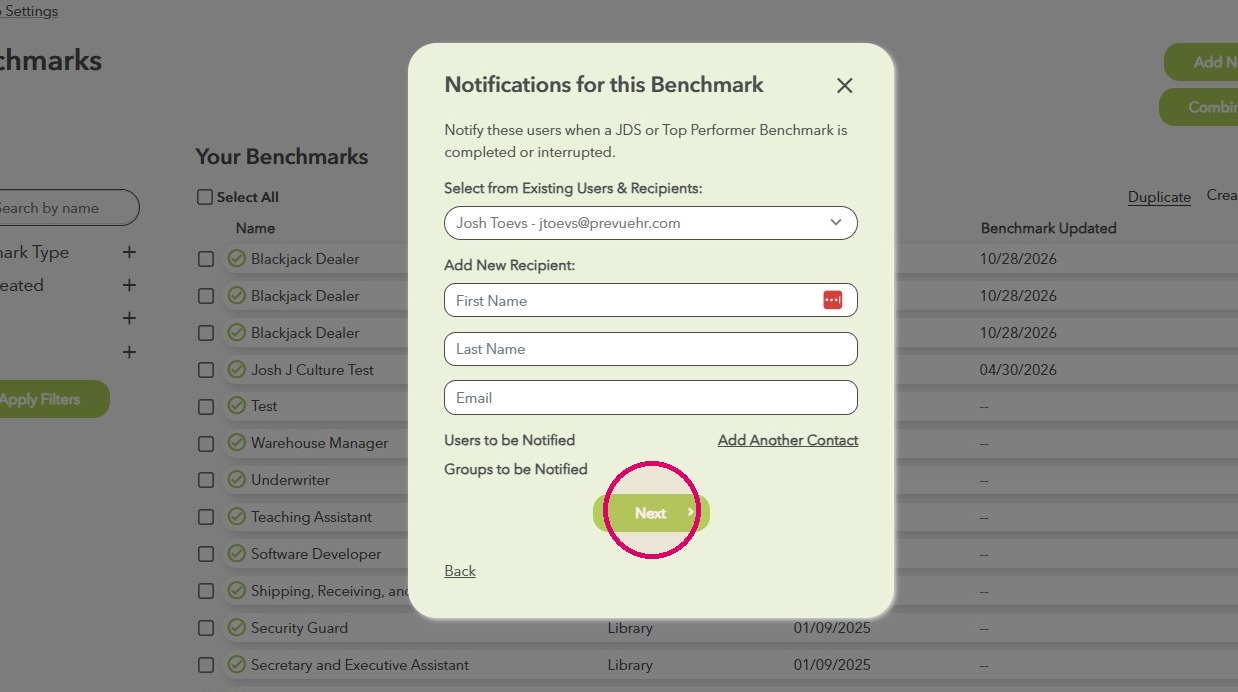
10. Click Next.
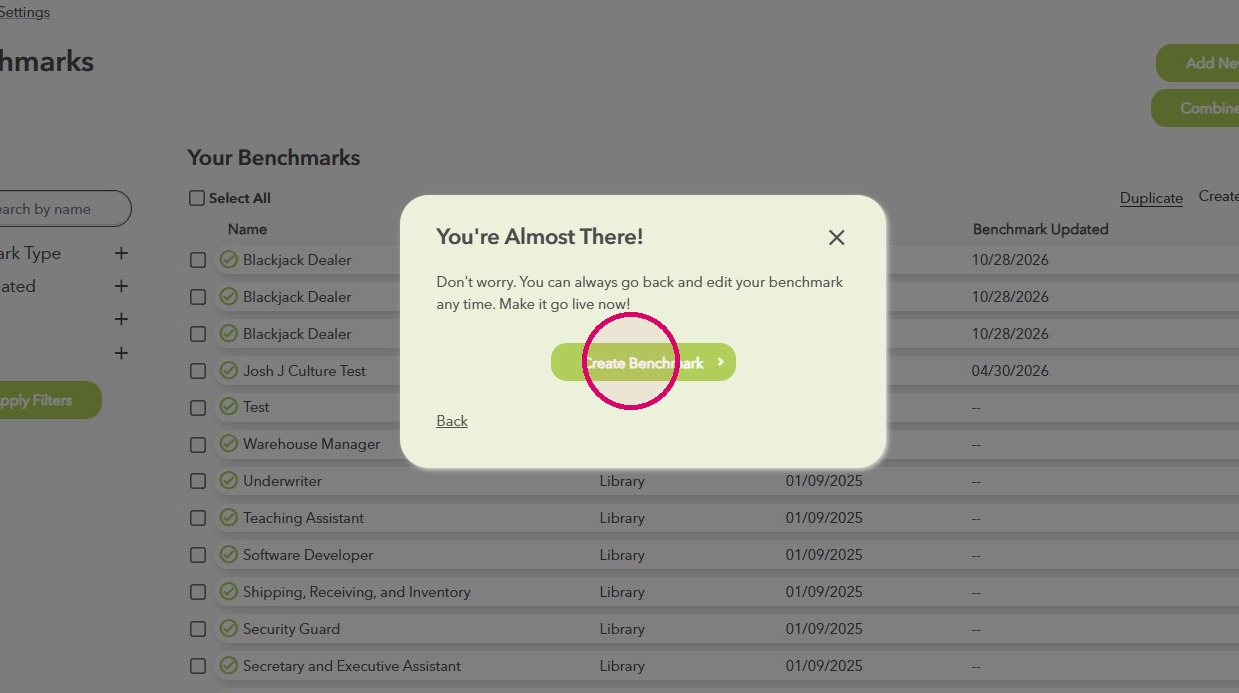
11. Click Create Benchmark.
Manage participants
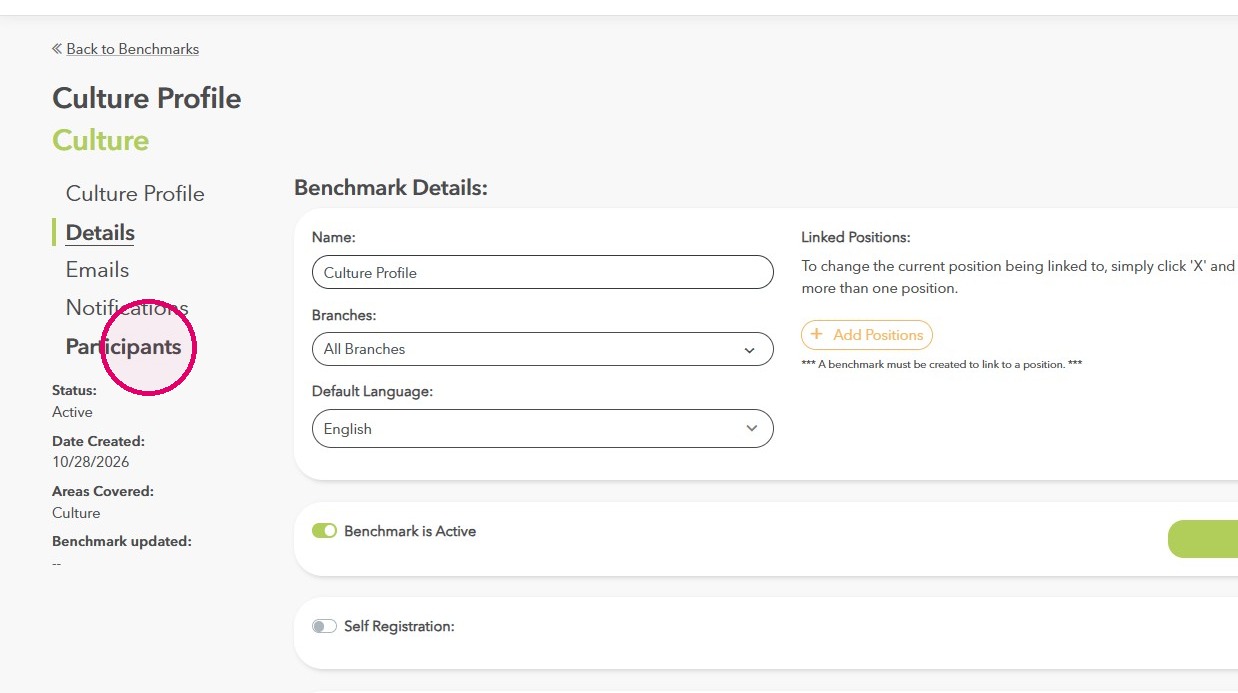
12. Click Participants.
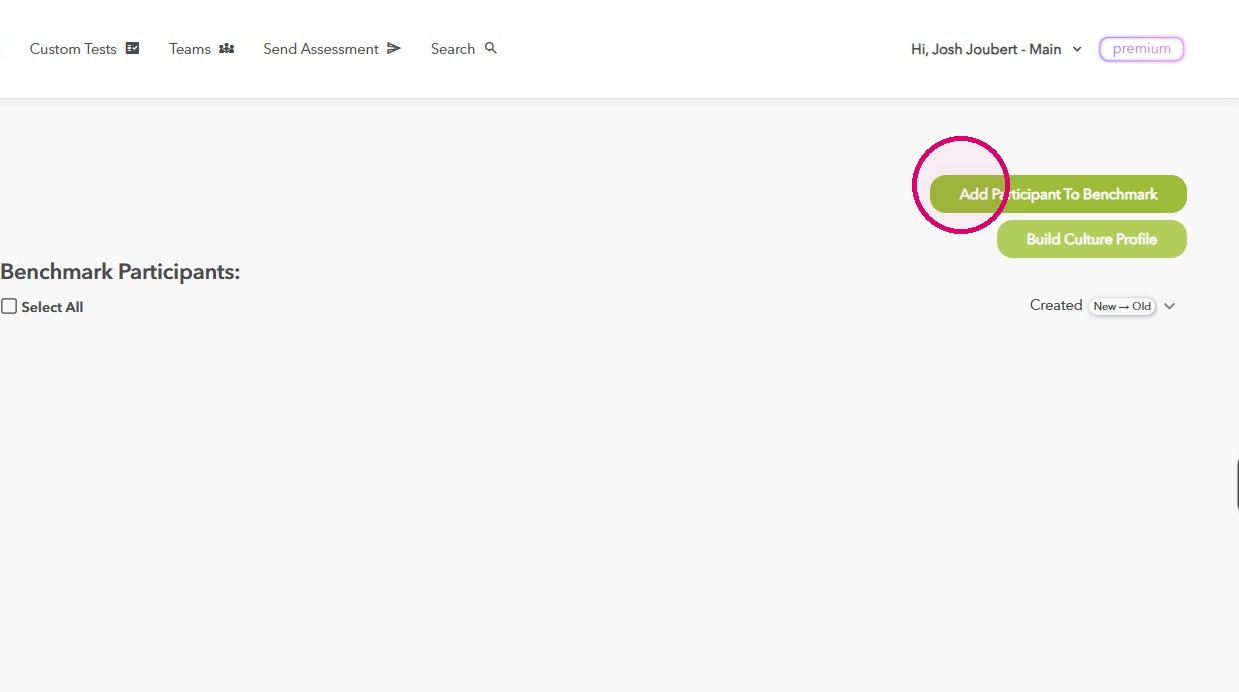
13. Click Add Participant To Benchmark.
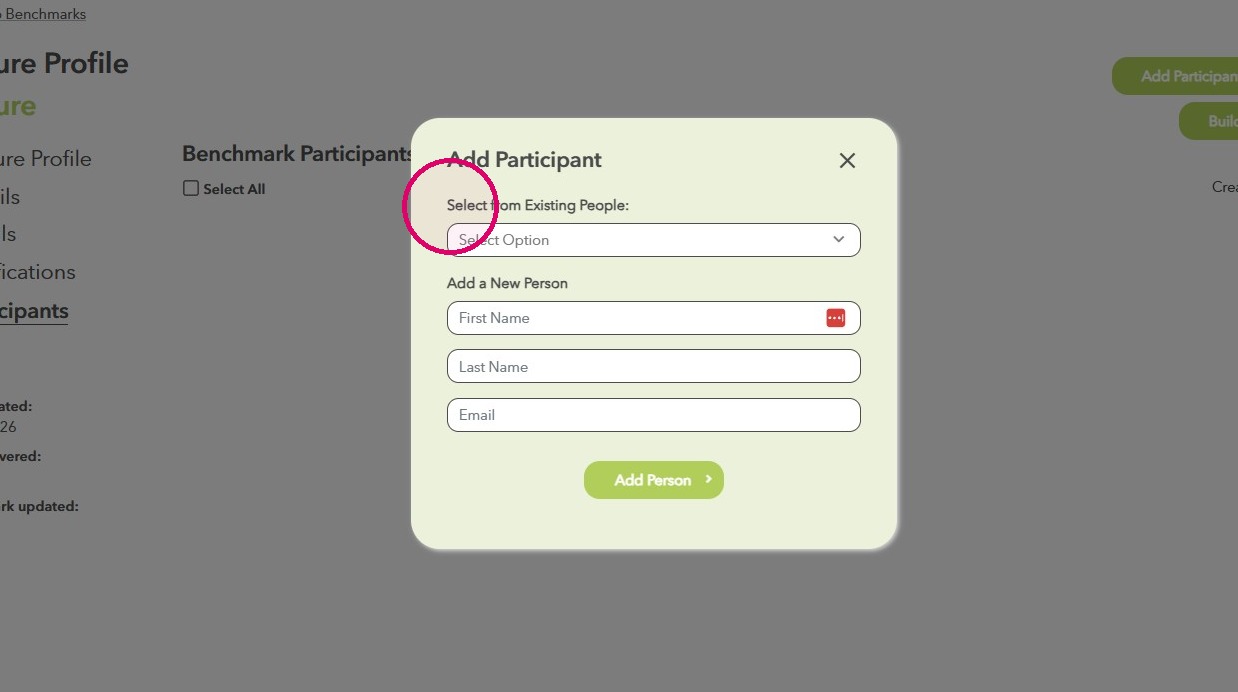
14. Add participants by using Select from Existing People.
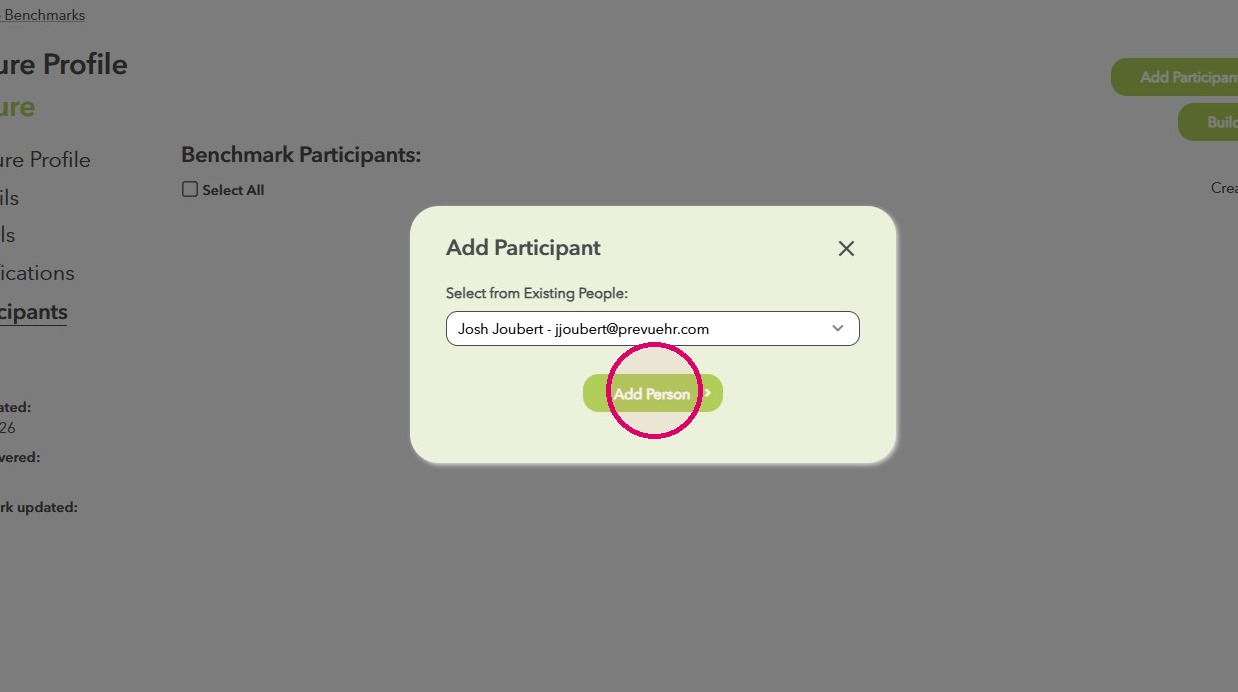
15. Finalize by clicking Add Person.
16. You may also invite new participants by entering the participant’s first name, last name, and email address.
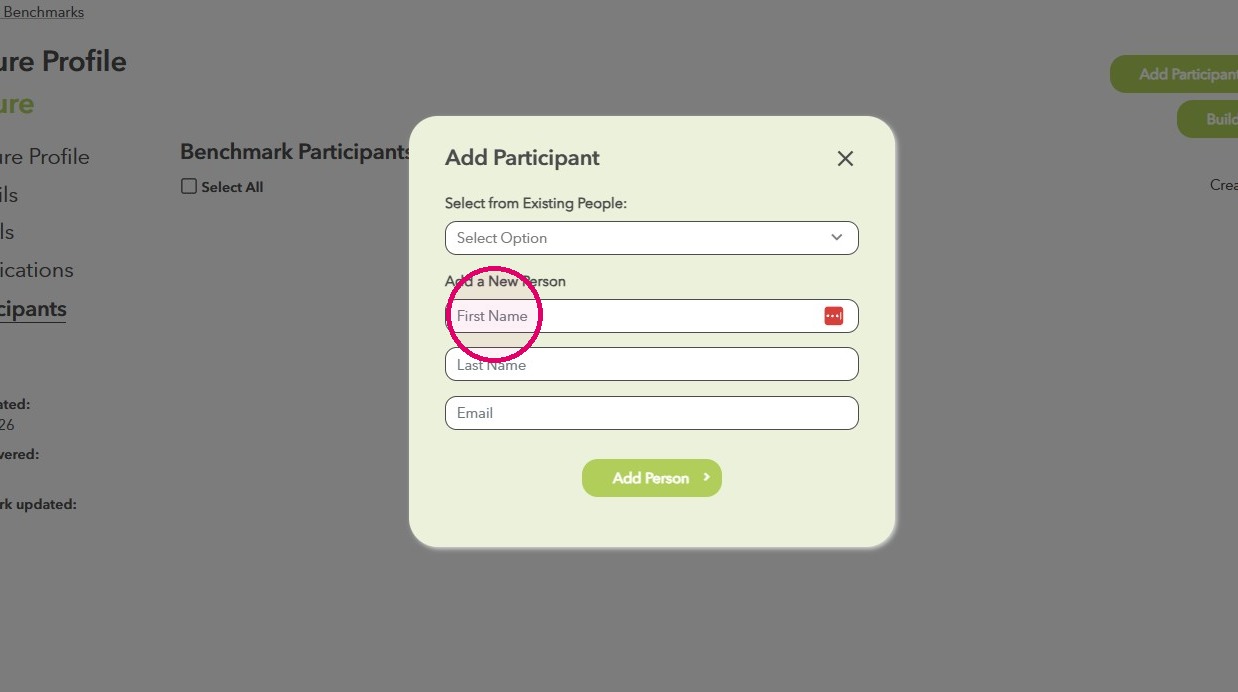
17. Finalize by clicking Add Person.
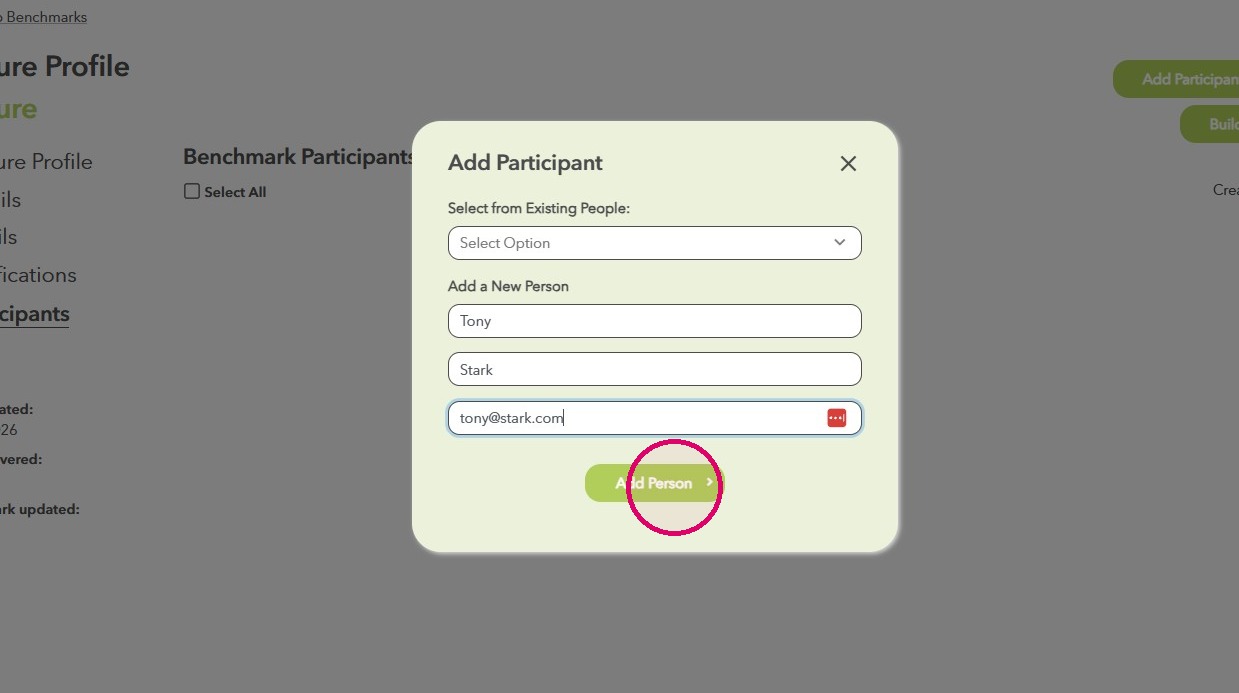
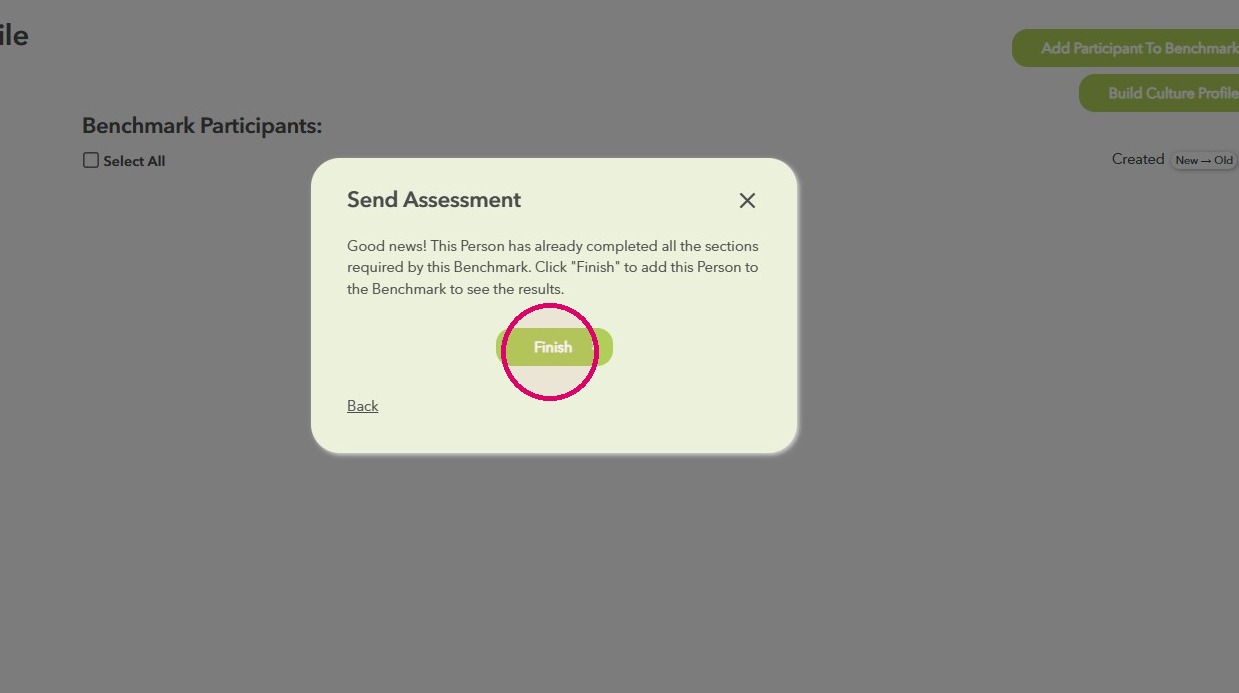
18. If you see the Finish option, it means the invited participant has completed the Culture-Fit invite.
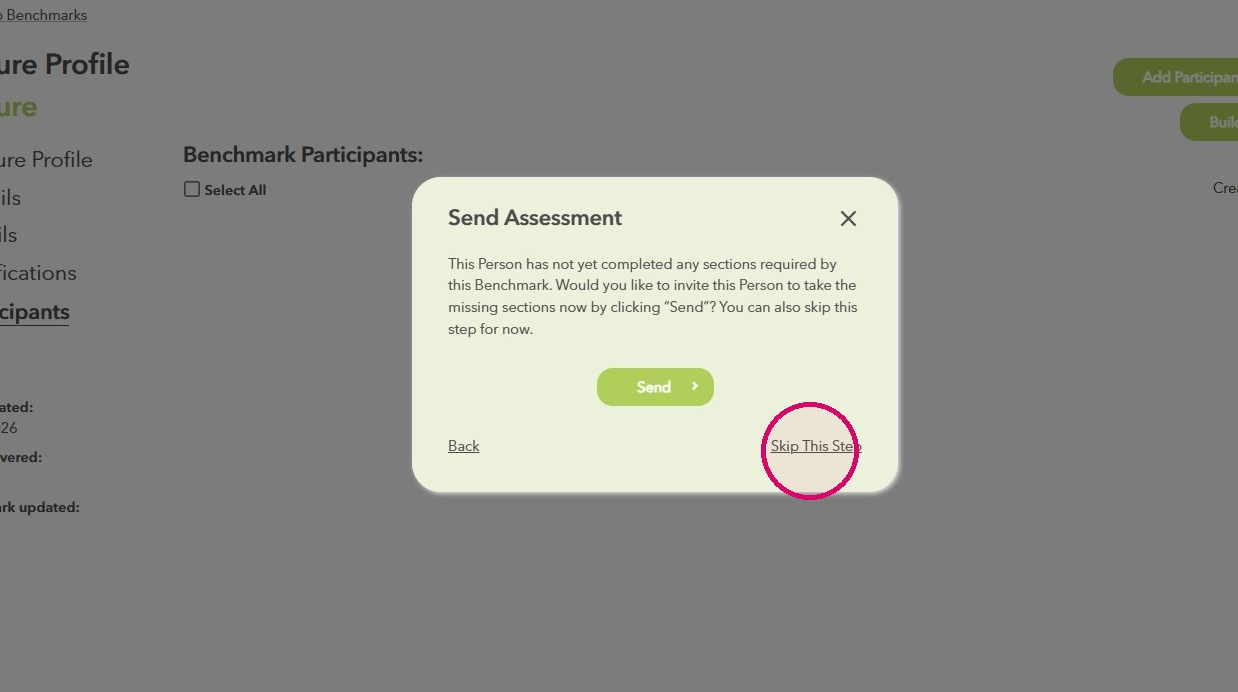
19. If they have not completed the Culture-Fit assessment, you will see the option to either Send or Skip This Step*.* Click Send to send the invite out now.
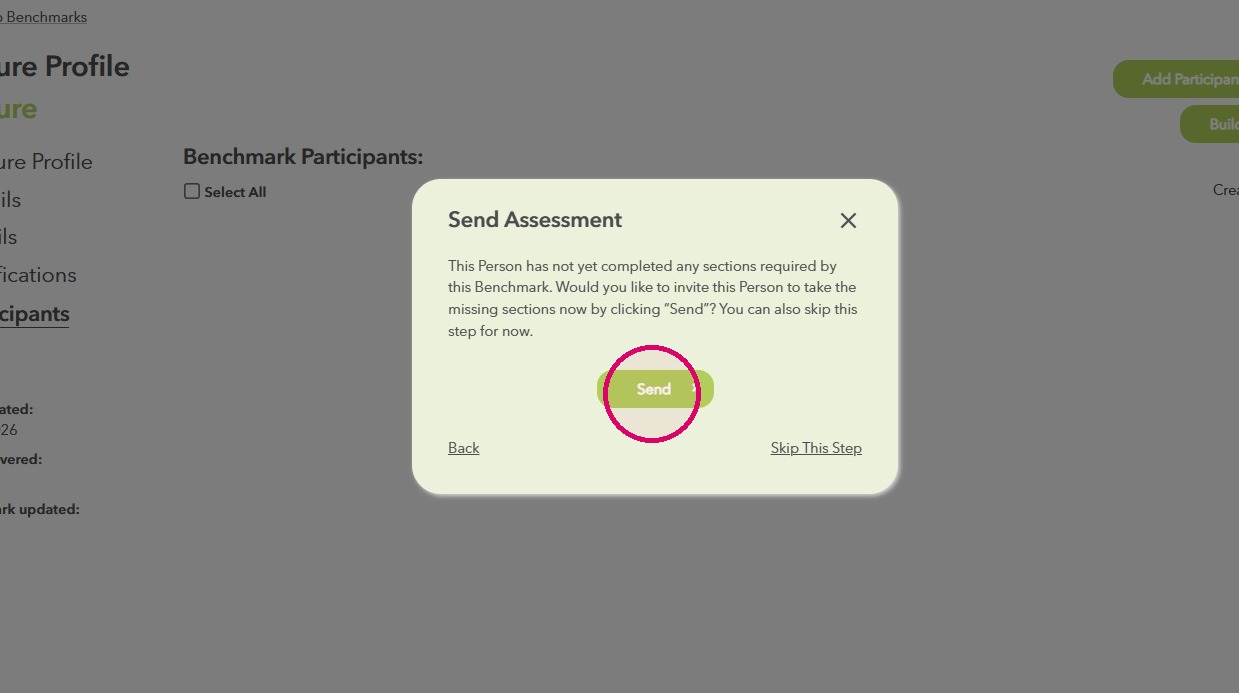
20. Click Skip This Step to add the participant to the study and send the invite at a later date.
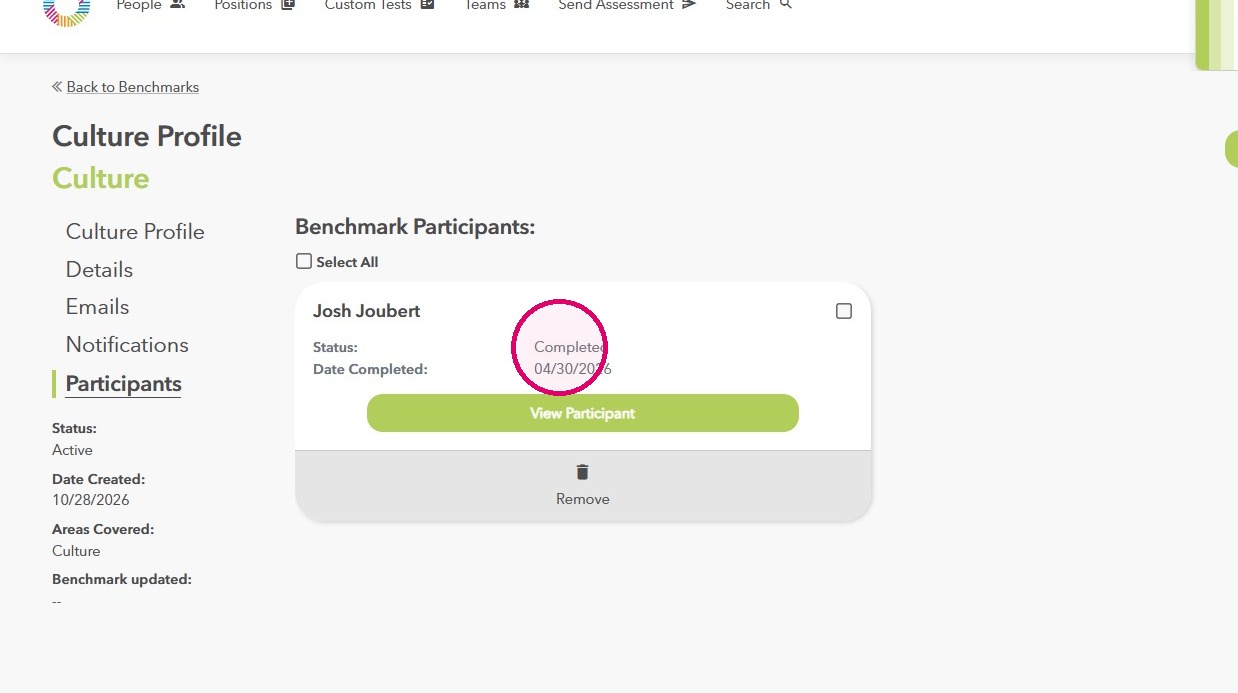
21. Once all participant statuses show Completed, you can build your Culture Profile.
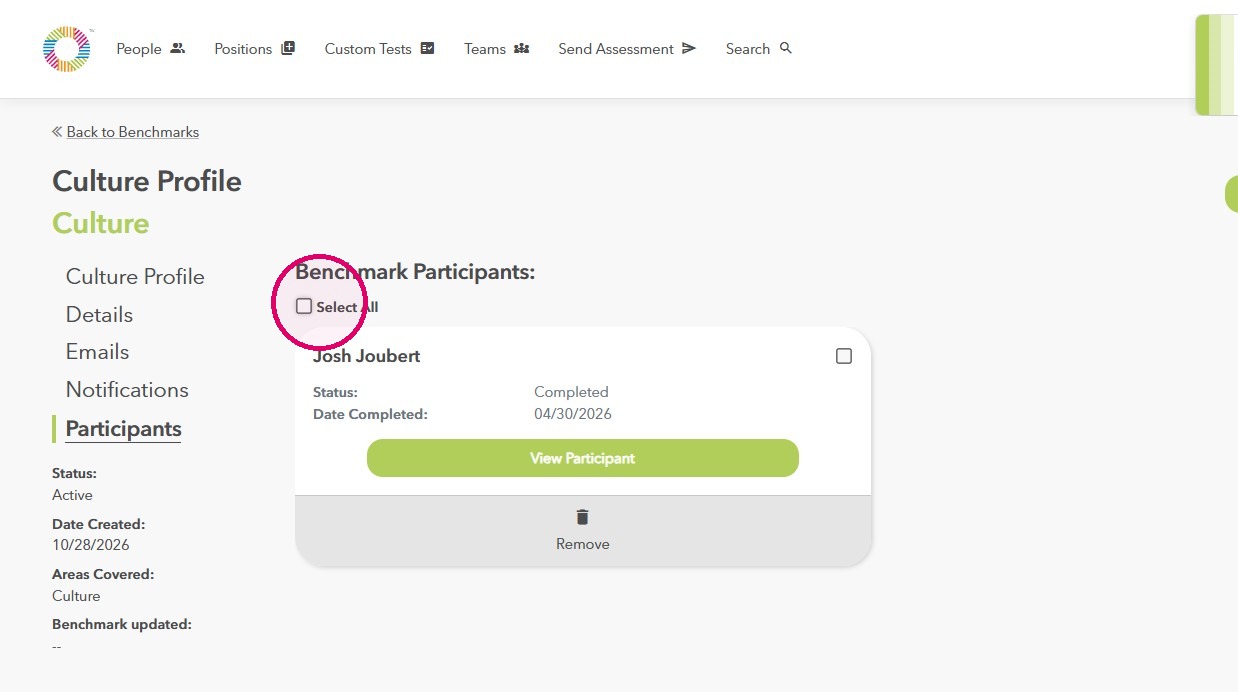
22. To do so, click Select All.
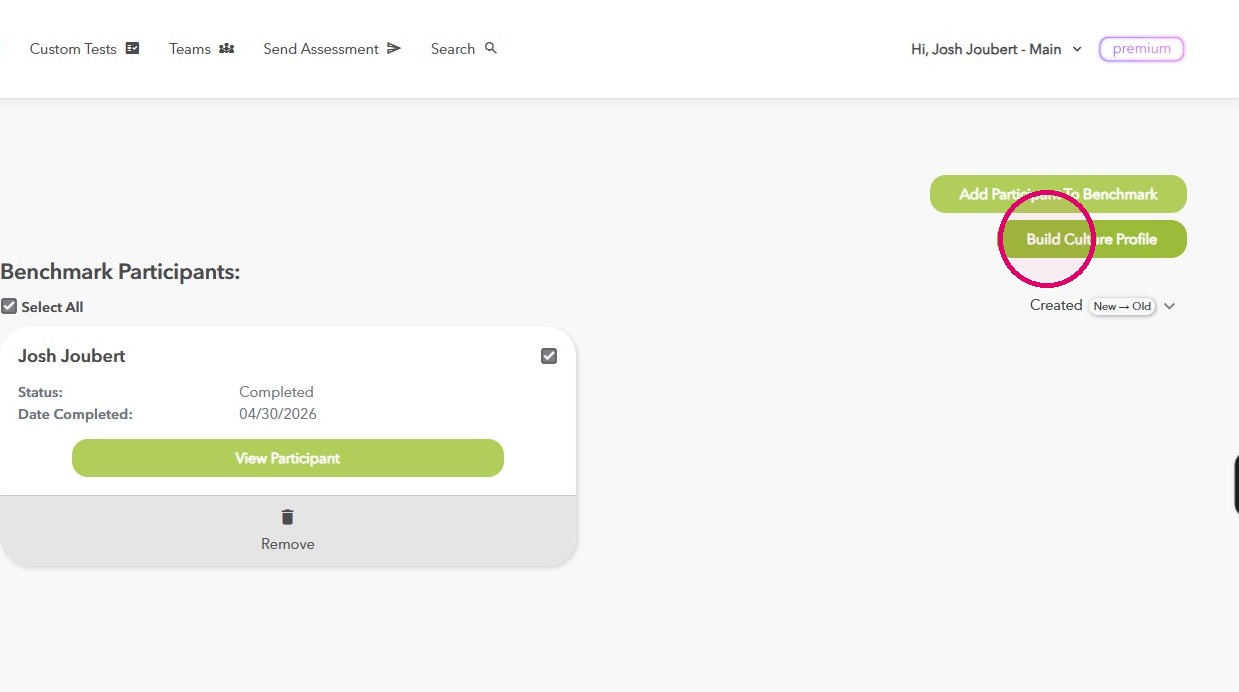
23. Then click Build Culture Profile.
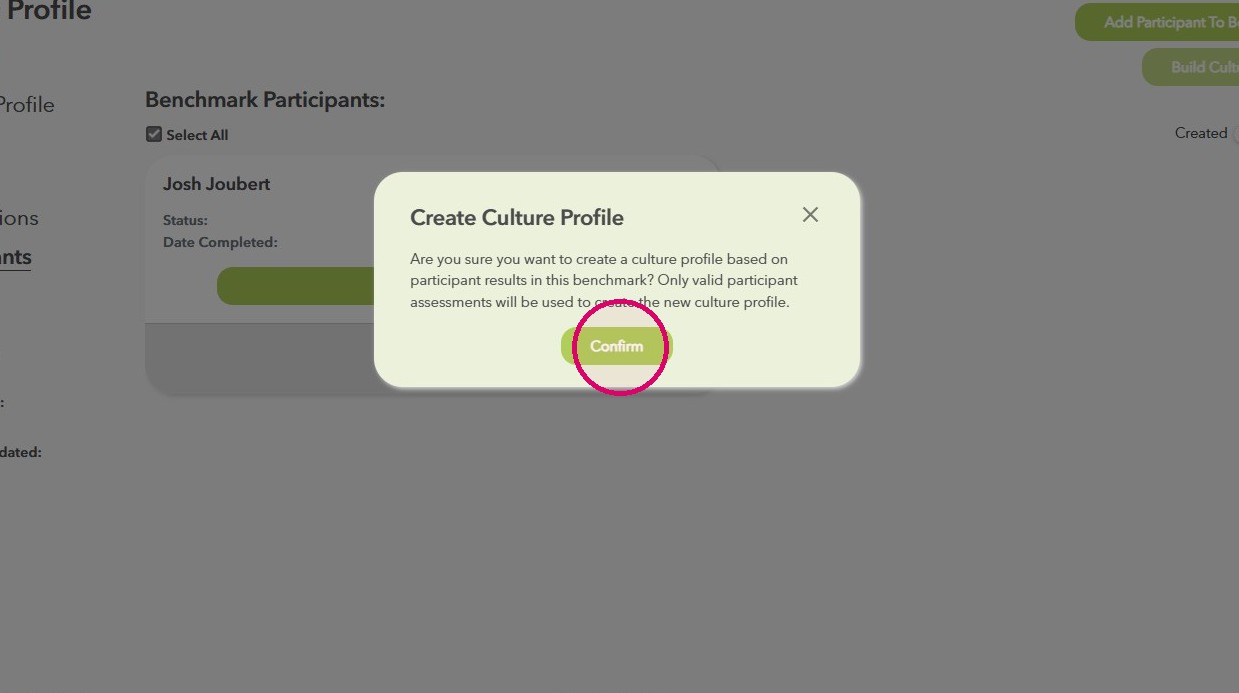
24. Click Confirm.
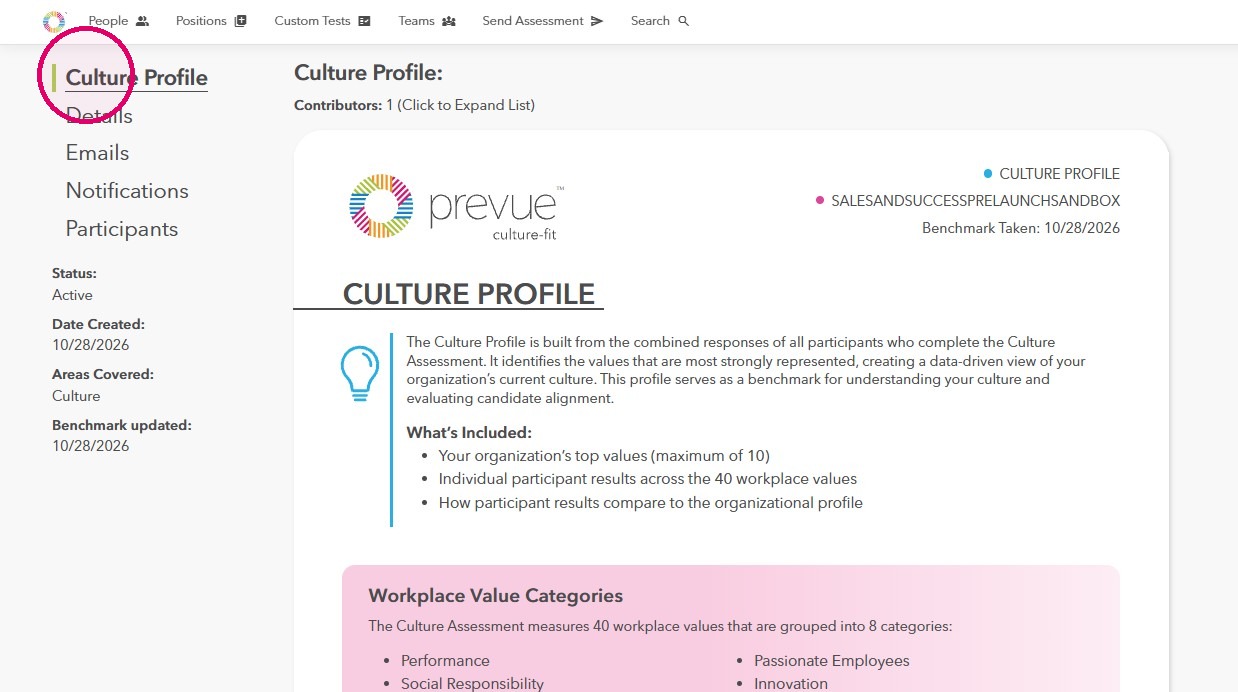
25. Click Culture Profile to review your culture benchmark.