![support.png]](https://help.prevuehr.com/hs-fs/hubfs/support.png?height=40&name=support.png)
Note: Tags can be used in two places in PrevueHub.
- In Person Details on the Candidate Profile page
- In a Position, tagging options can be found at the bottom of the Details page
To add a tag, type in the field and press Enter. Once a tag has been added, it will be available for selection in future.
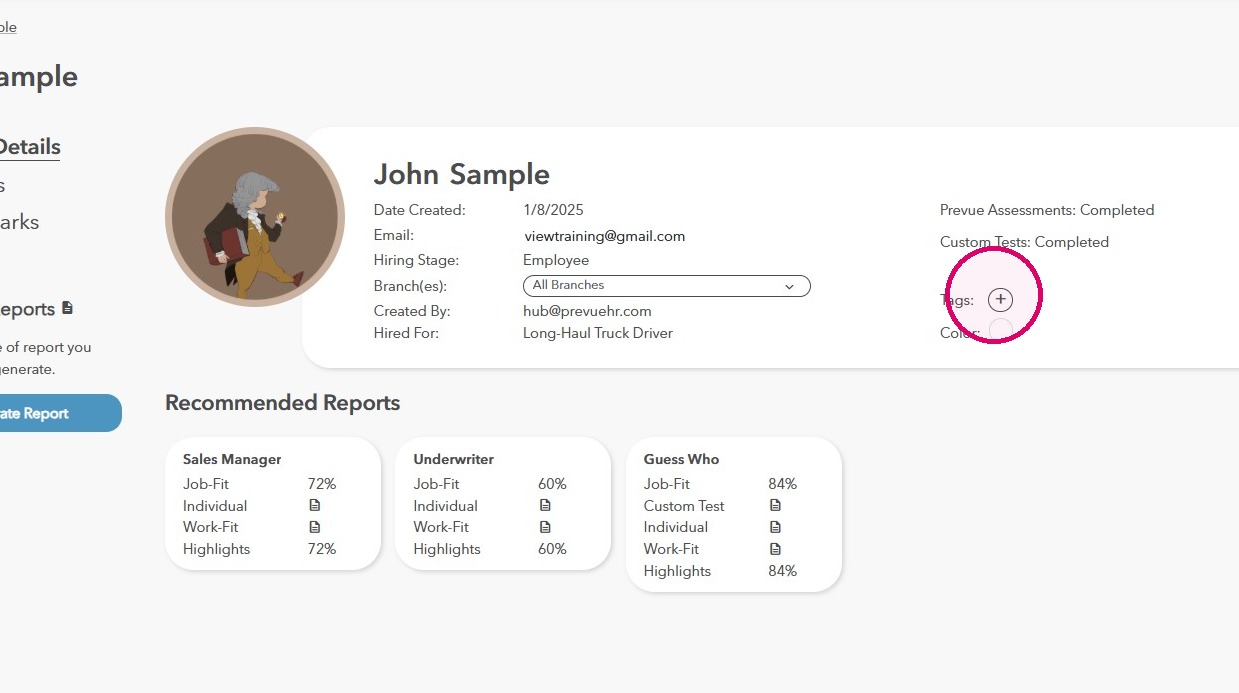
1. In Candidate Profile, click here and type to add/select your tag.
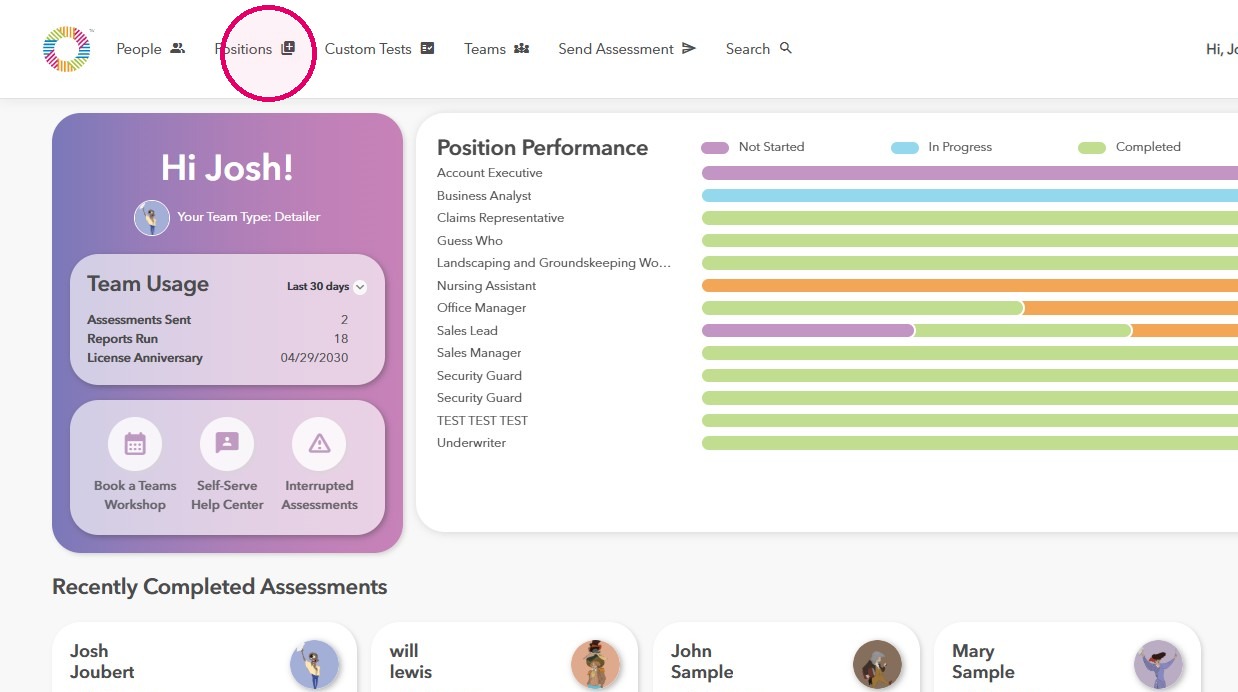
2. Click Positions.
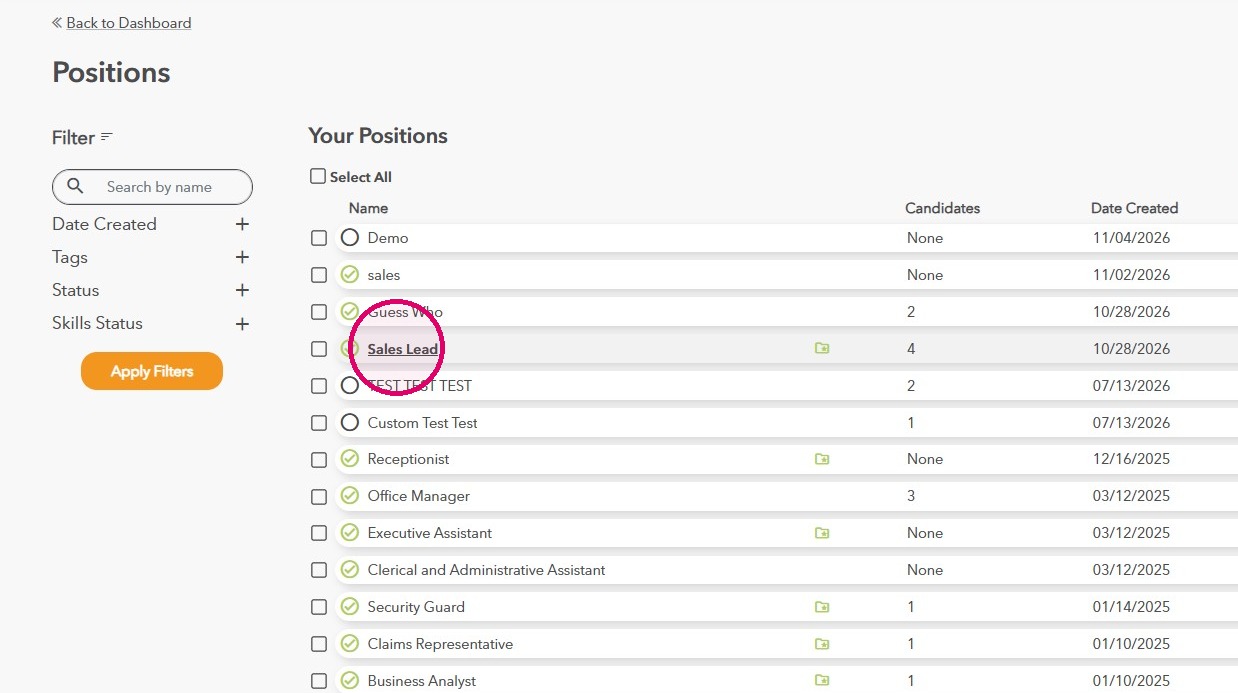
3. Click the appropriate position.
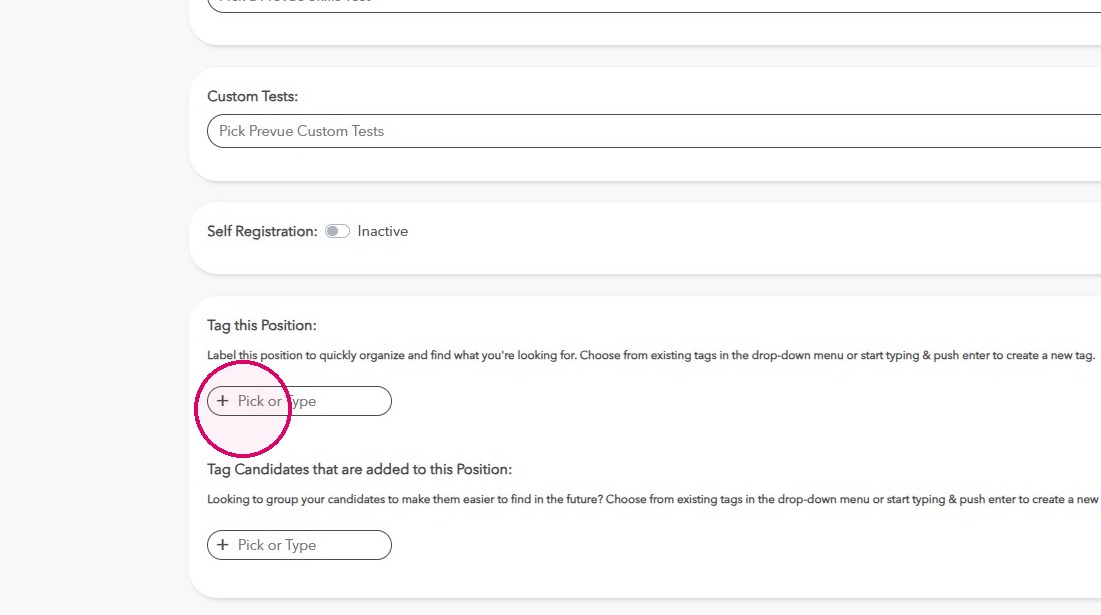
4. Click Details and scroll to the bottom of the page. Click here to add a tag to the position.
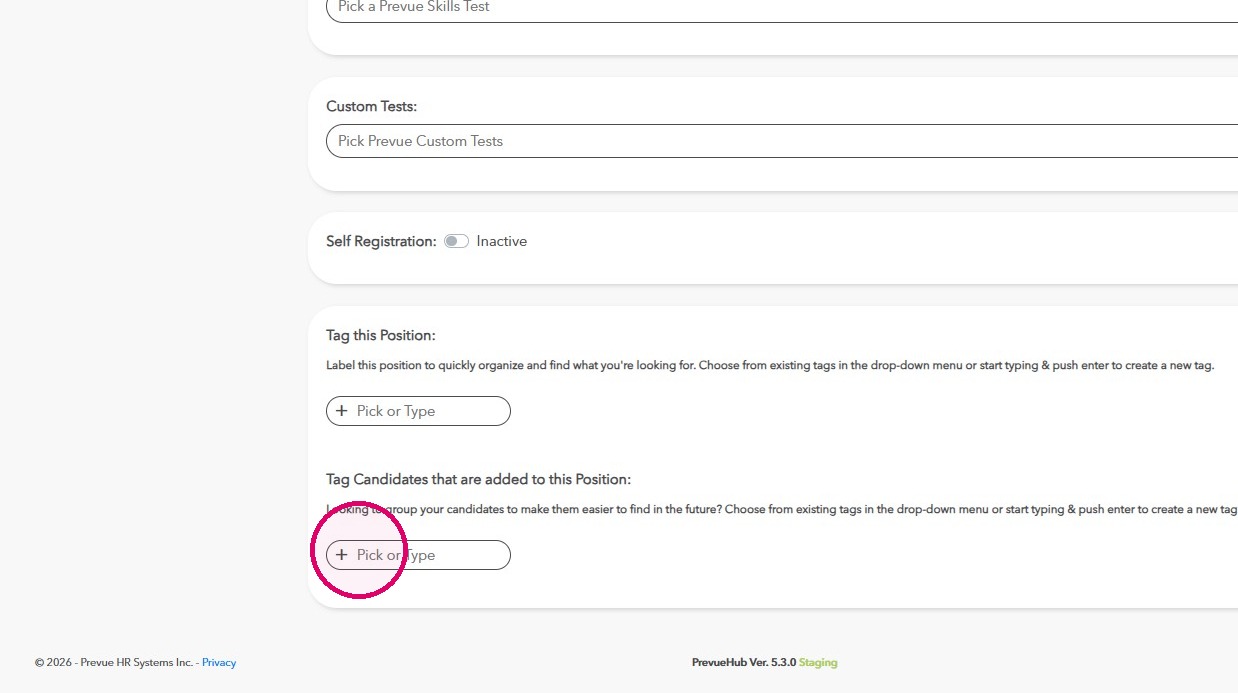
5. Click here to add a tag to all candidates added to this position.
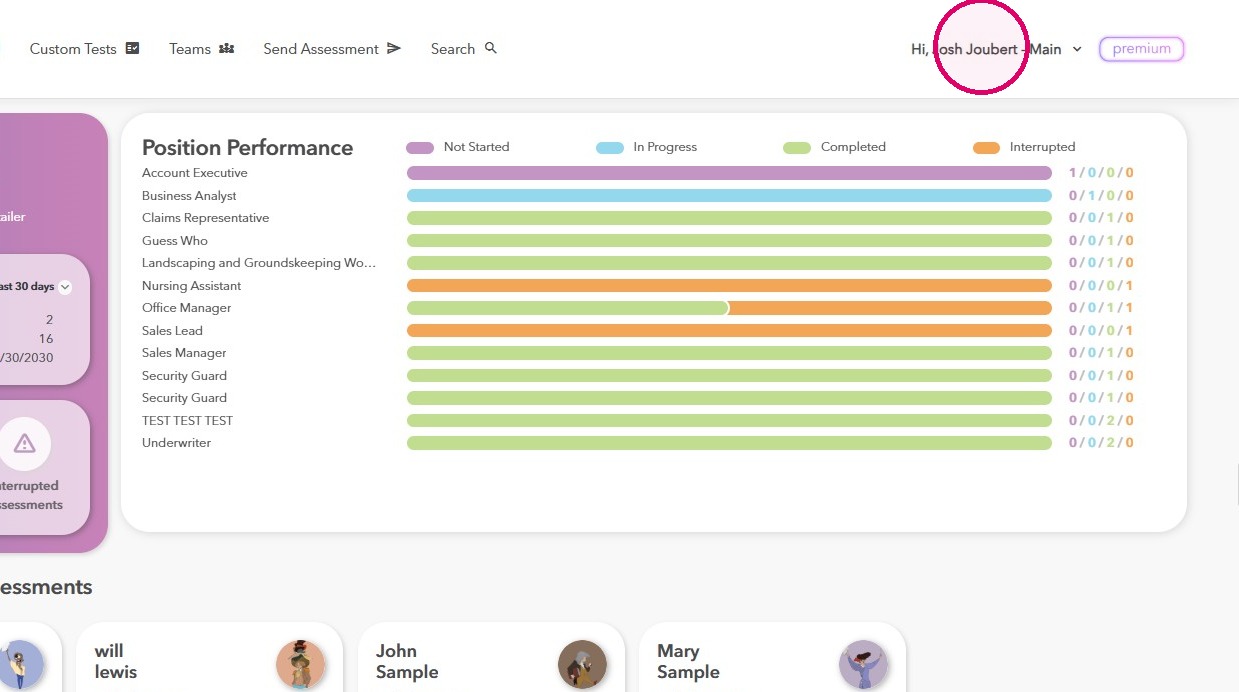
6. To manage your tags, click your name to open the Account Menu.
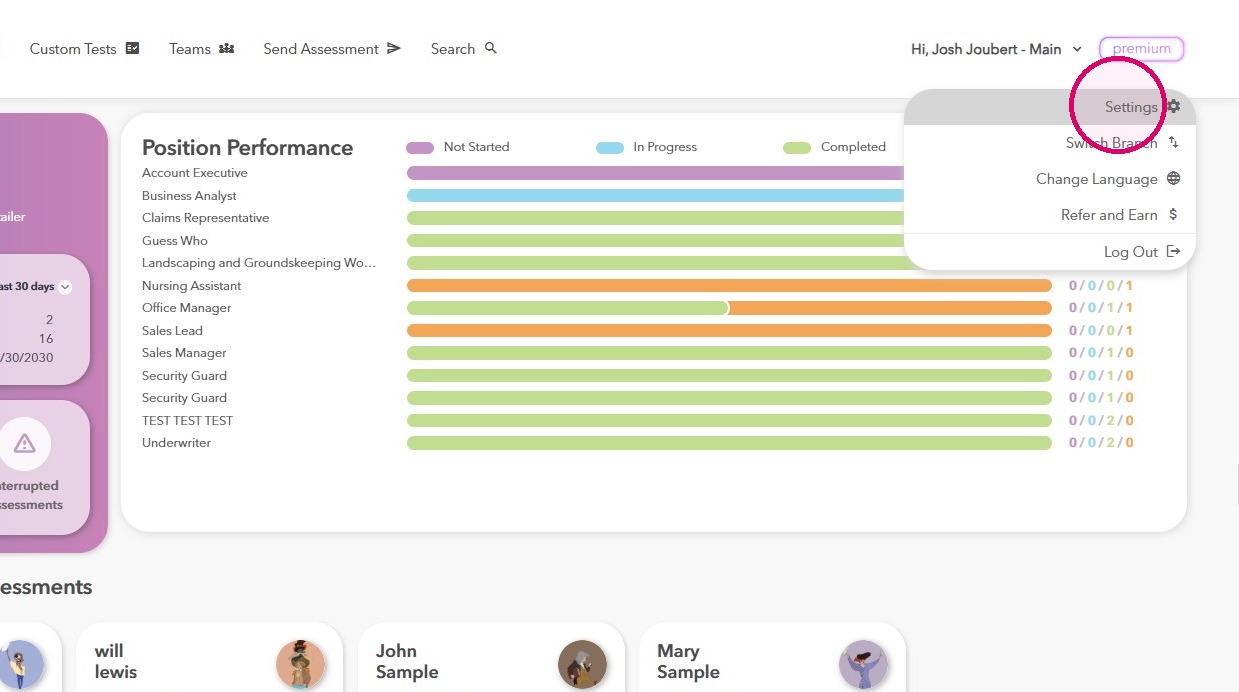
7. Click Settings.
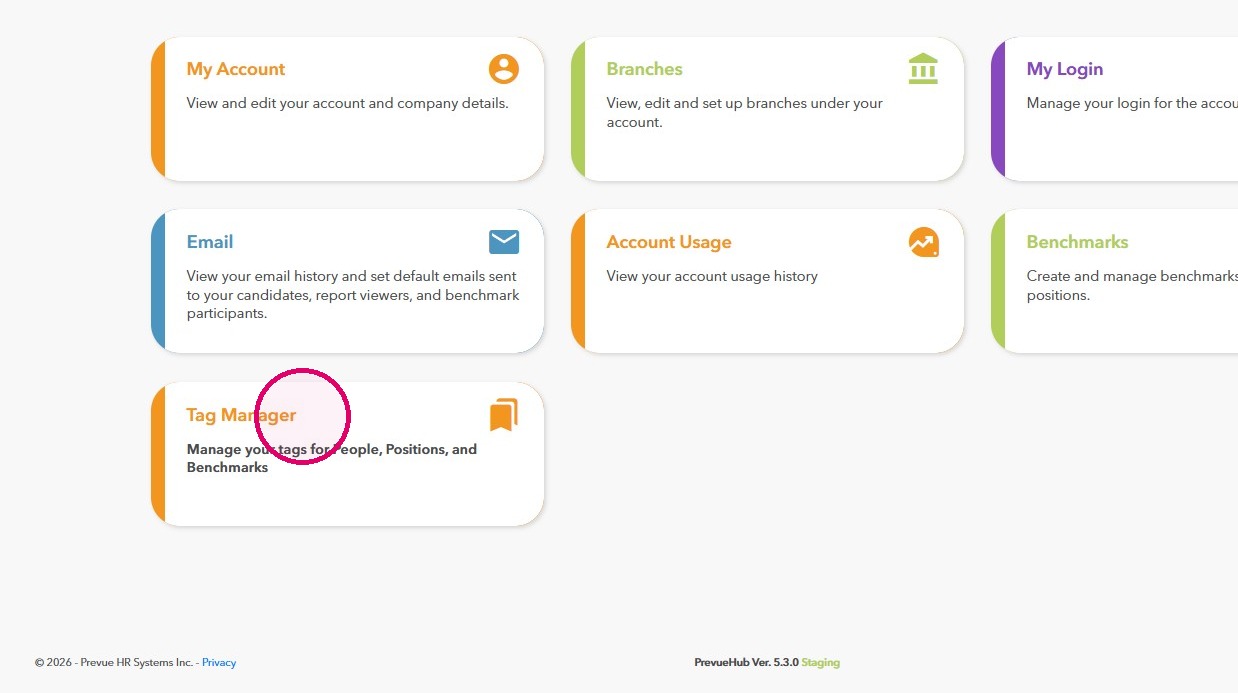
8. Click Tag Manager.
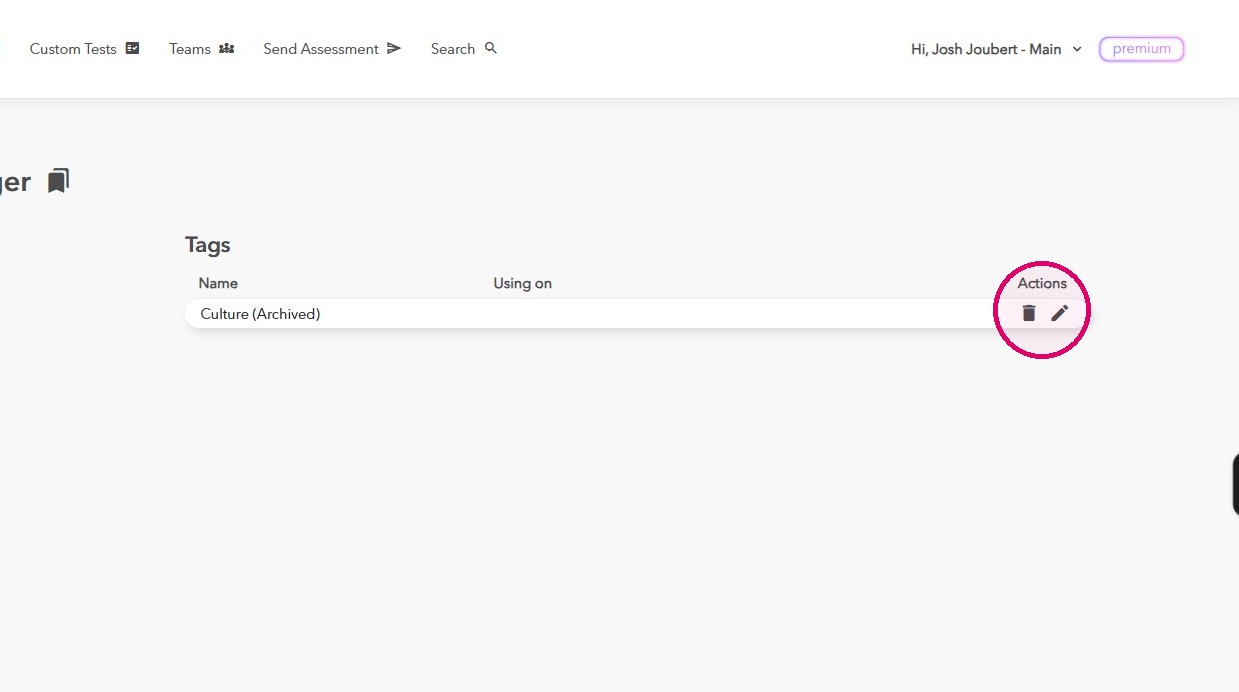
9. Here you will see all your existing tags. You can either delete the tag or edit it using the icons in the Action column.