![support.png]](https://help.prevuehr.com/hs-fs/hubfs/support.png?height=40&name=support.png)
You can generate a report in PrevueHub from three places in the main menu: Positions, Search, or People.
- Positions: The quickest way to get a candidate’s results. Open a position to see its candidate list, then click a score to download that assessment report as a PDF.
- Search: Best when you already know who you’re looking for. Use the Search bar in the main menu to find a specific person and generate their report directly.
- People: Use when you need more report options. Find the right person or group using filters, then choose from the full range of available report types.
Click a method below to jump to its steps:
1. Generate a report from Positions
2. Generate a report from Search
3. Generate a report from People
Generate a report from Positions
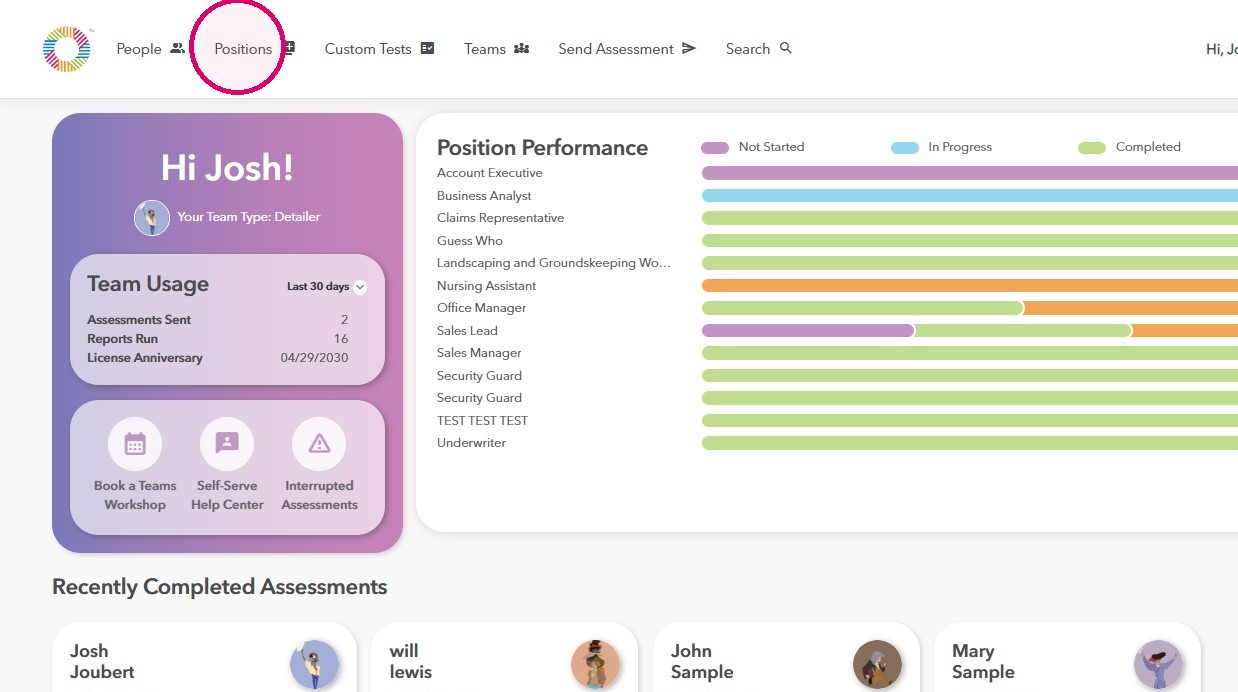
1. Click Positions.
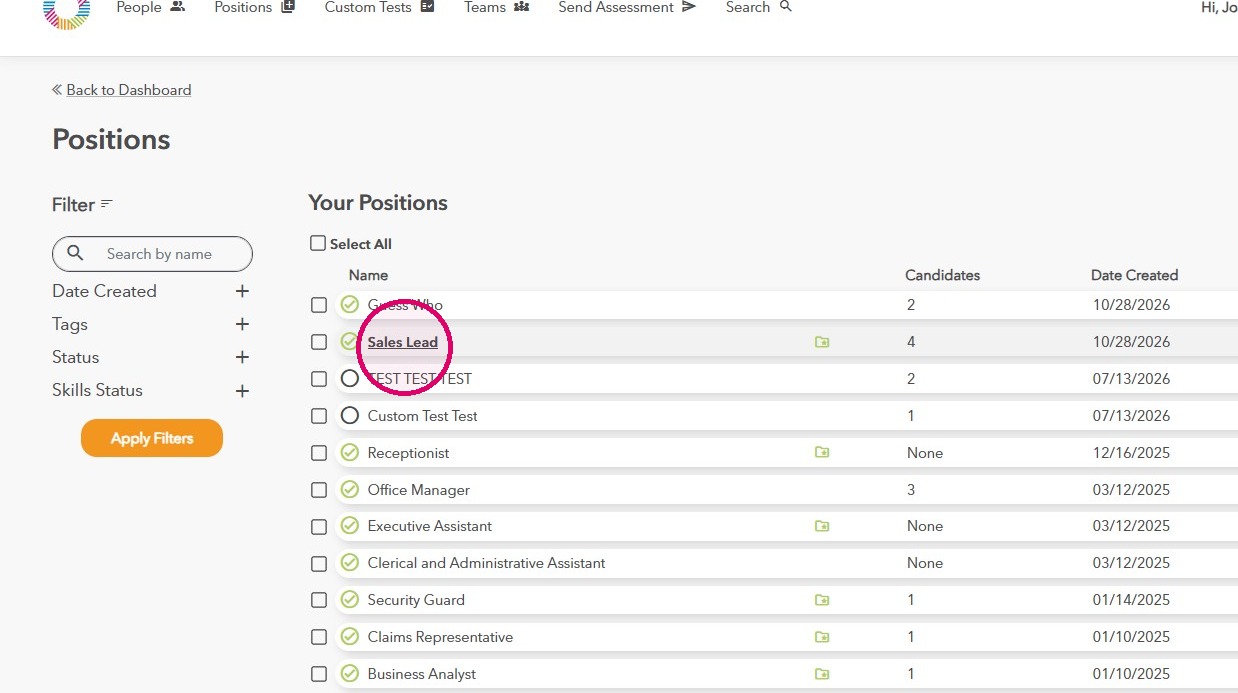
2. Click on the appropriate position.
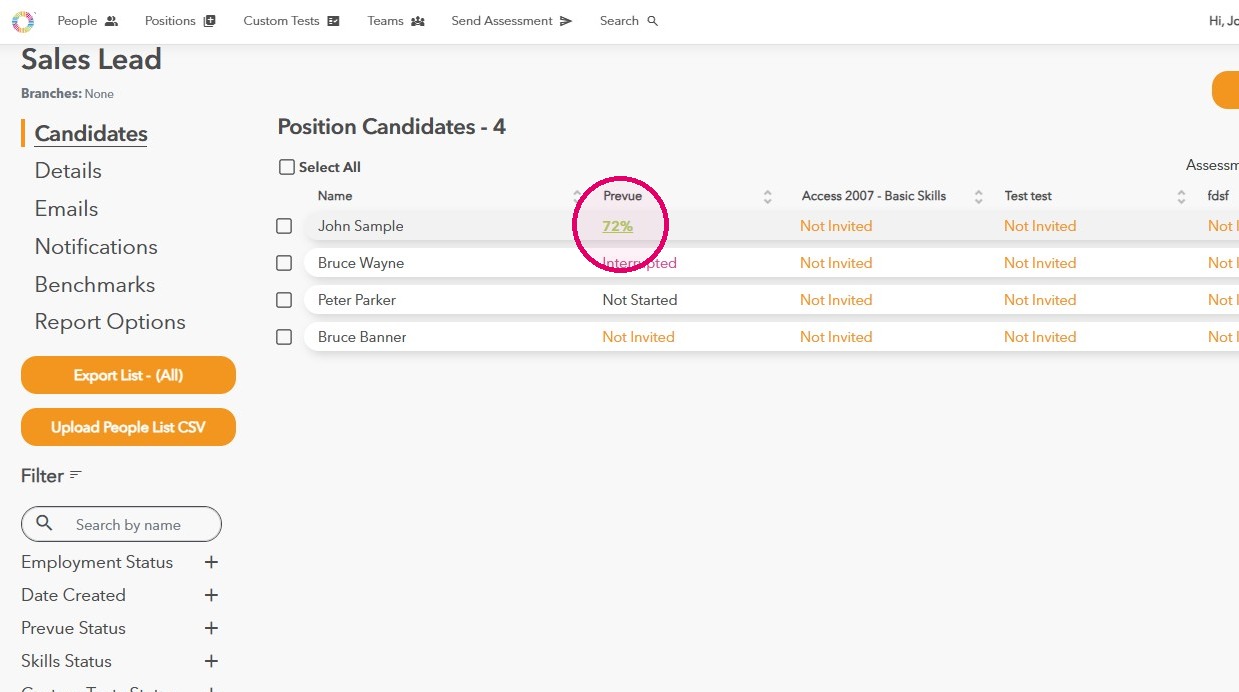
3. Click on the green percentage in the Prevue column.
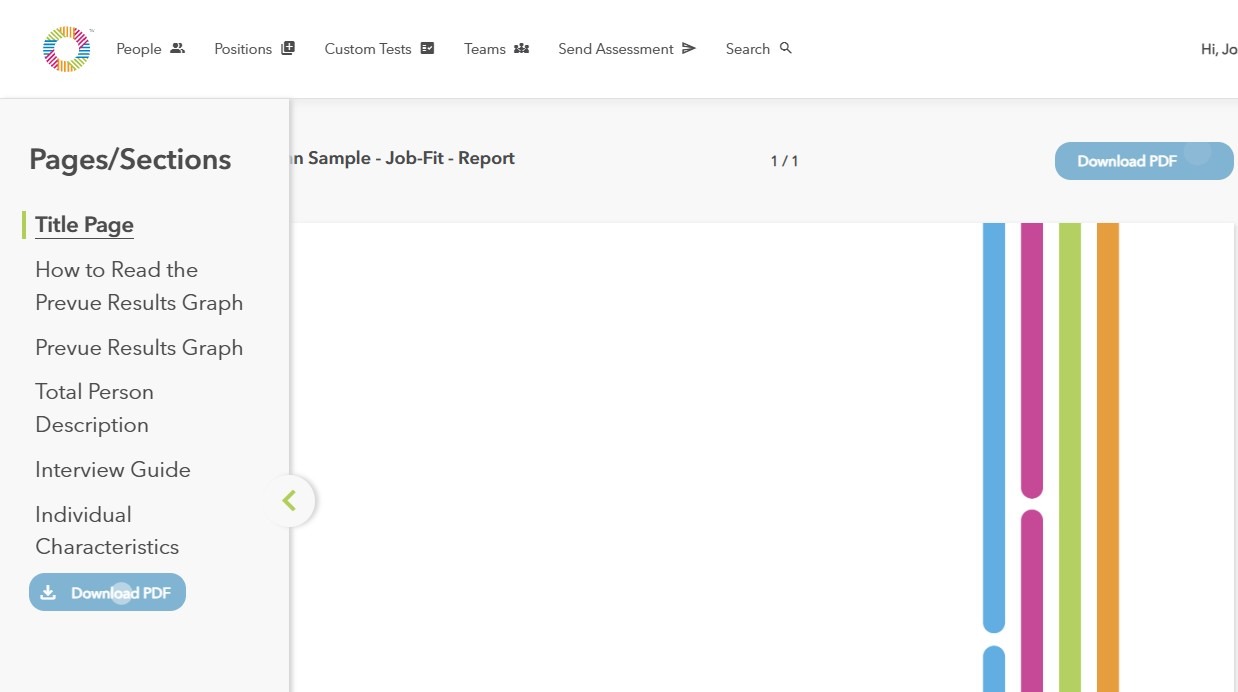
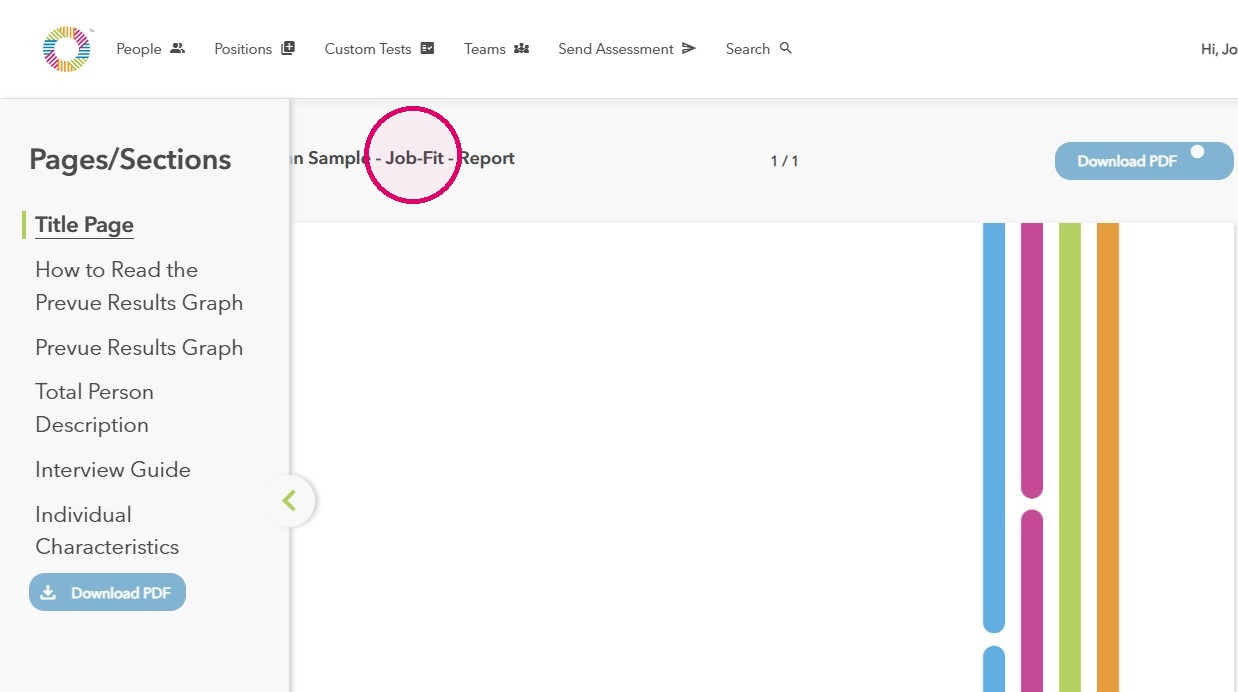
4. The Job-Fit report will open in a new tab.
Generate a report using Search
Find a person
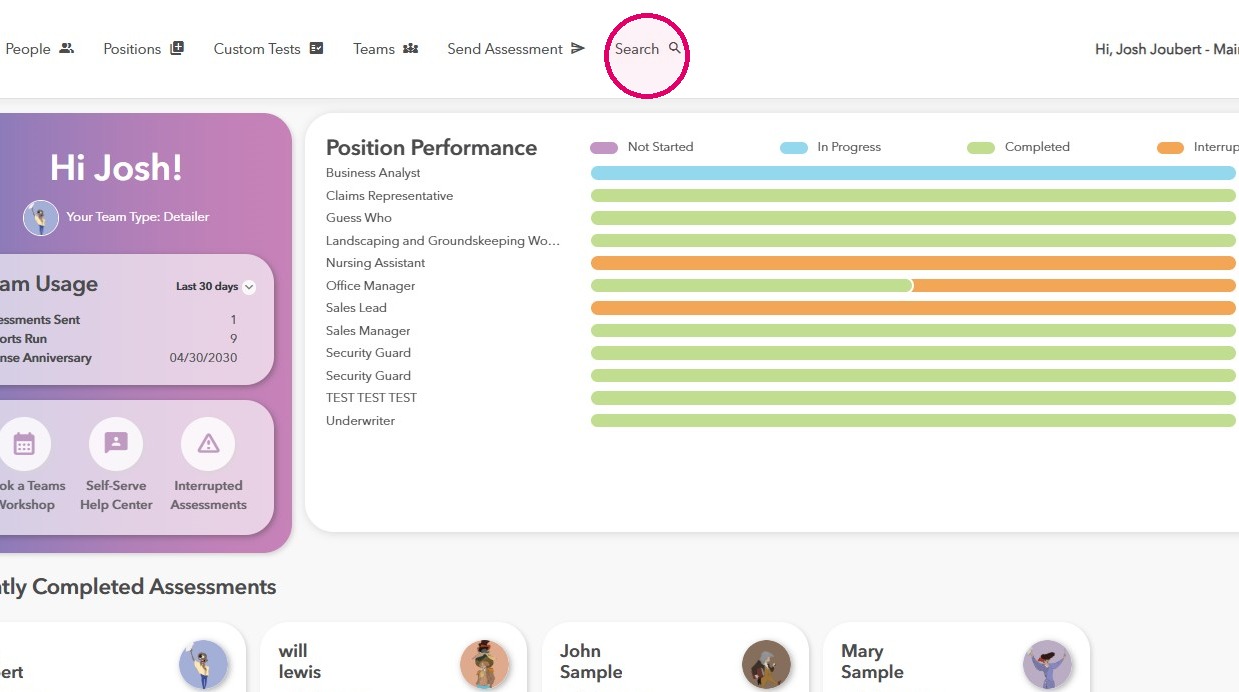
1. Click Search.
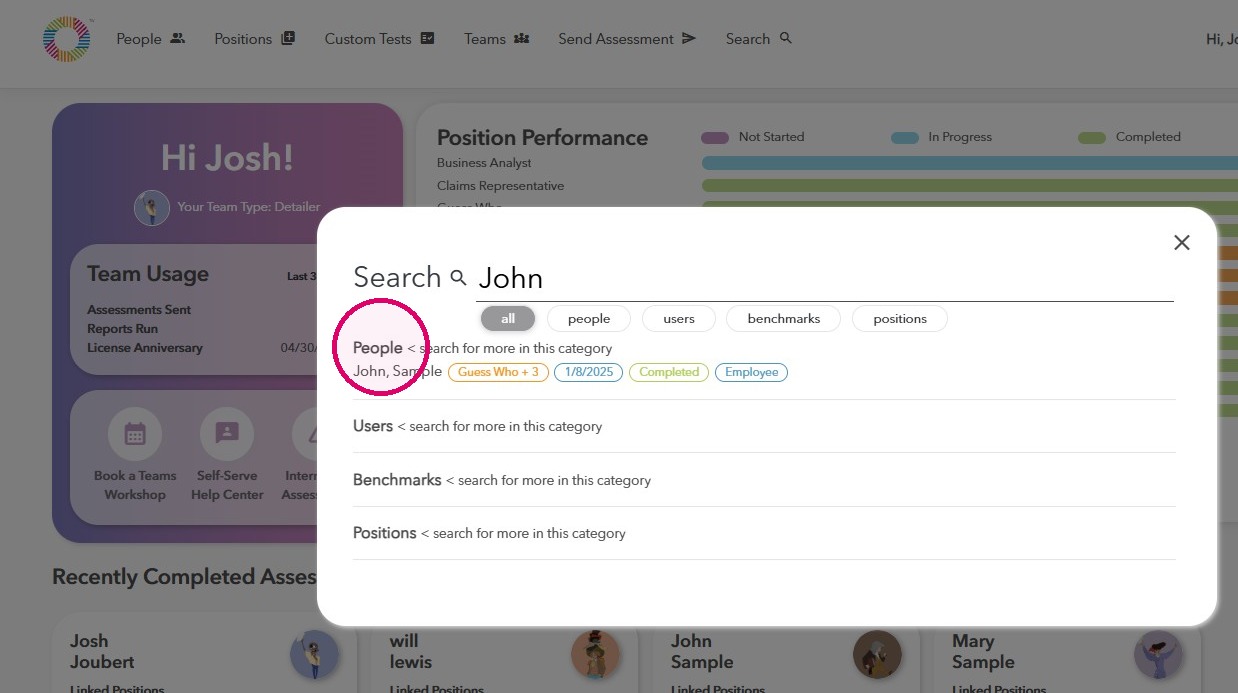
2. Type in the Candidate's name and select their profile in the People section.
Open person report
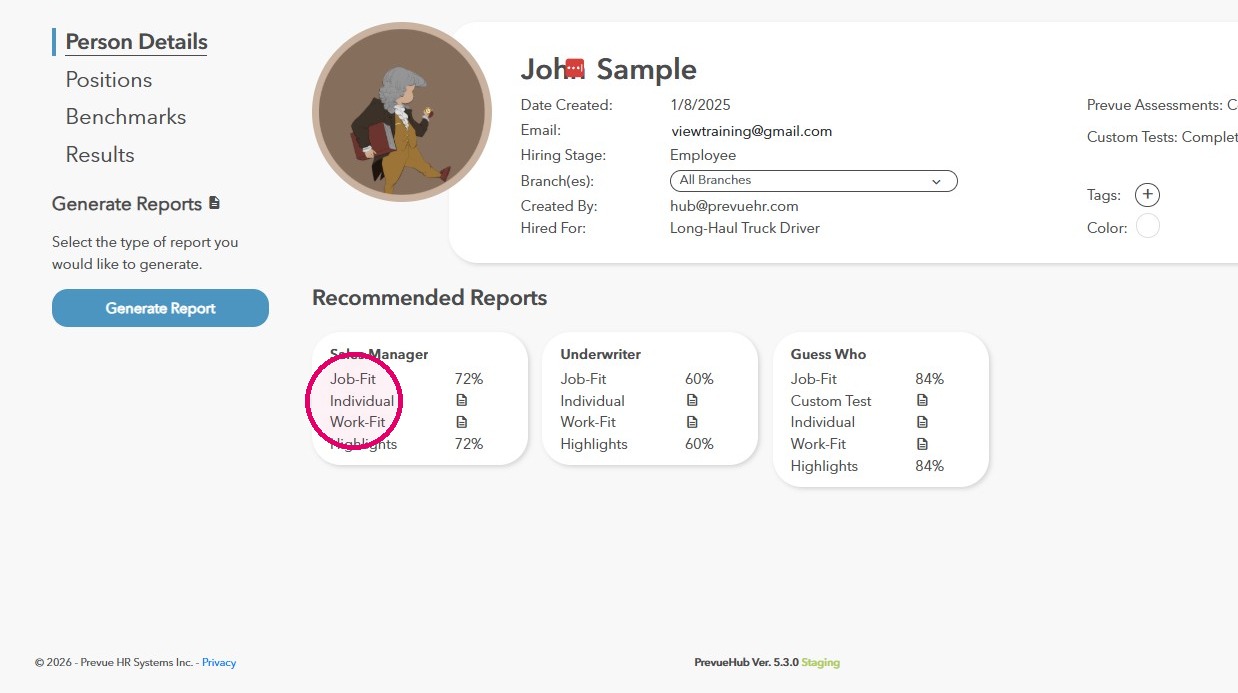
3. To generate a report, click on any one of the Recommended Reports.
Configure report
4. To generate a report that doesn't appear under the Recommended Reports section, click Generate Report.
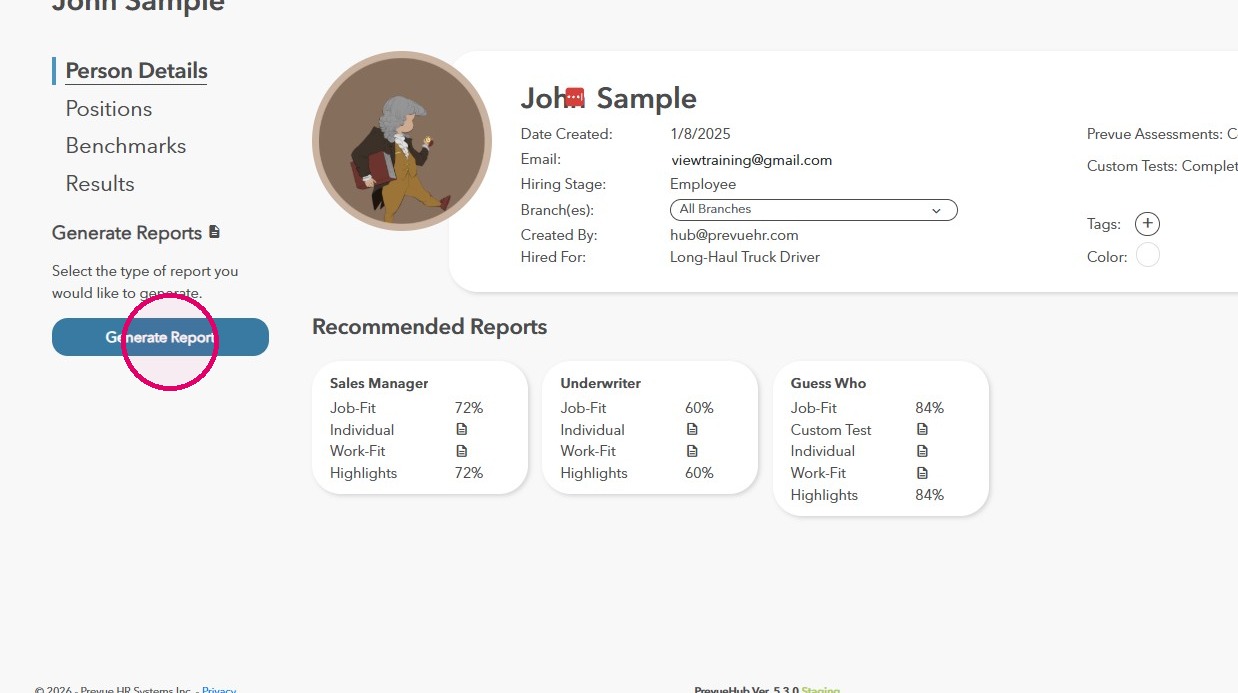
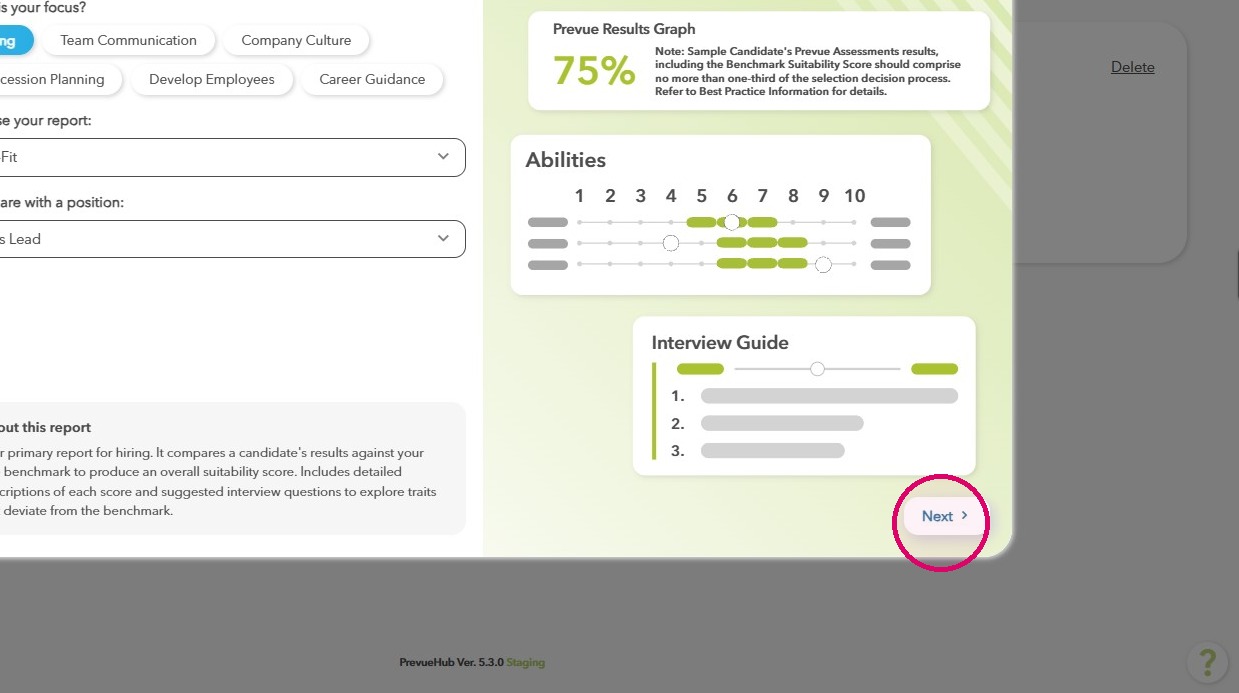
5. Select the focus of the report you'd like to generate.
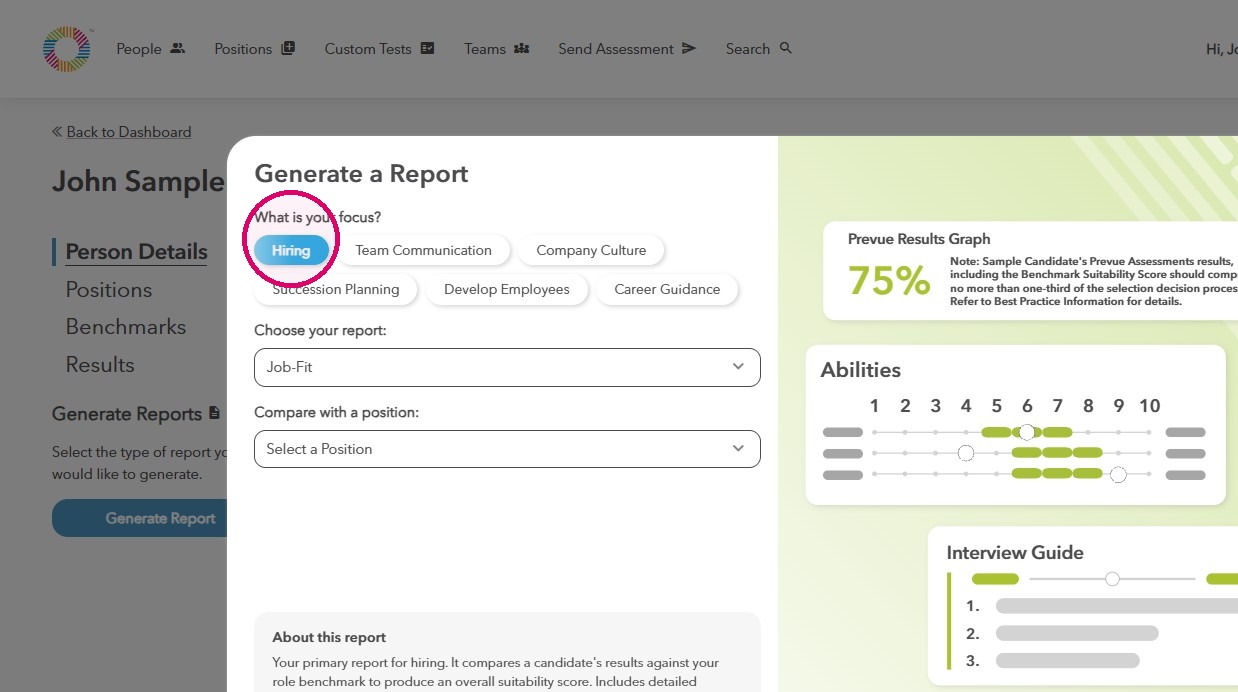
6. Choose the report you want to generate by clicking the dropdown.
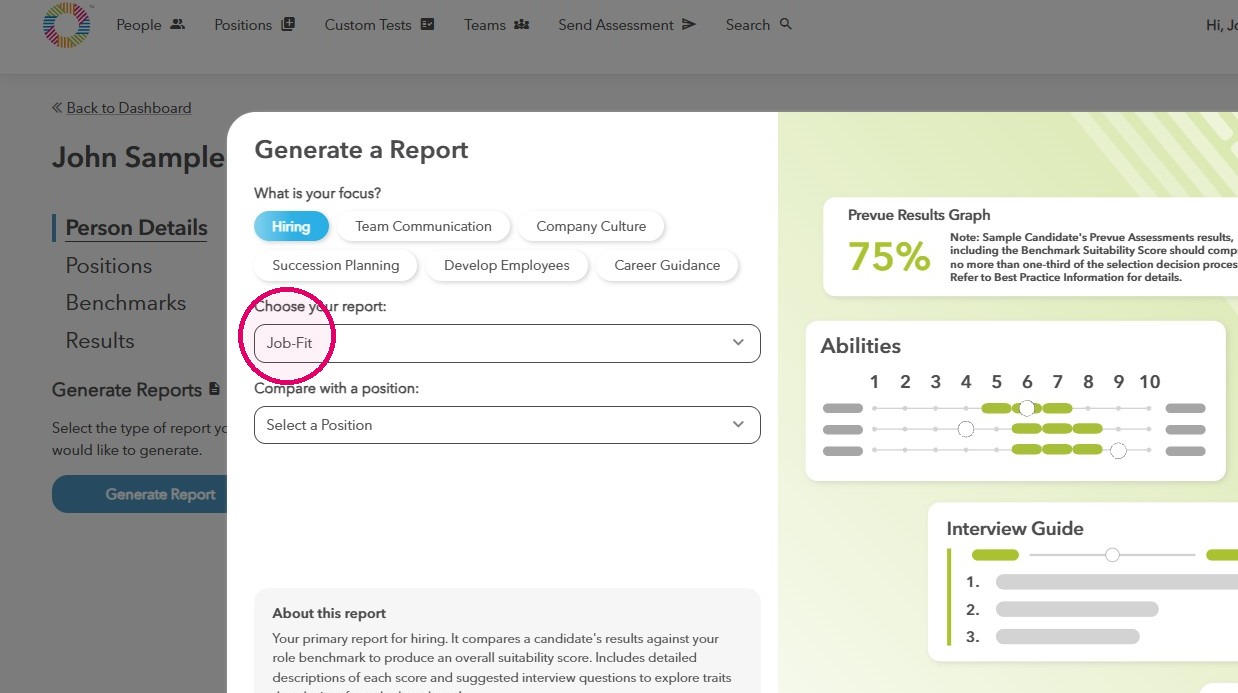
7. Choose the position for this report.
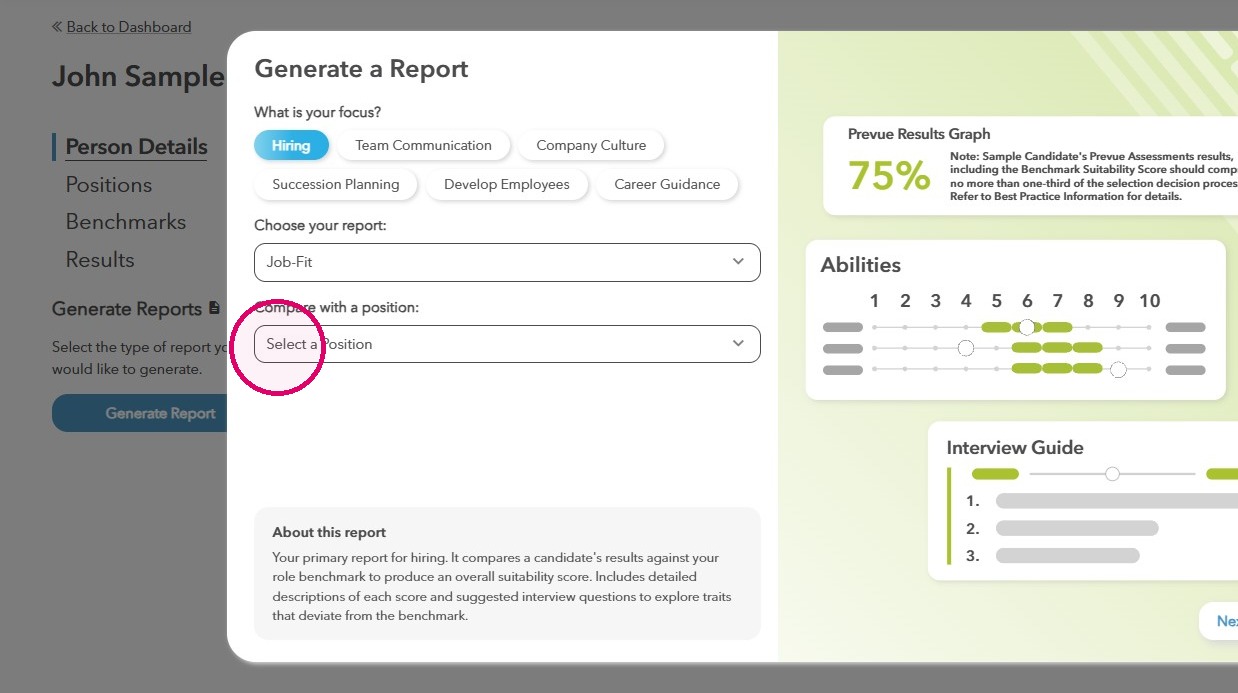
8. Click Next.
9. Select the assessment areas to include in the report (we recommend using the default selection).
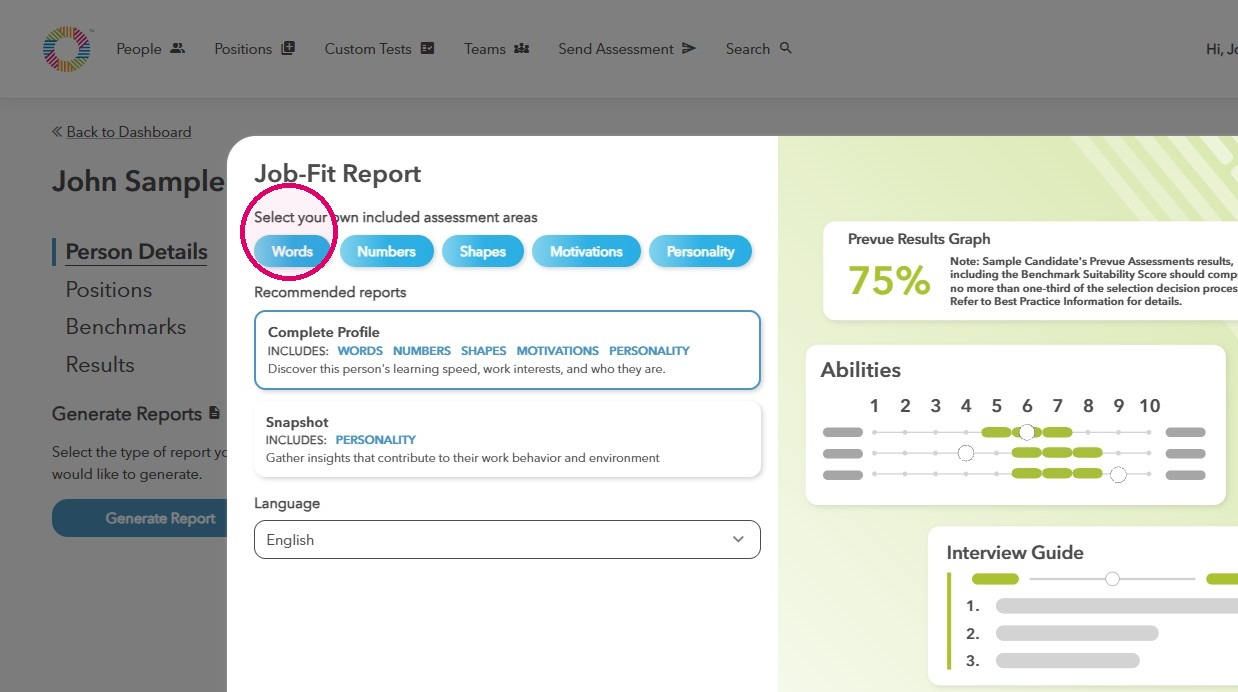
10. Click Generate report.
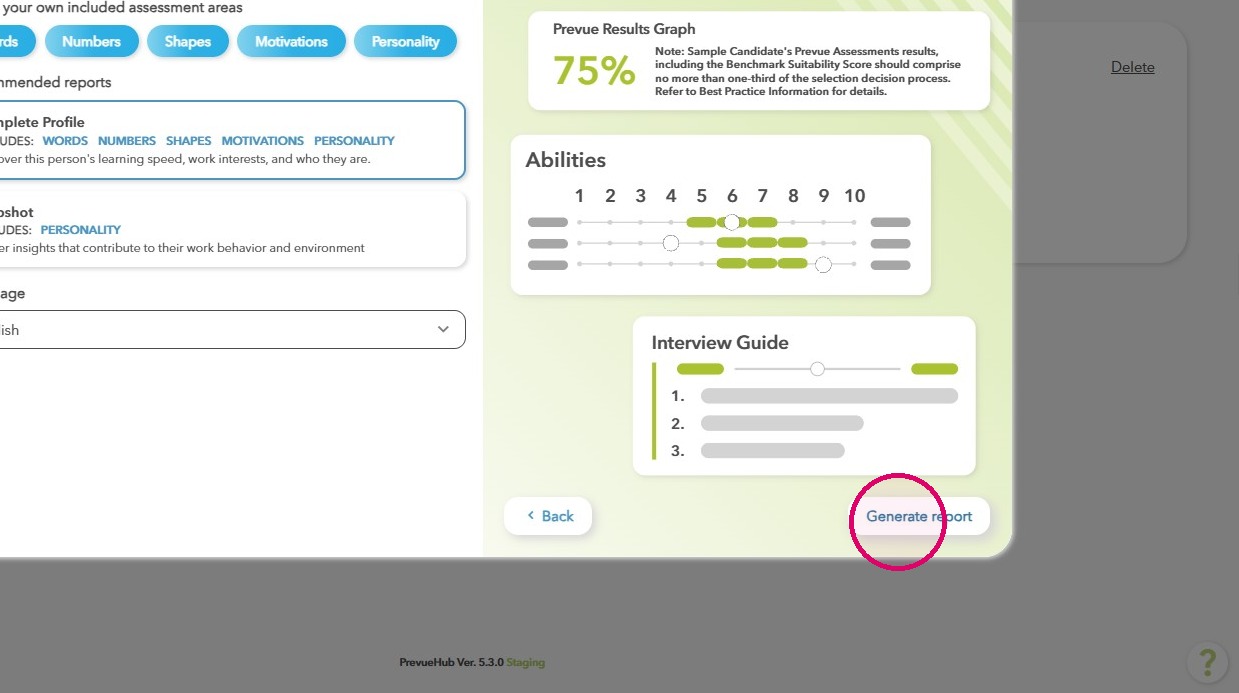
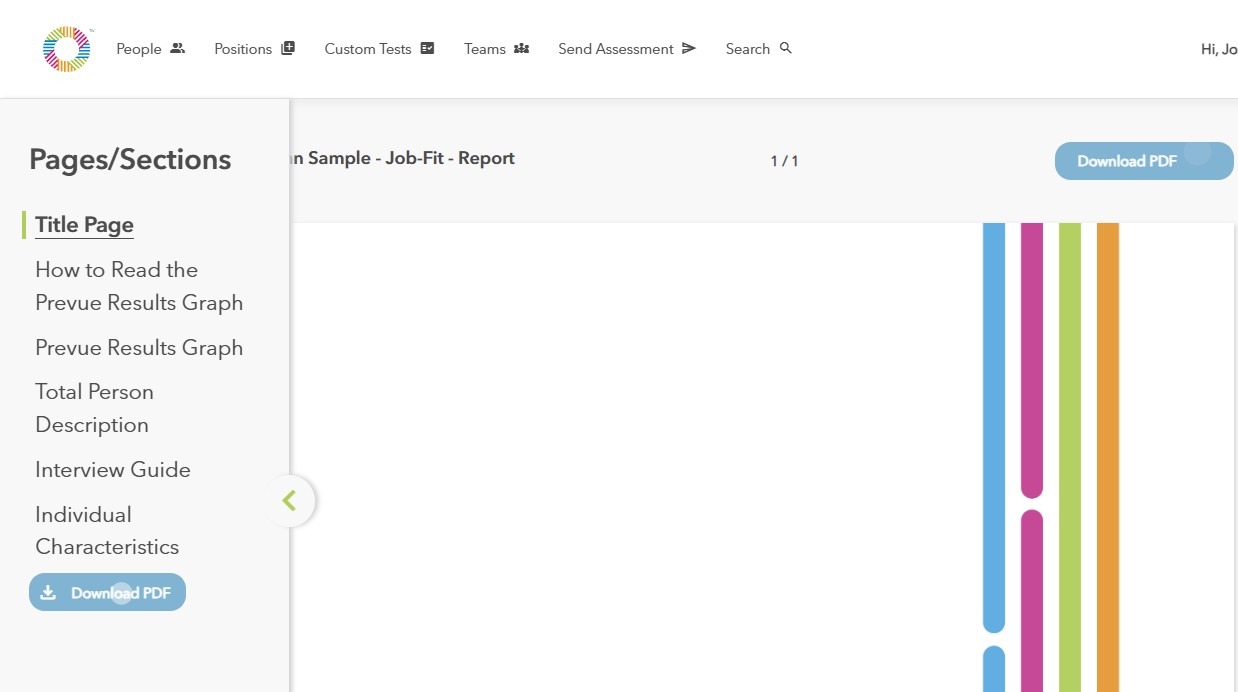
11. The report will open in a new tab.
Generate a report using People
Find a person
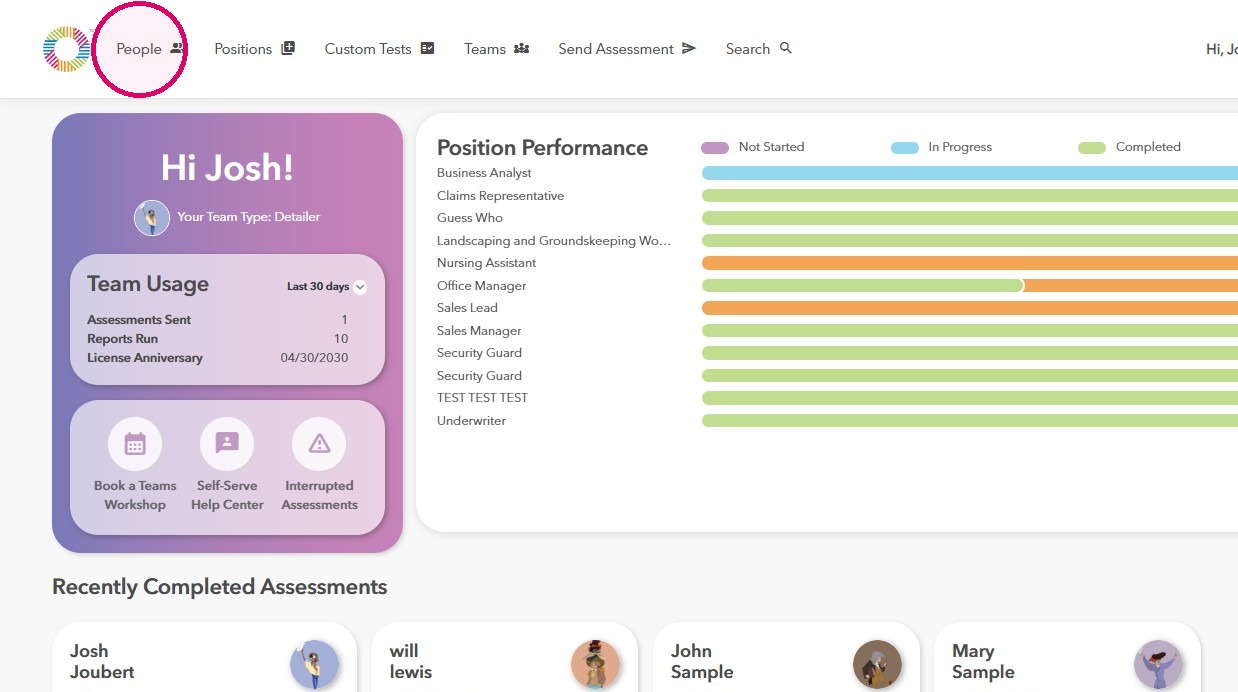
1. Click People.
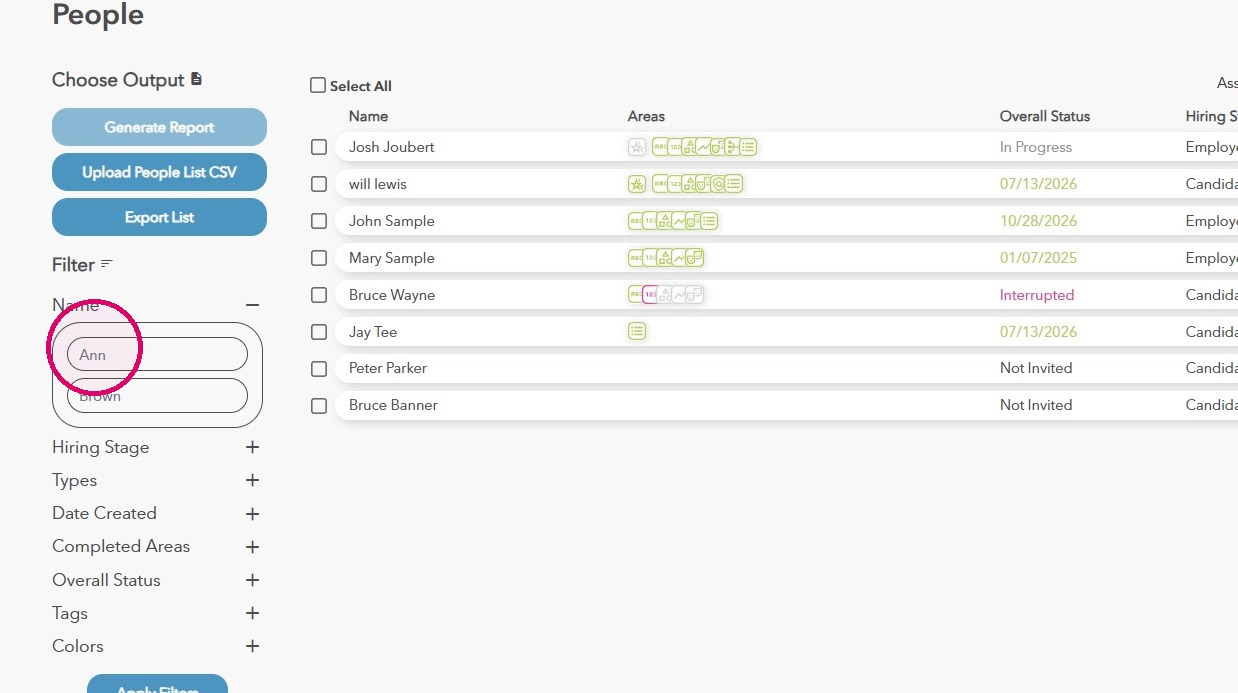
2. Enter the candidate's first or last name.
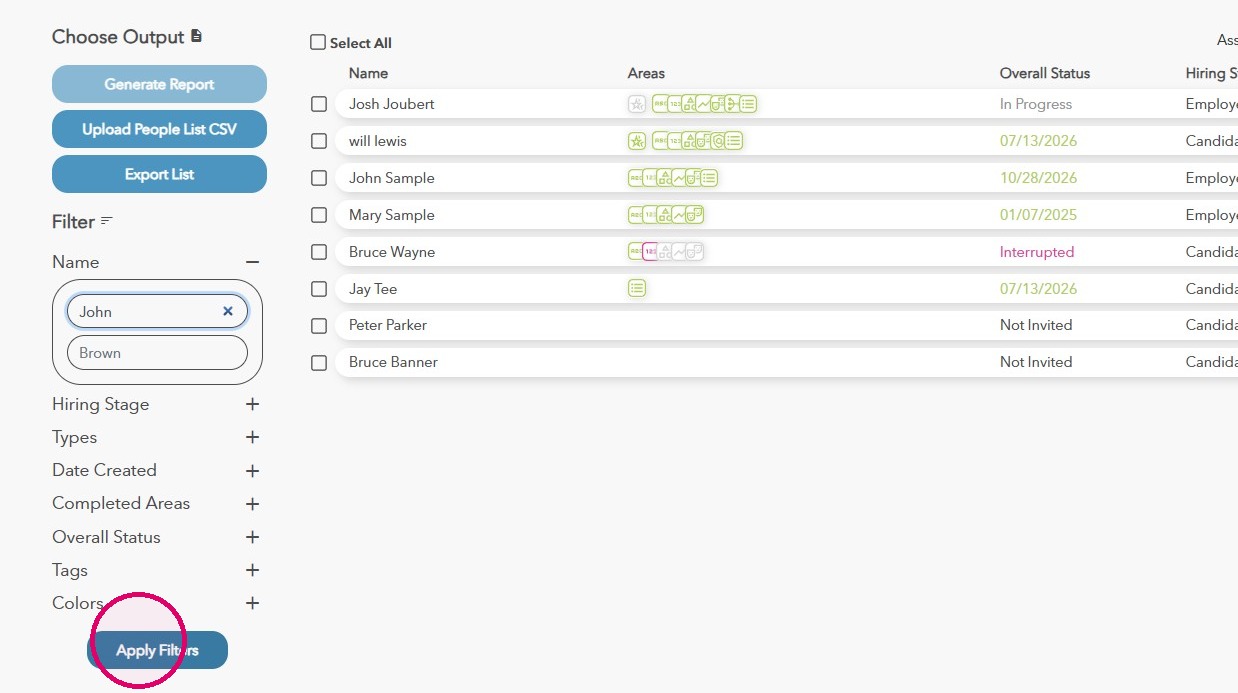
3. Click Apply Filters.
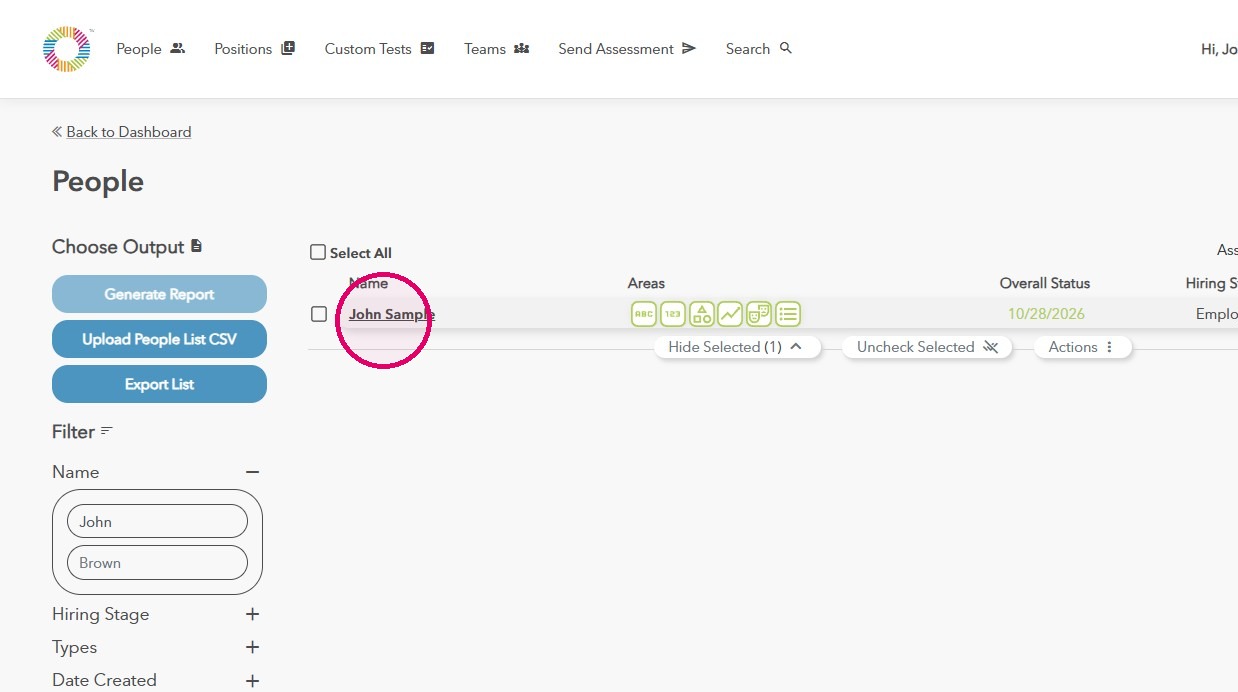
4. Click on the candidate's name.
Open person report
5. To generate a report, click on any one of the Recommended Reports.
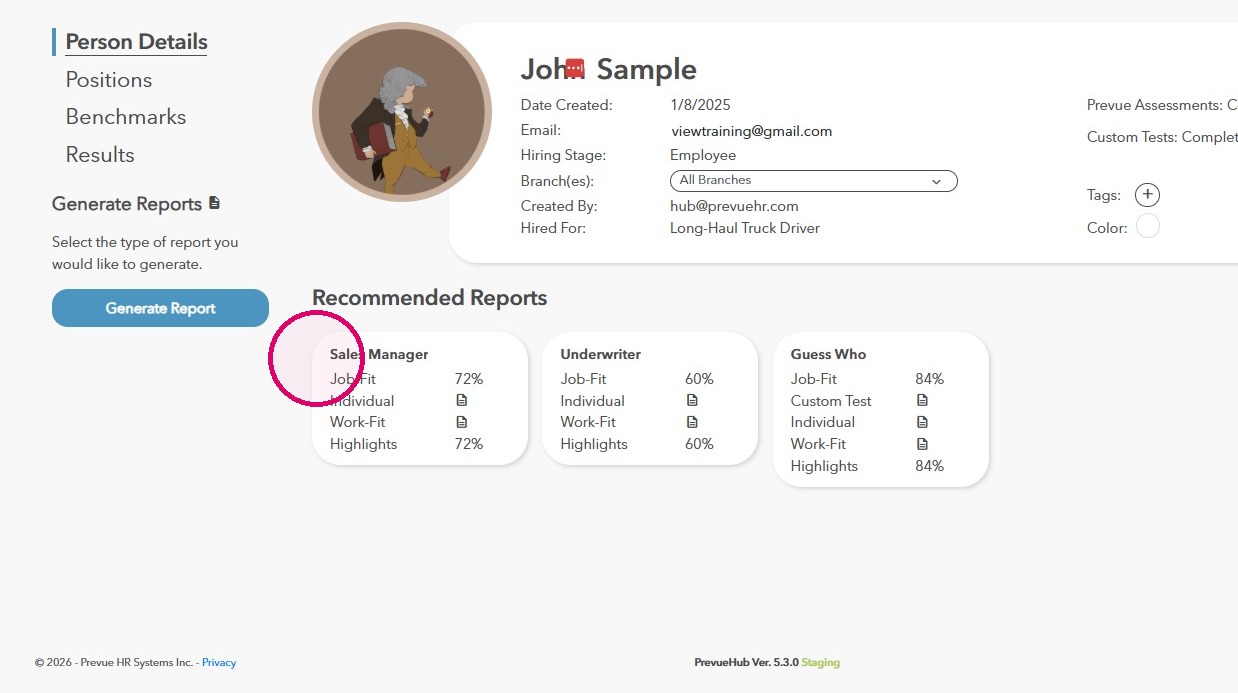
Configure report
6. To generate a report that doesn't appear under the Recommended Reports section, click Generate Report.
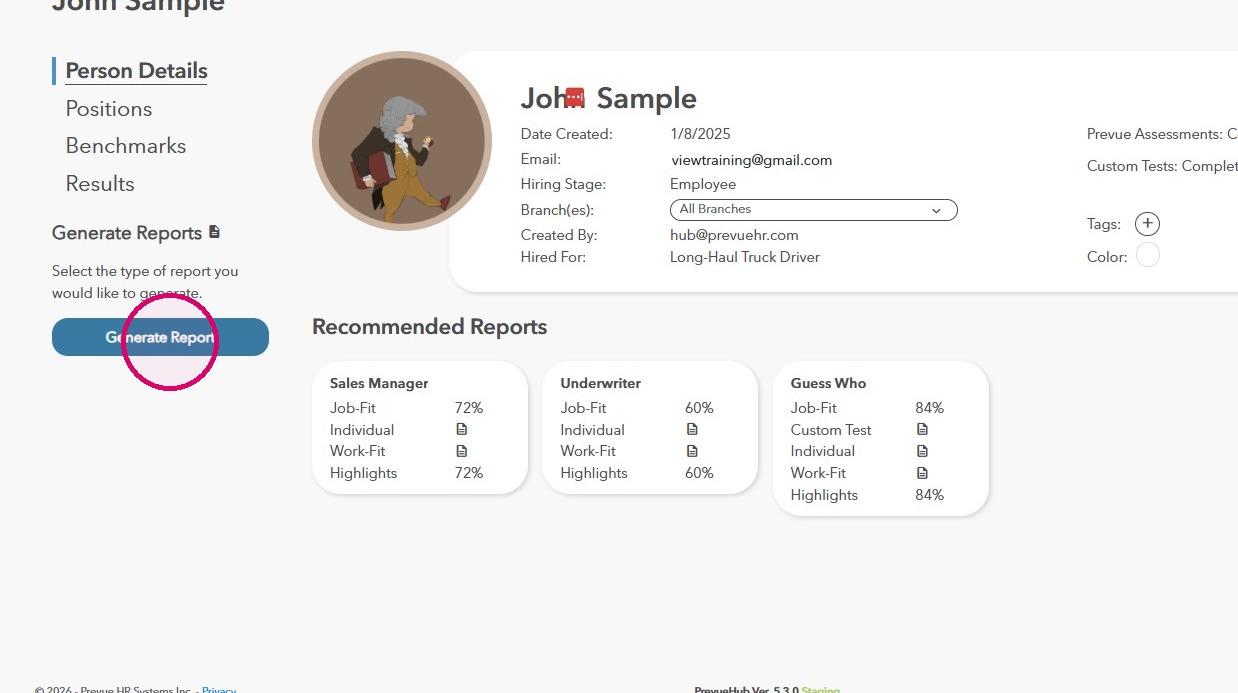
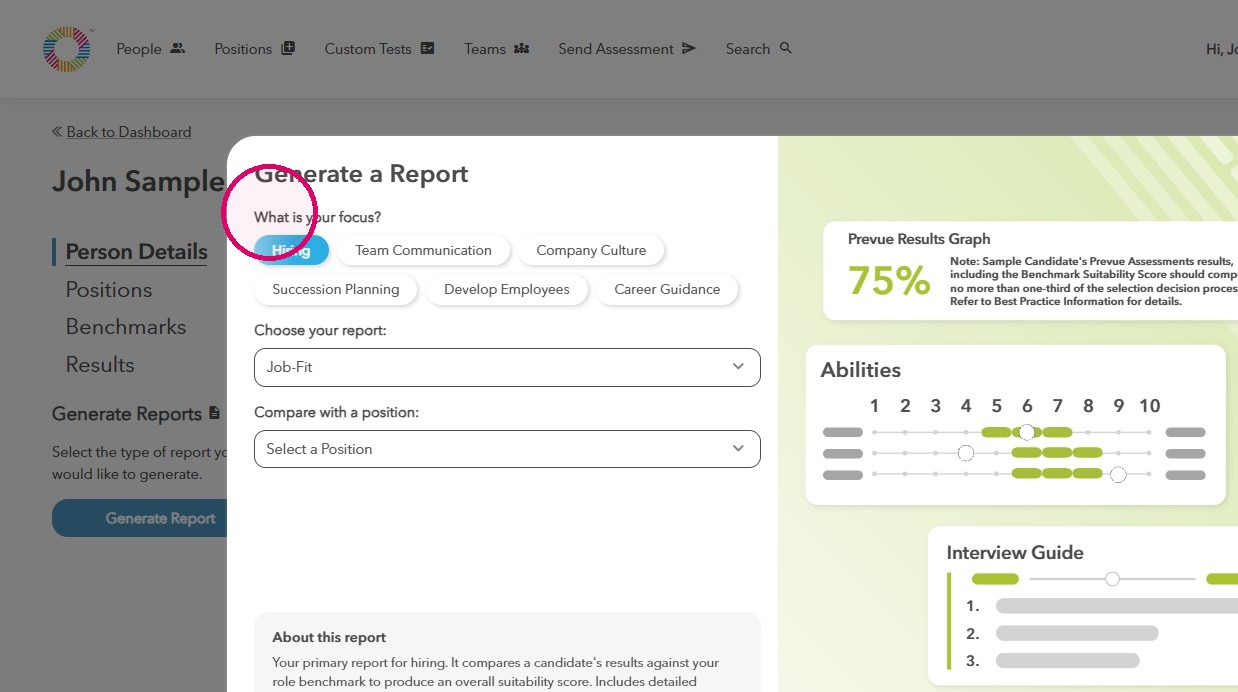
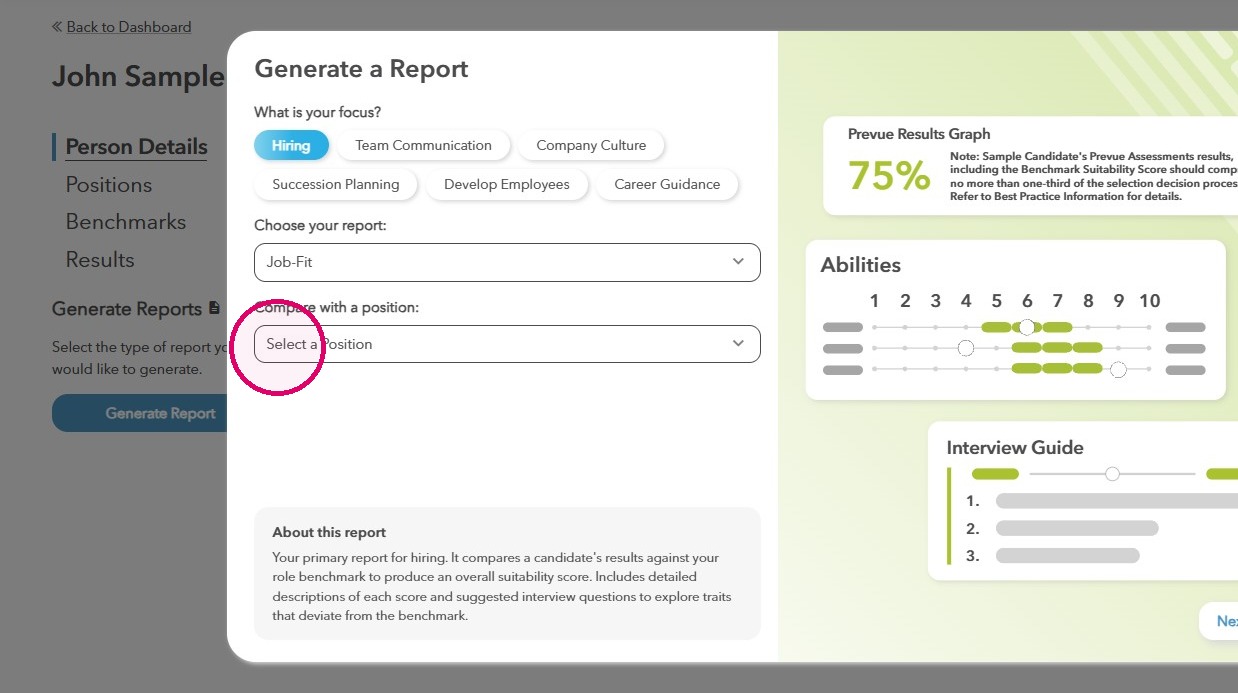
7. Select the focus of the report you'd like to generate.
8. Choose the report you want to generate by clicking the dropdown.
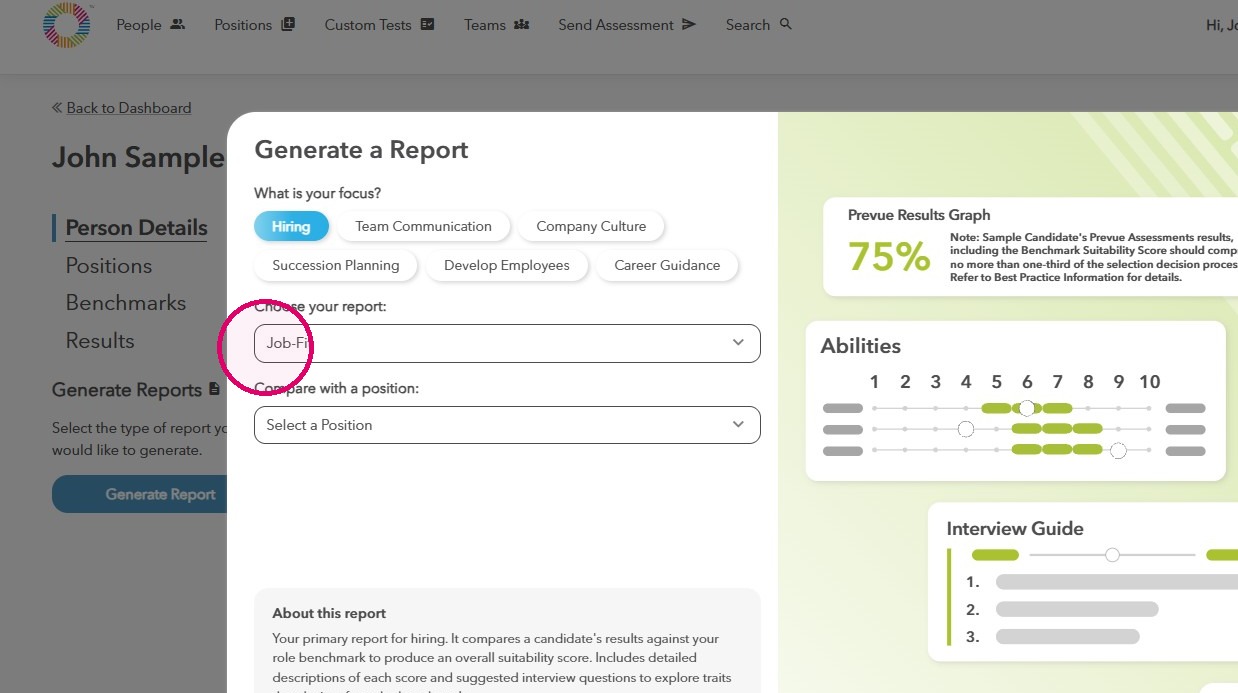
9. Choose the position for this report.
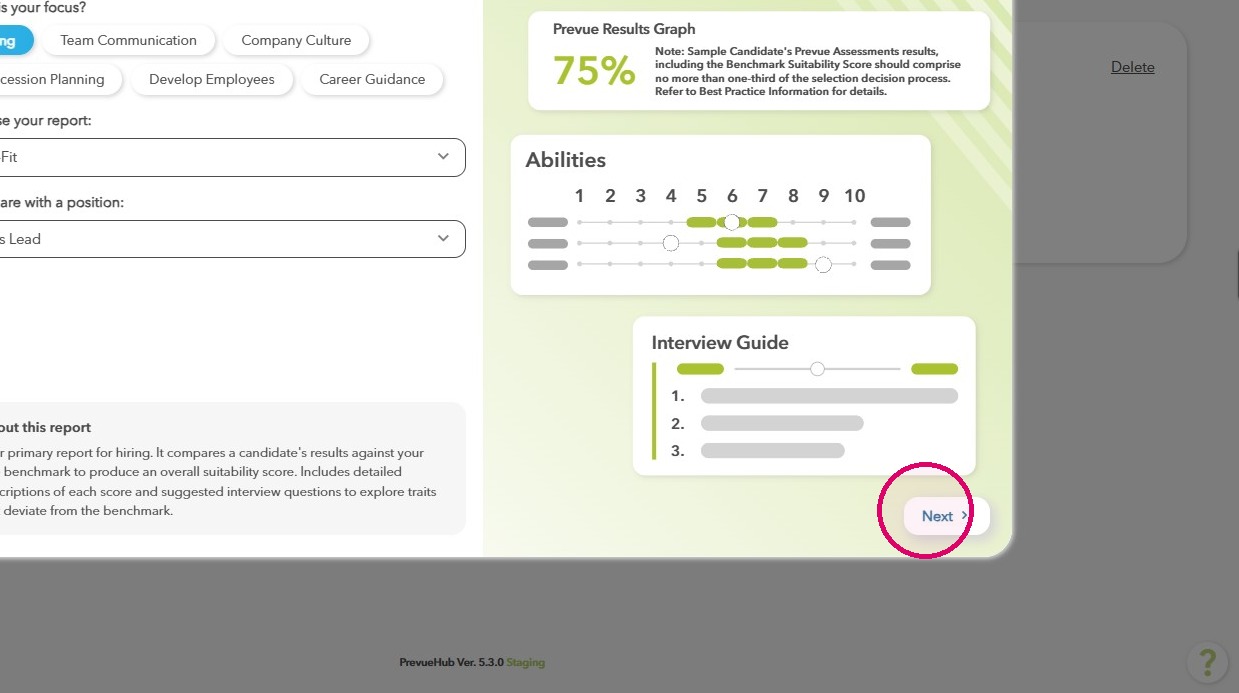
10. Click Next.
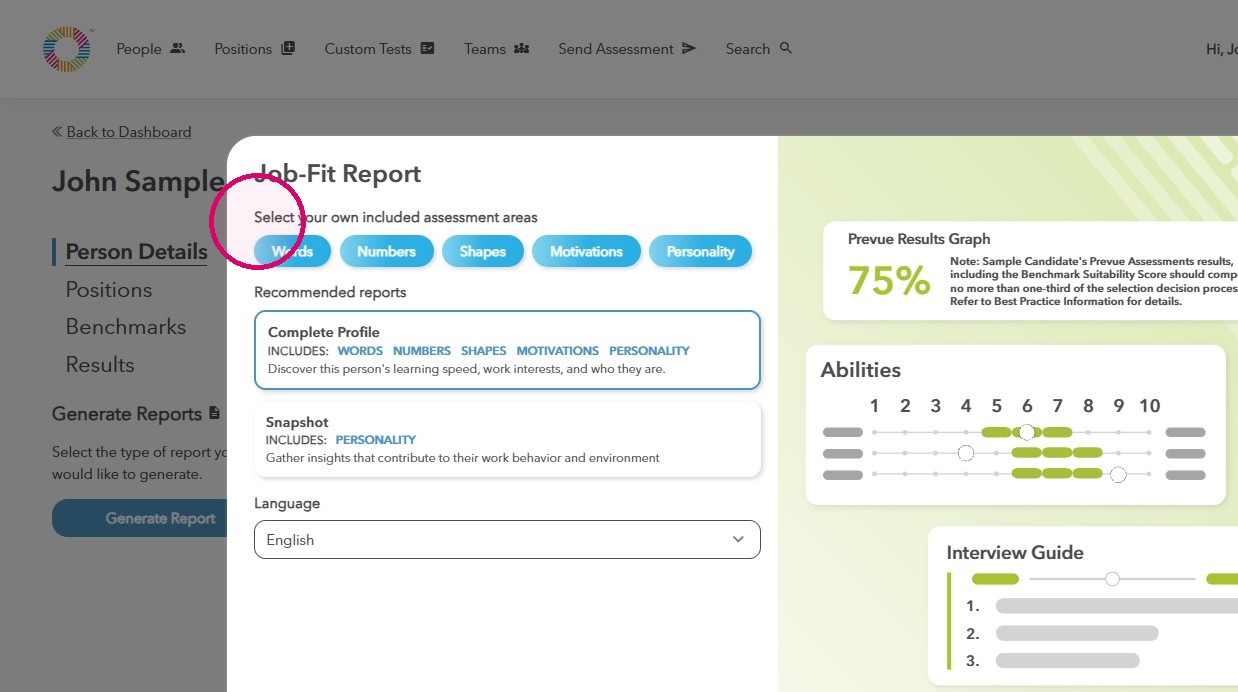
11. Select the assessment areas to include in the report (we recommend using the default selection).
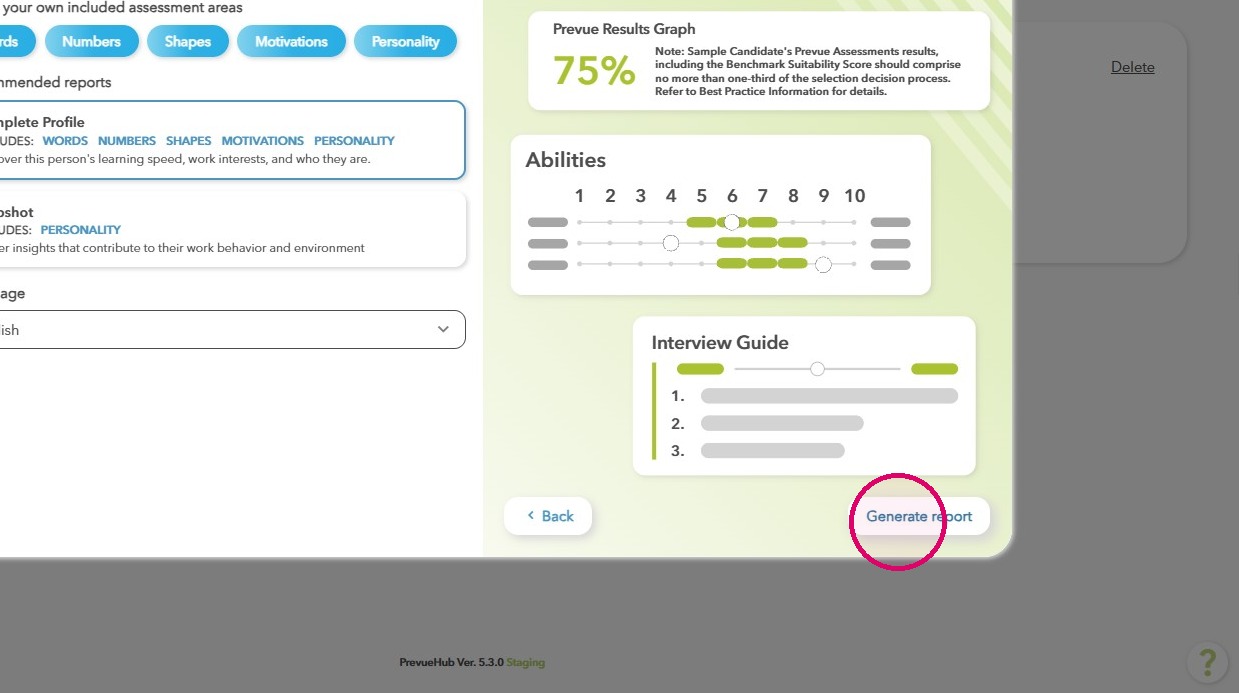
12. Click Generate report.
13. Your report will open in a new tab.