![support.png]](https://help.prevuehr.com/hs-fs/hubfs/support.png?height=40&name=support.png)
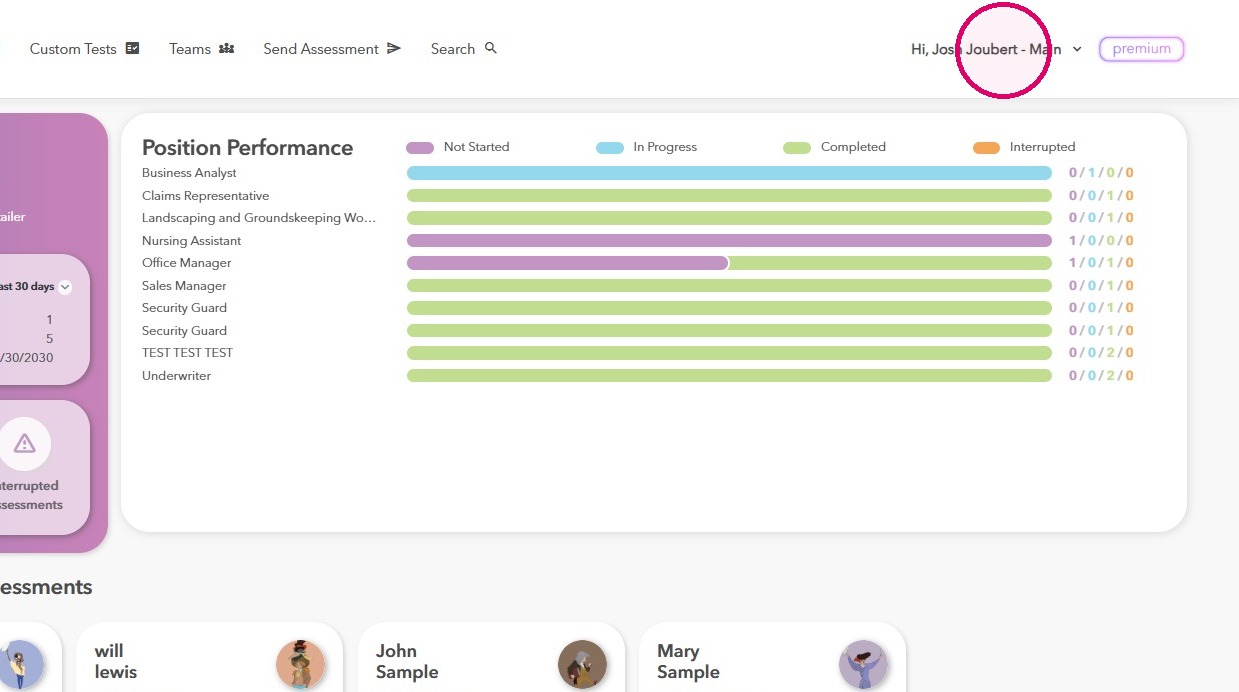
1. Open the Account Menu by clicking on your name.
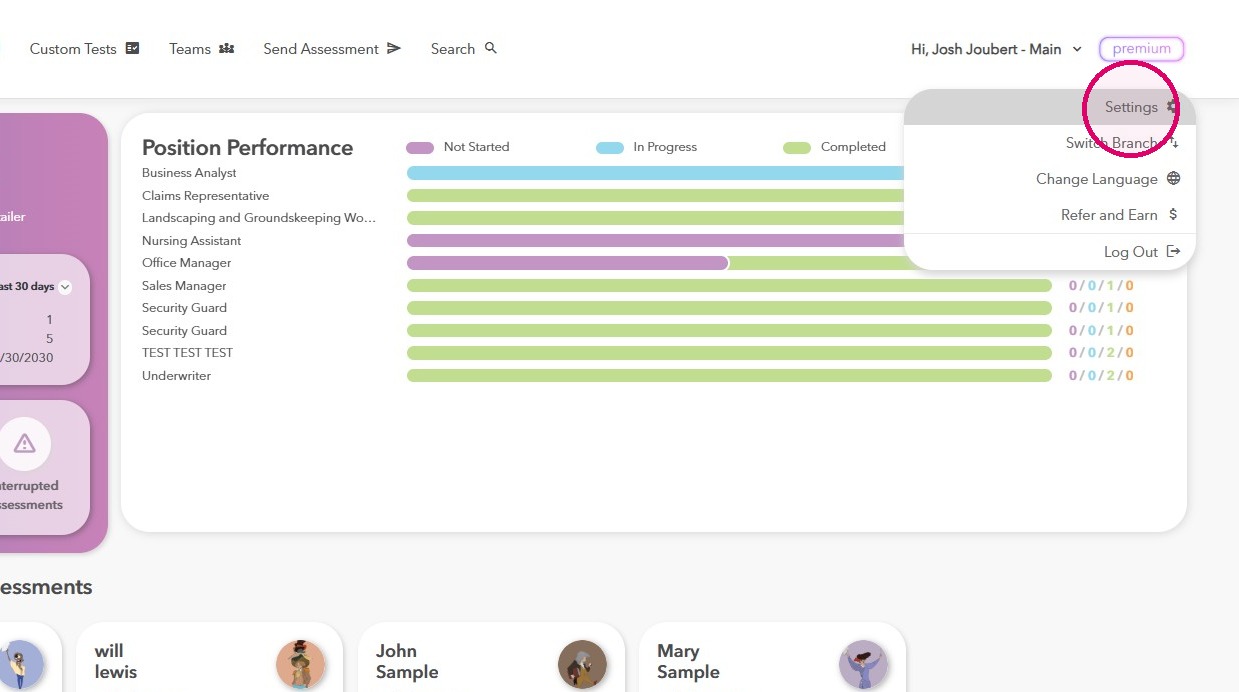
2. Click Settings.
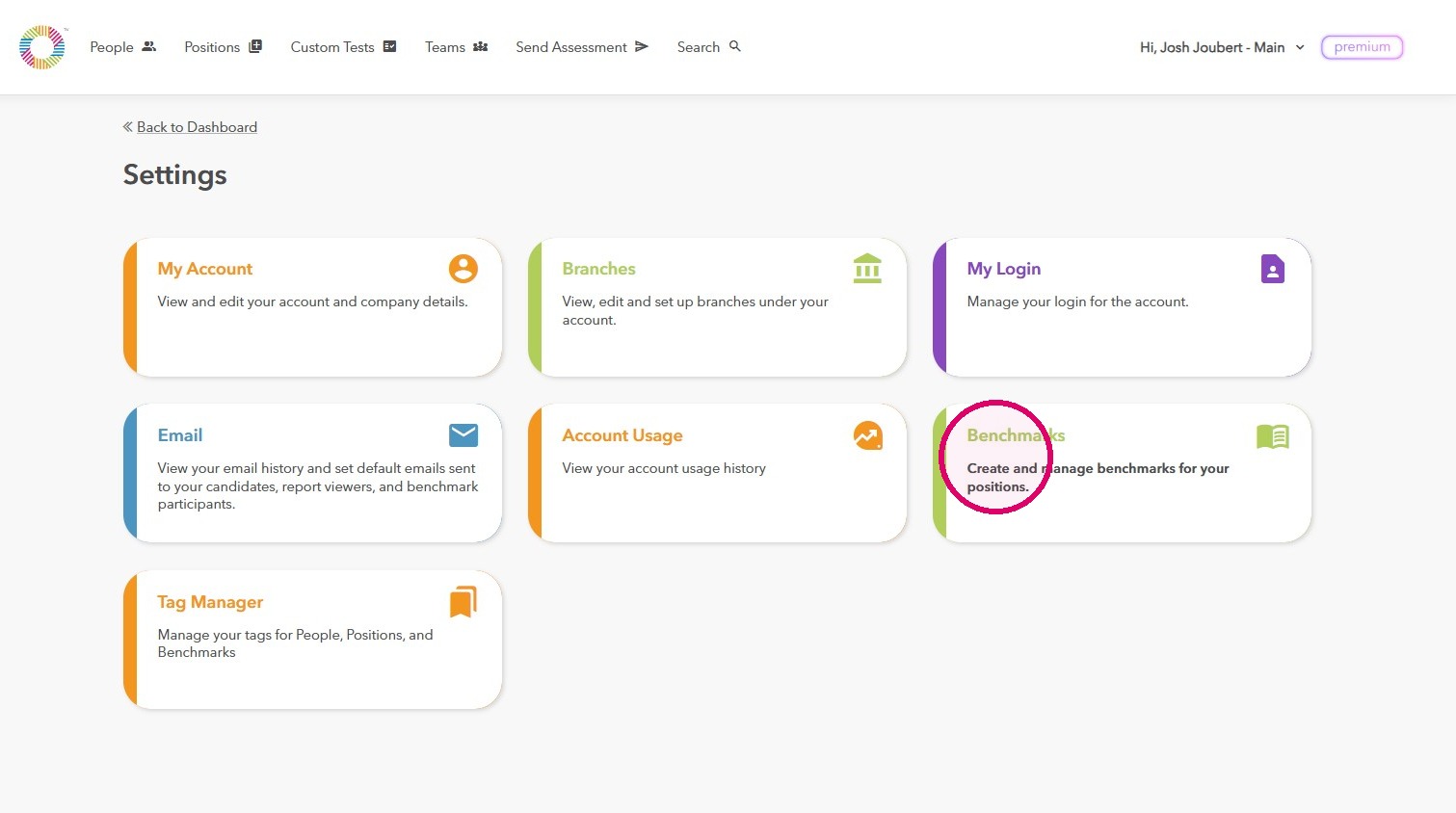
Settings navigation
3. Click Benchmarks.
4. Click Add New Benchmark.
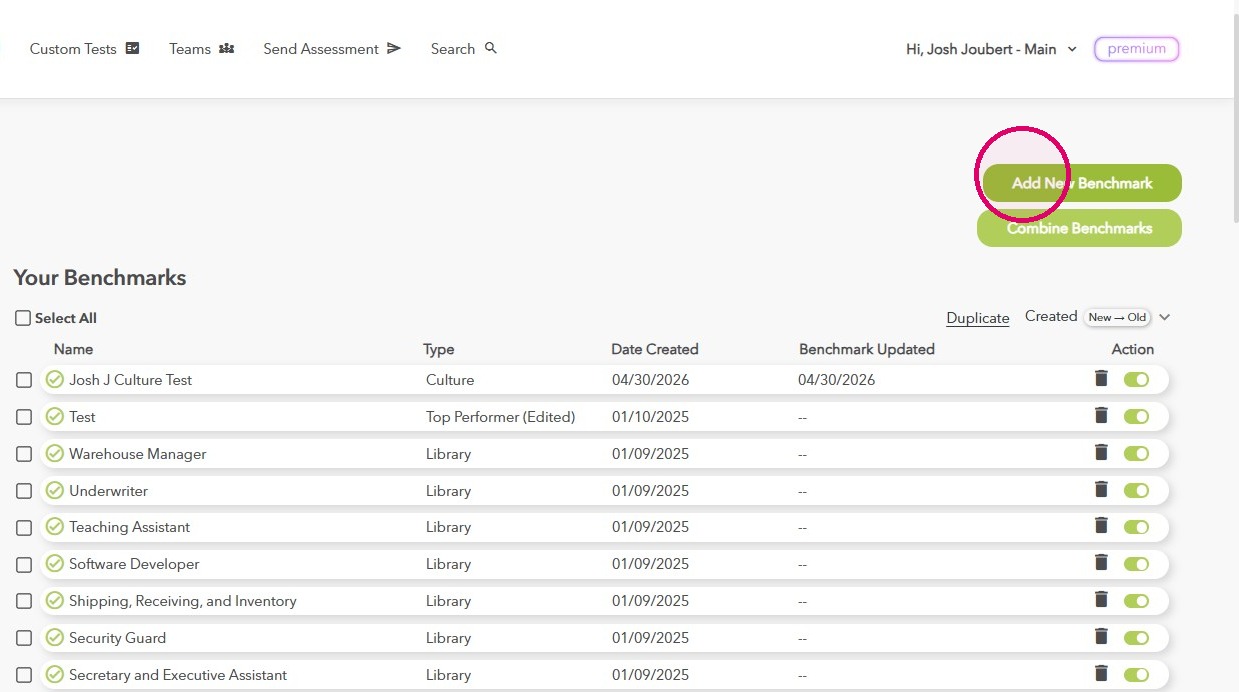
Benchmark setup
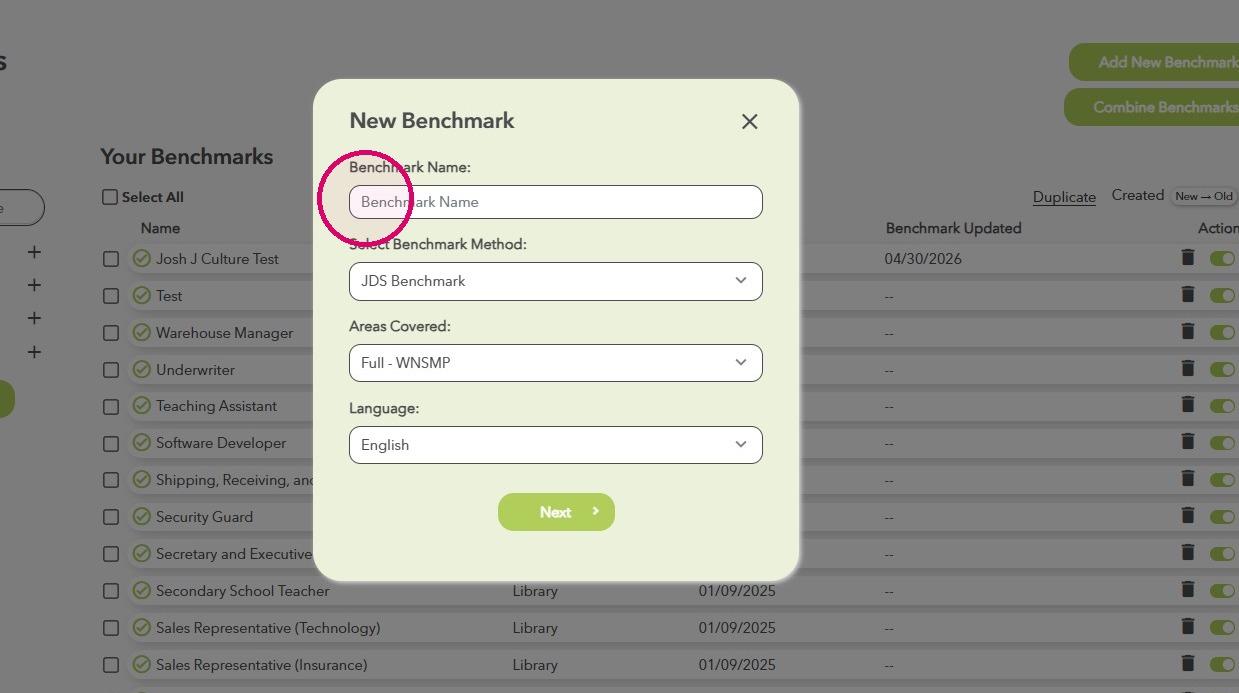
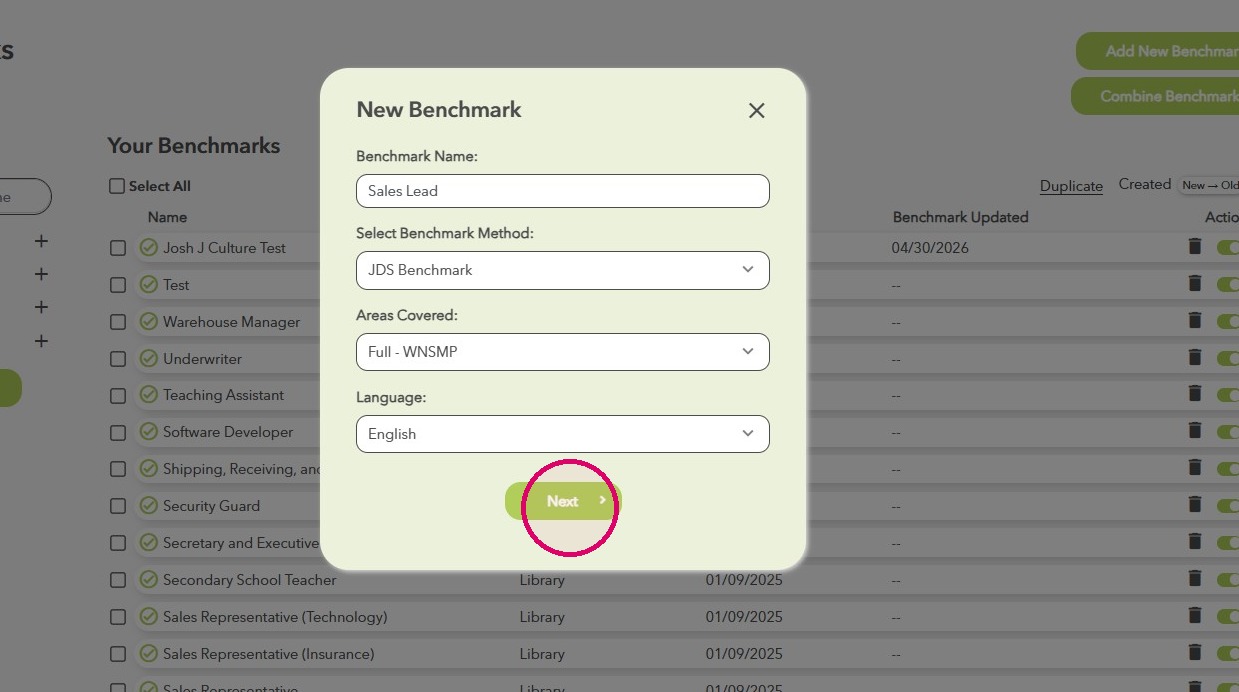
5. Enter the benchmark name (we recommend keeping this consistent with the Position name).
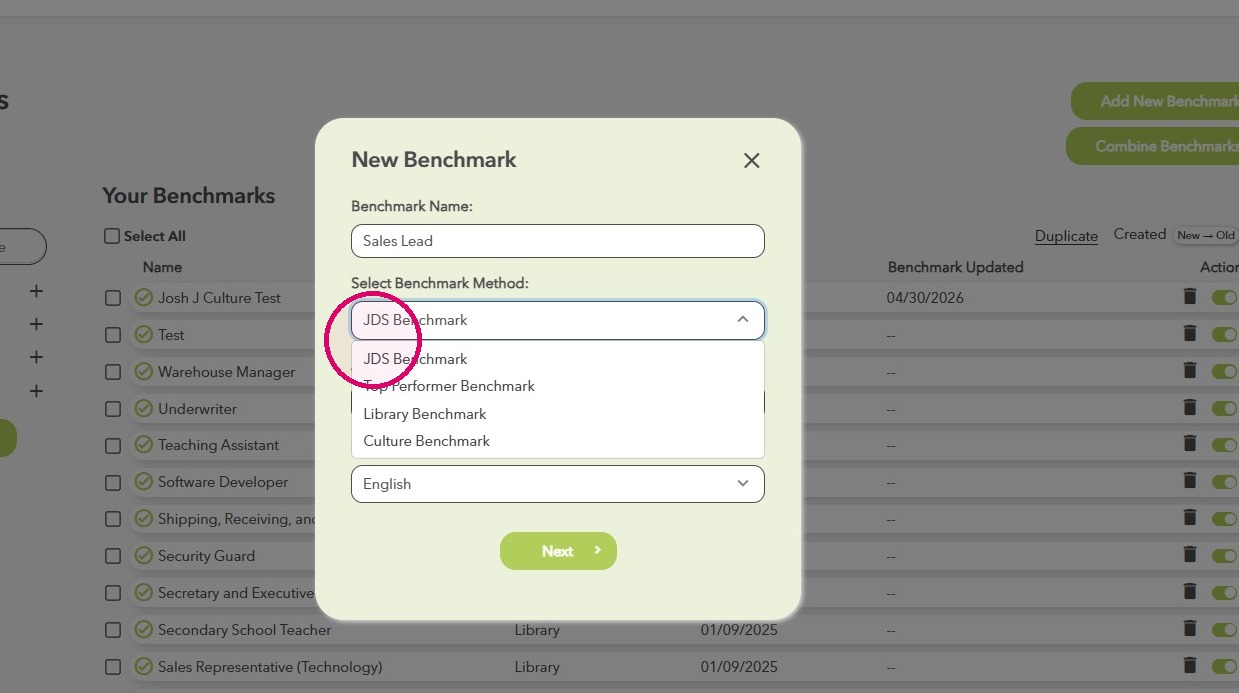
6. Select your benchmark method - either JDS (Job Description Survey) or Top Performer Benchmark (these are the only two options that use Participants).
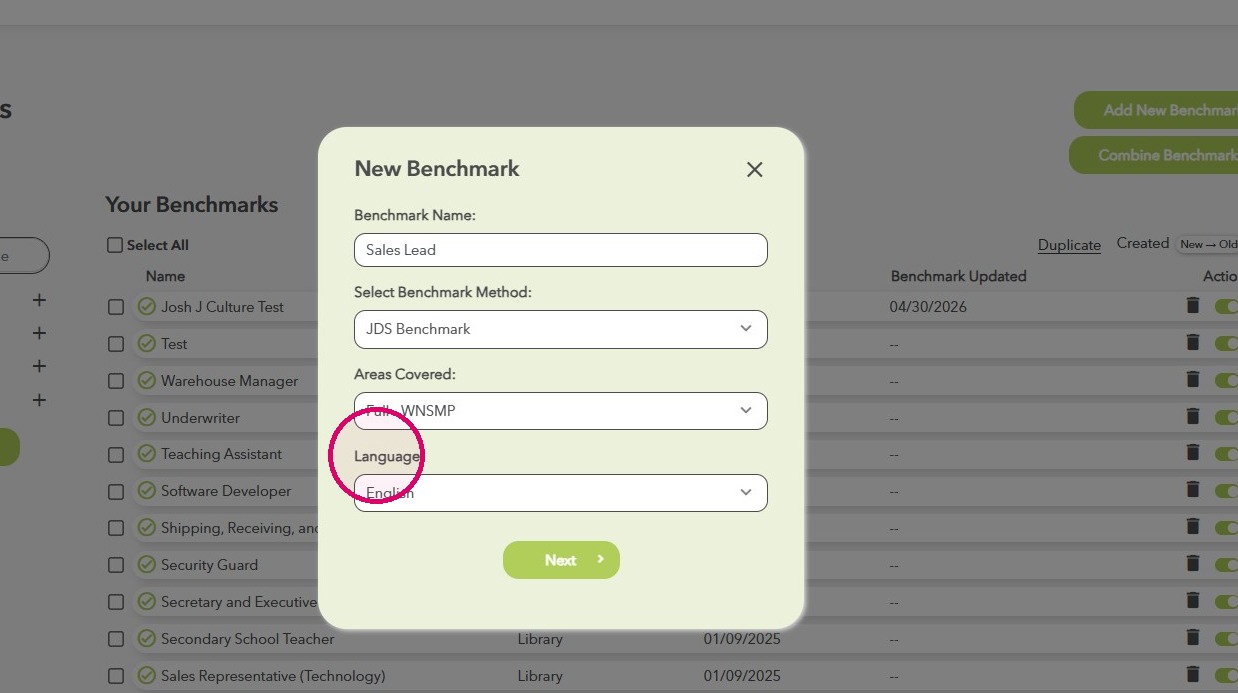
7. Select your preferred language (English is the default).
8. Click Next.
Notification settings
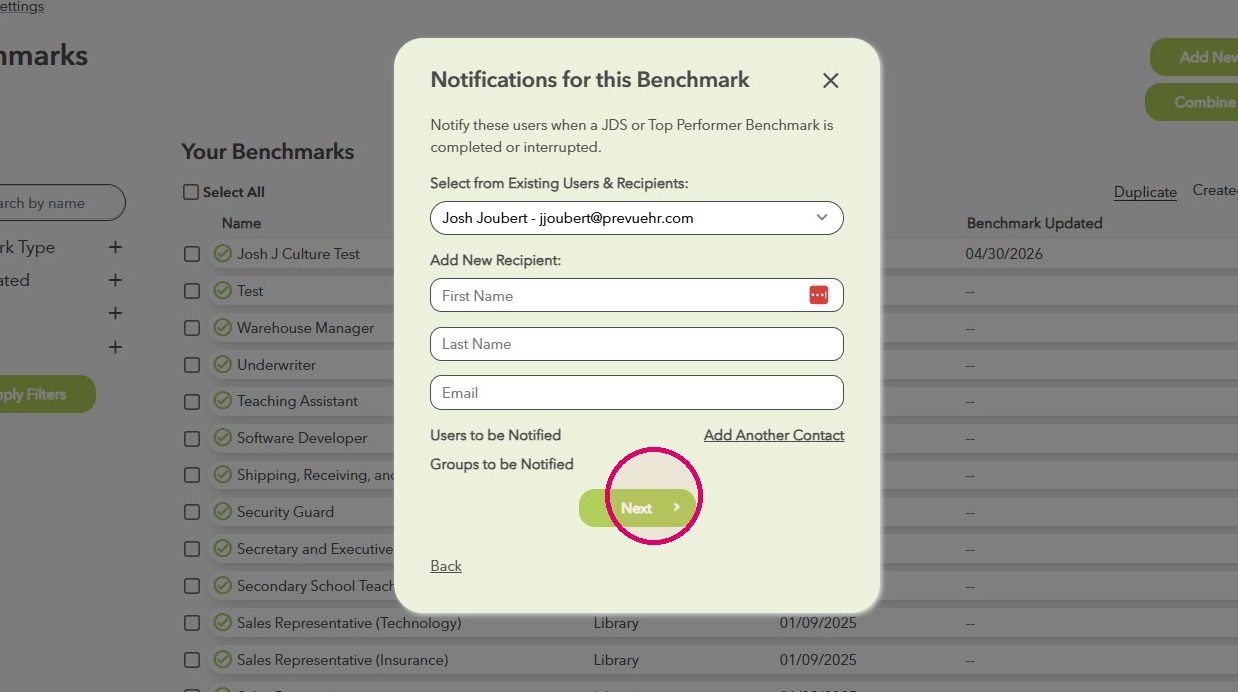
9. Select a user or recipient to notify.
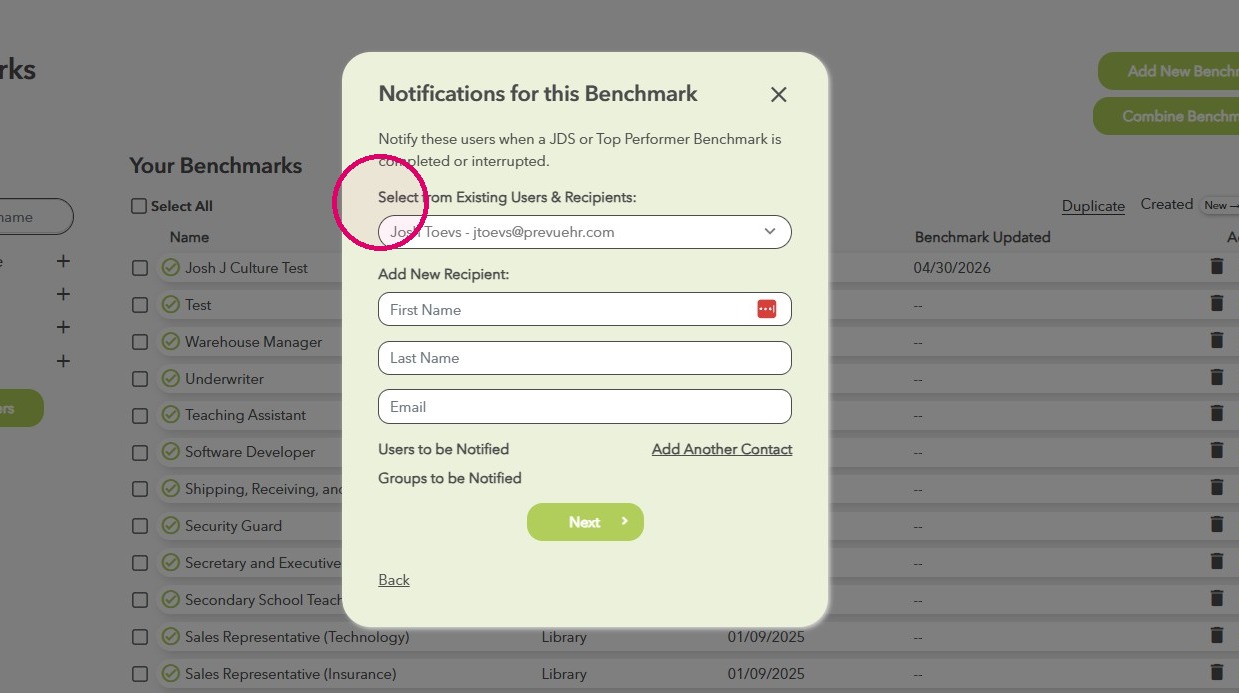
10. Click Next.
Benchmark creation
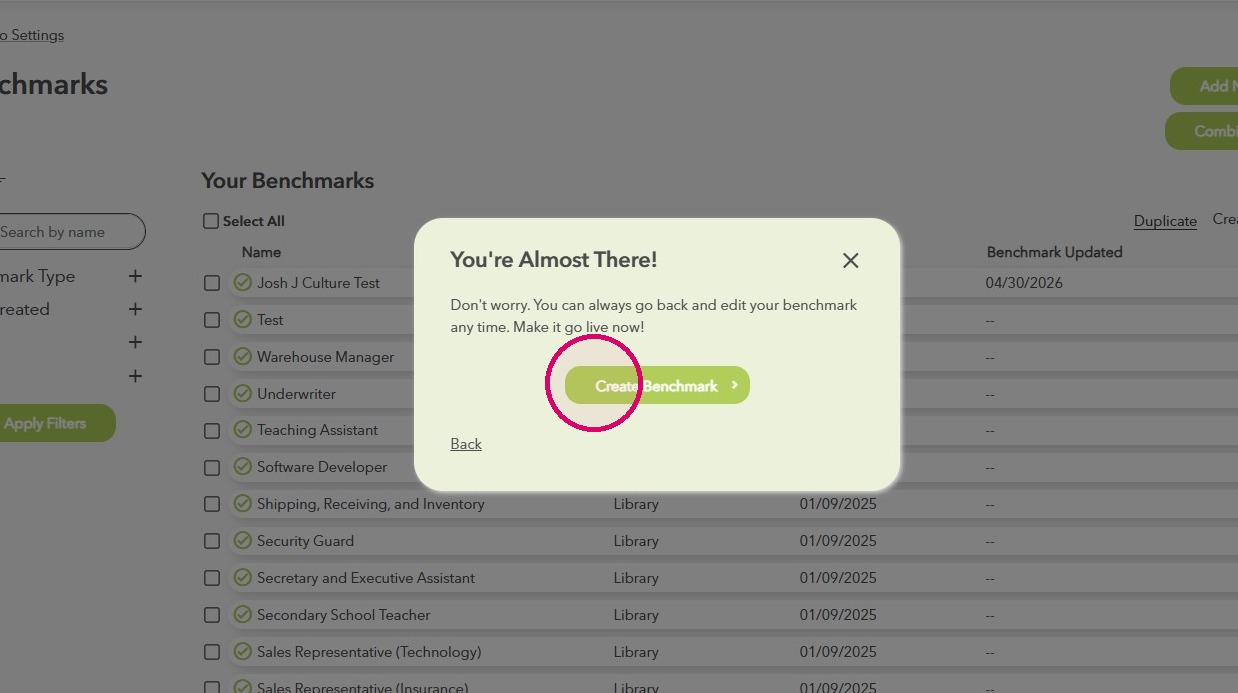
11. Click Create Benchmark.
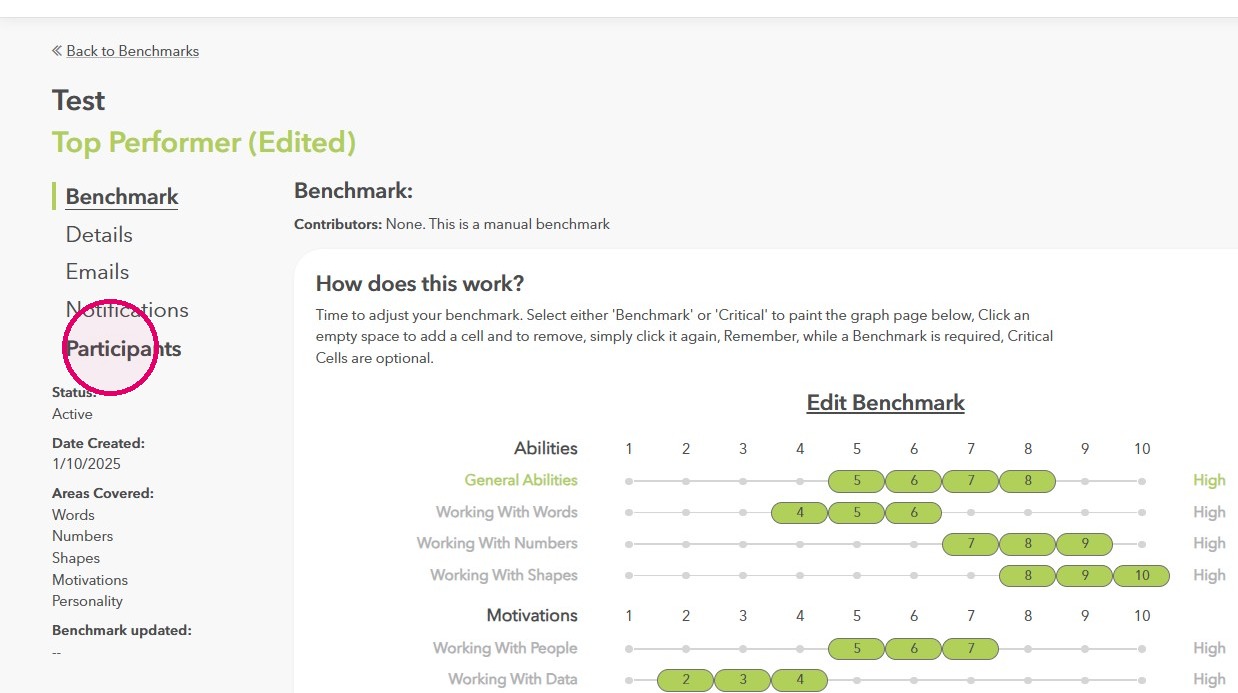
12. Click Participants.
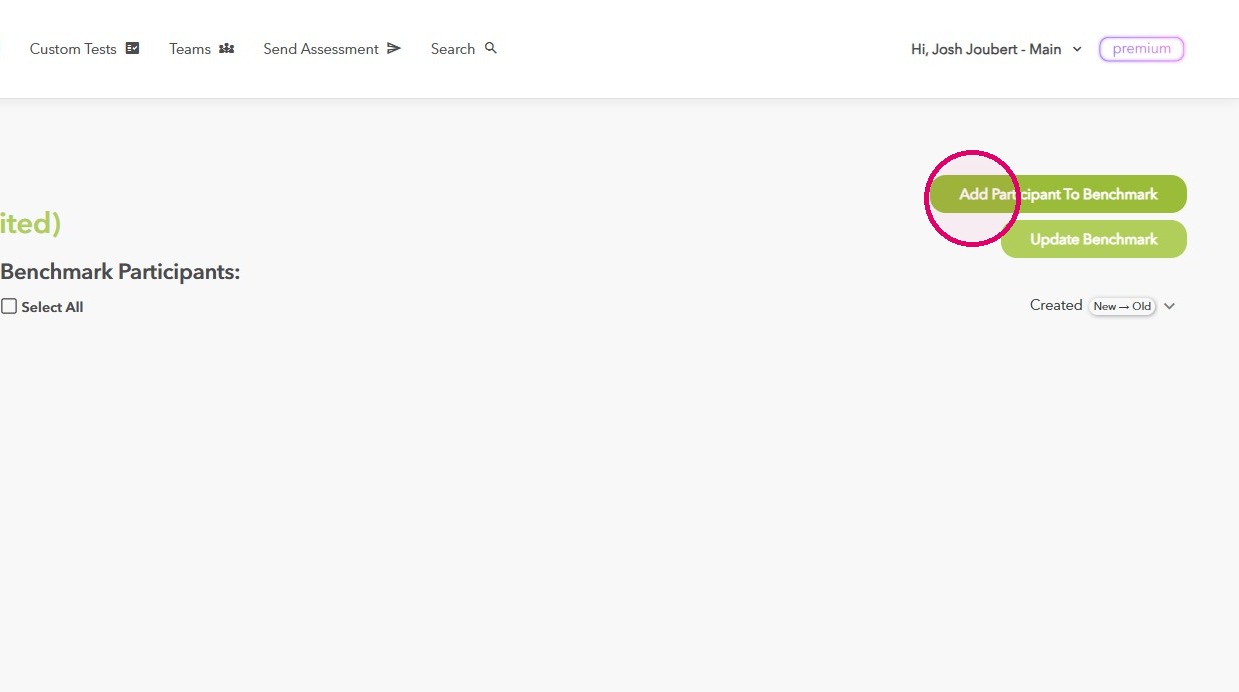
13. Click Add Participant To Benchmark.
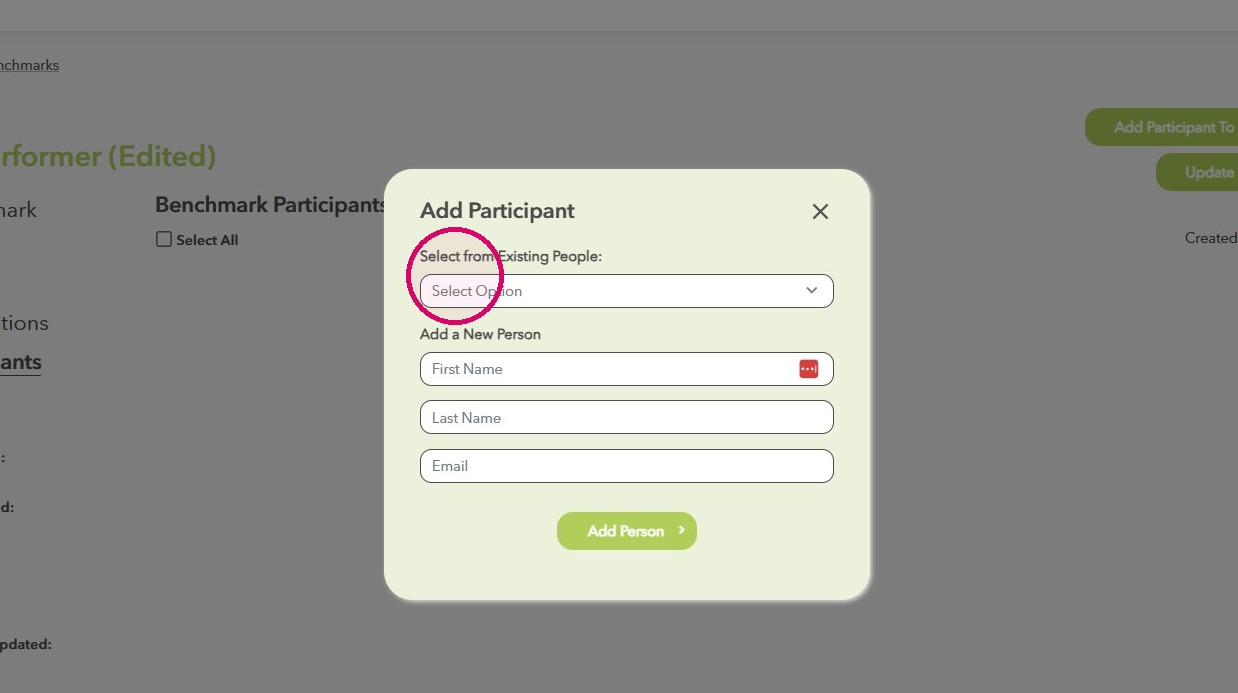
Note: Selecting from existing people, follow steps 14-16. If sending to a new participant, skip to steps 17-19.
14. Select from Existing People will allow you to pick people currently in your platform.
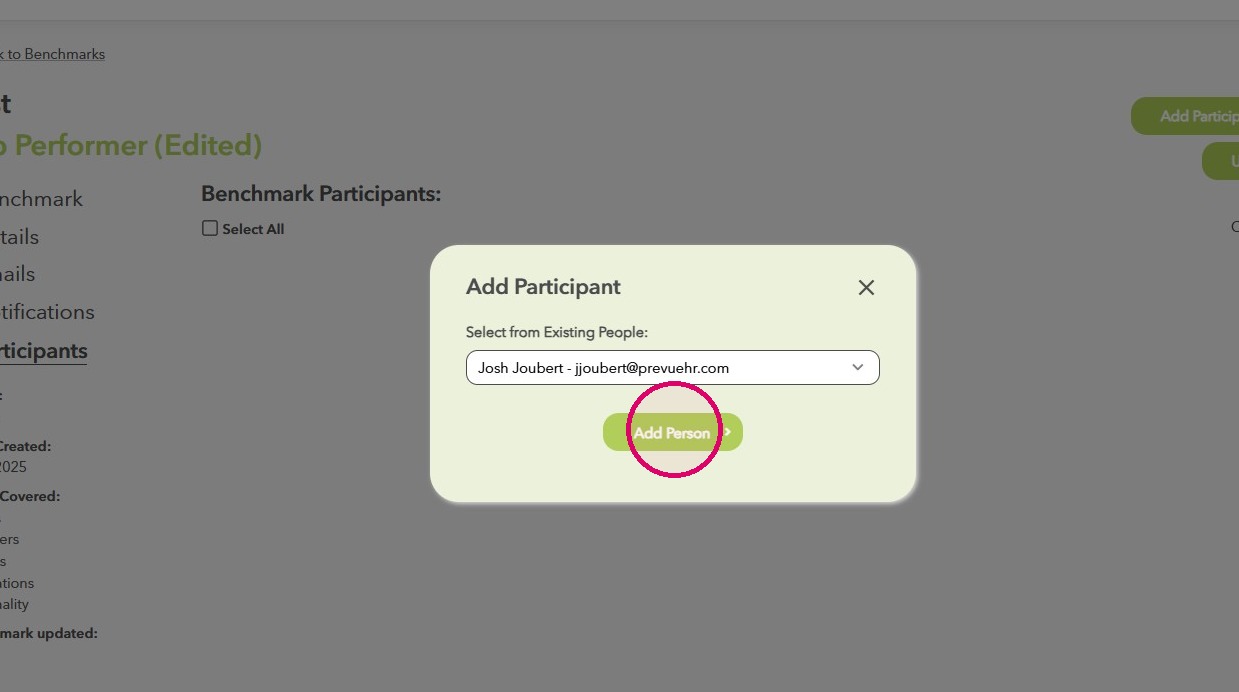
15. Click Add Person.
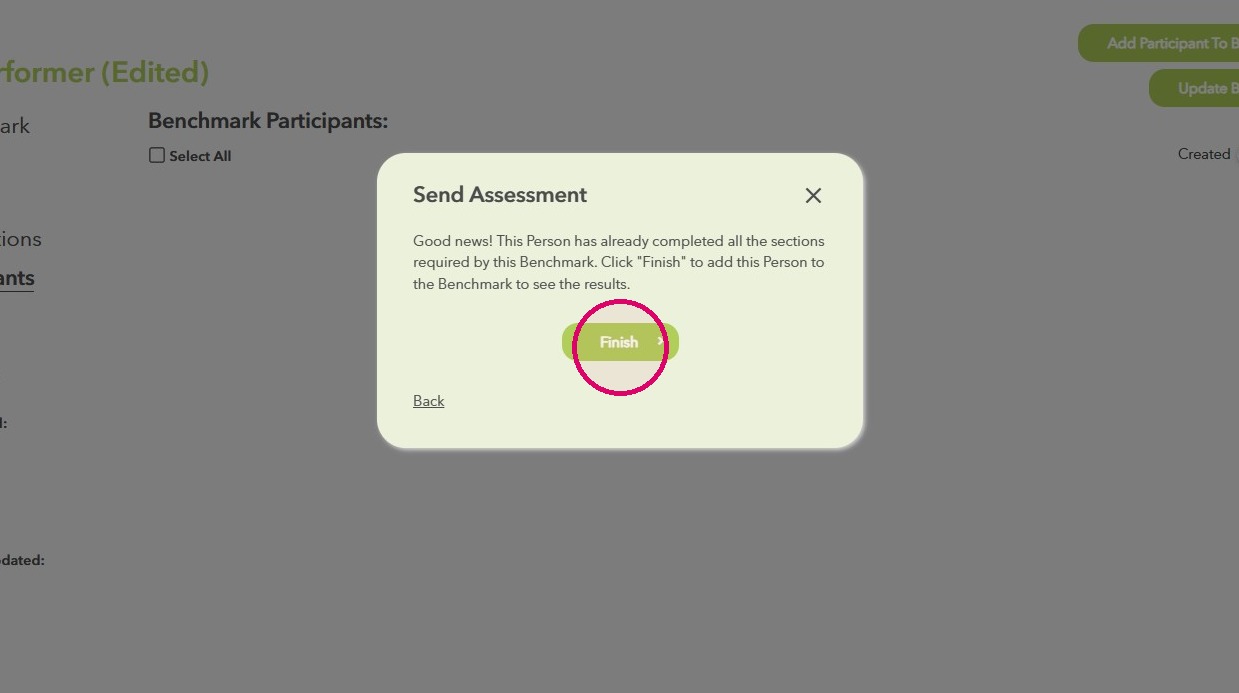
16. The Finish option will appear if the invitee has already completed this type of study previously. Nothing new will be sent to them, and their previous results will be used.
Note: Sending to a new participant, follow steps 17-19.
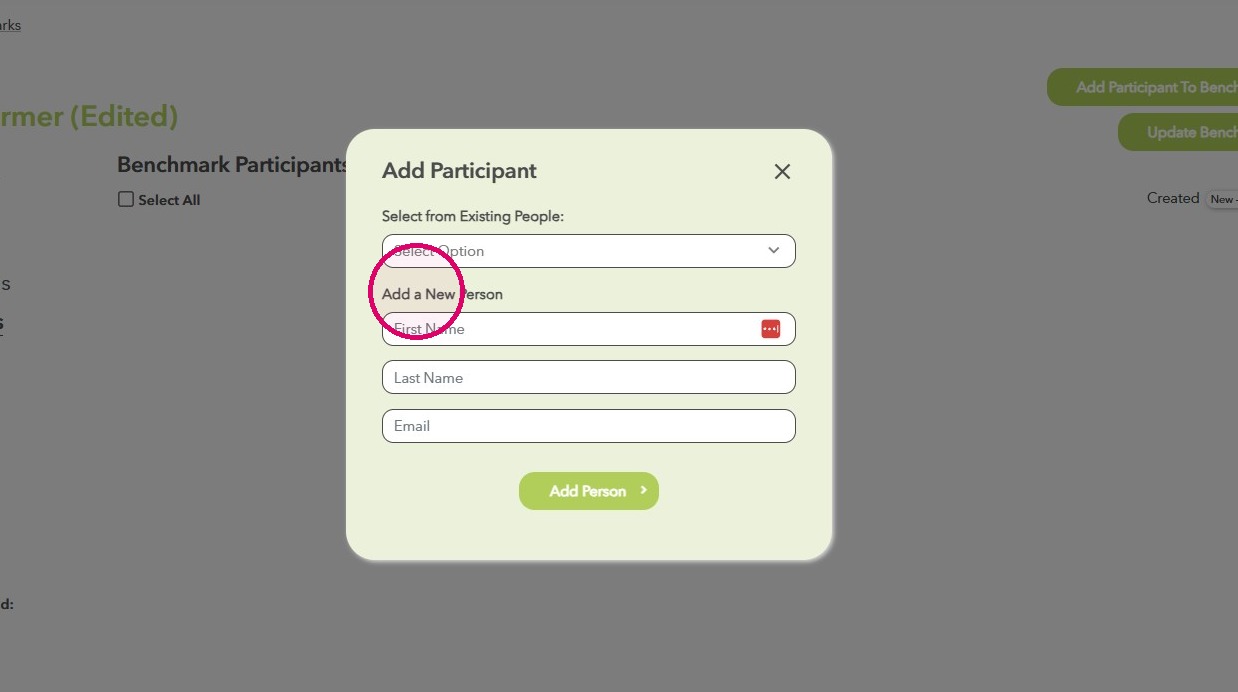
17. Add a New Person will be for someone participating in benchmarking for the first time.
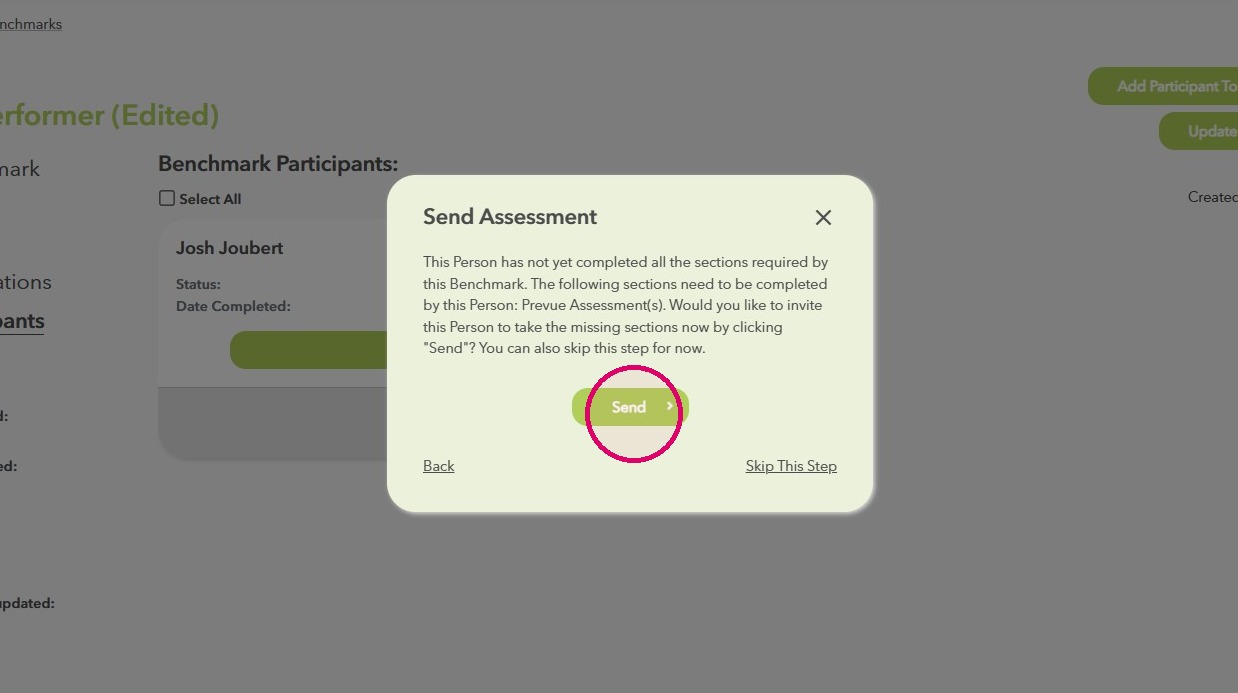
18. Click Send to complete the invitation process.
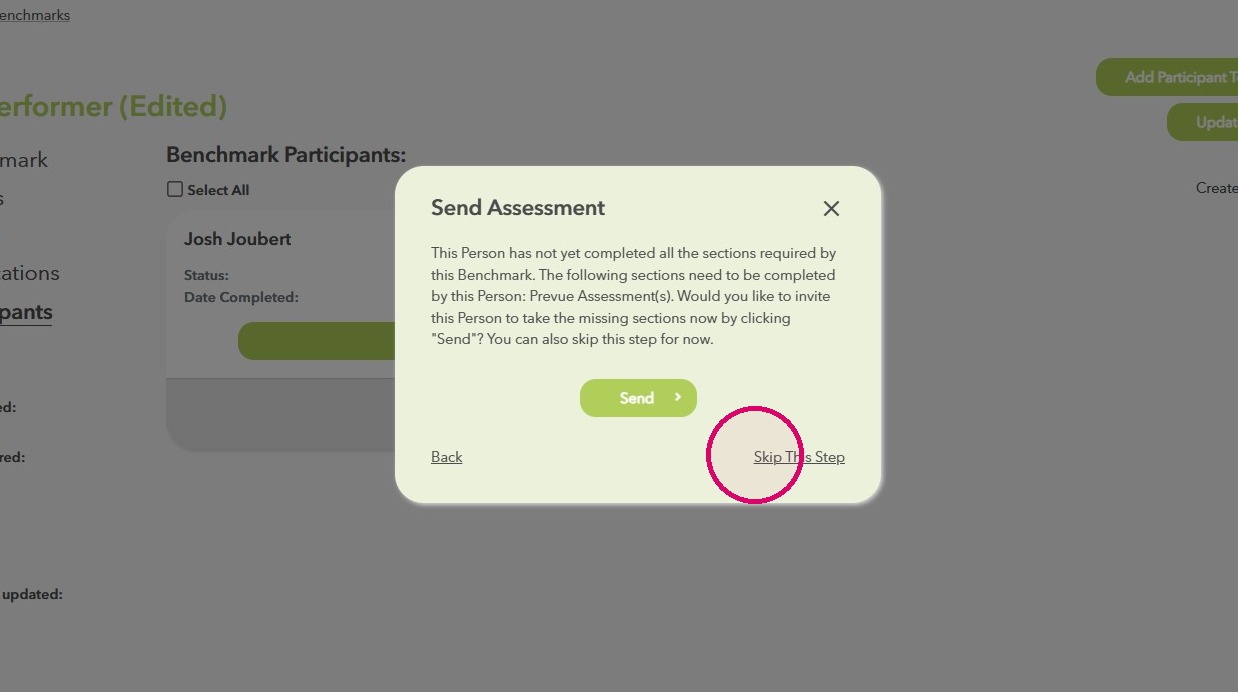
19. Skip This Step adds the participant to the benchmark without sending the invite. You can send it whenever you’re ready.
20. Once all statuses show complete, you can build your benchmark.
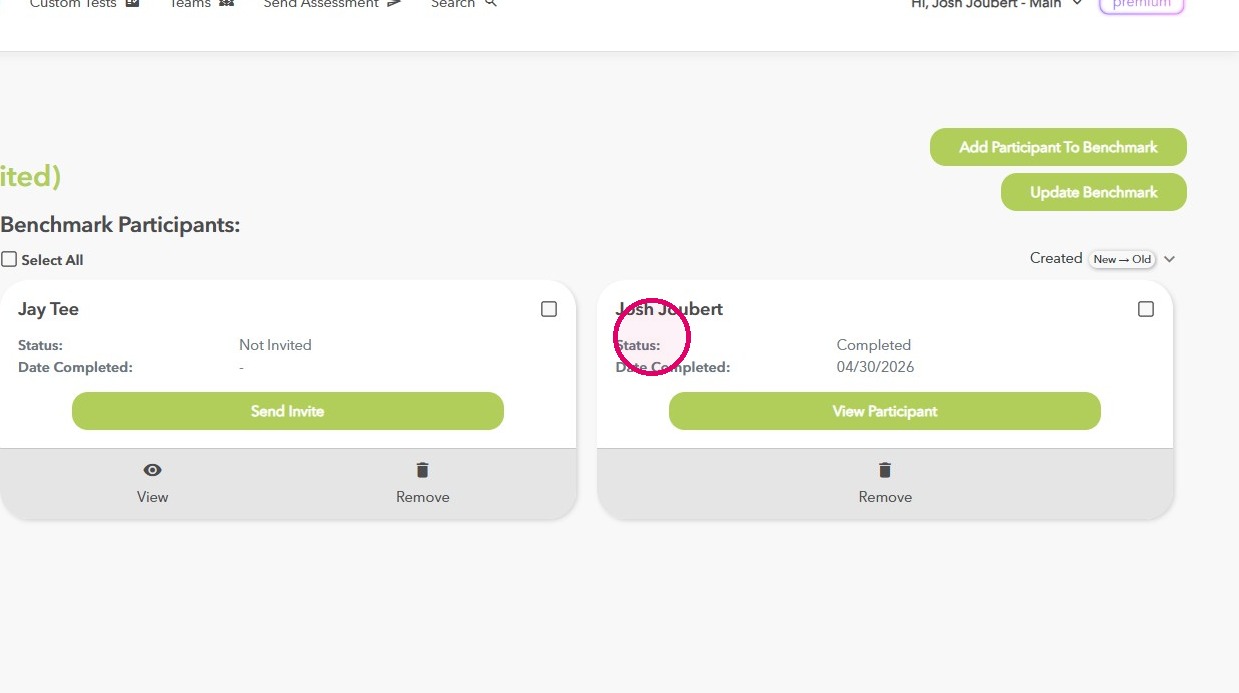
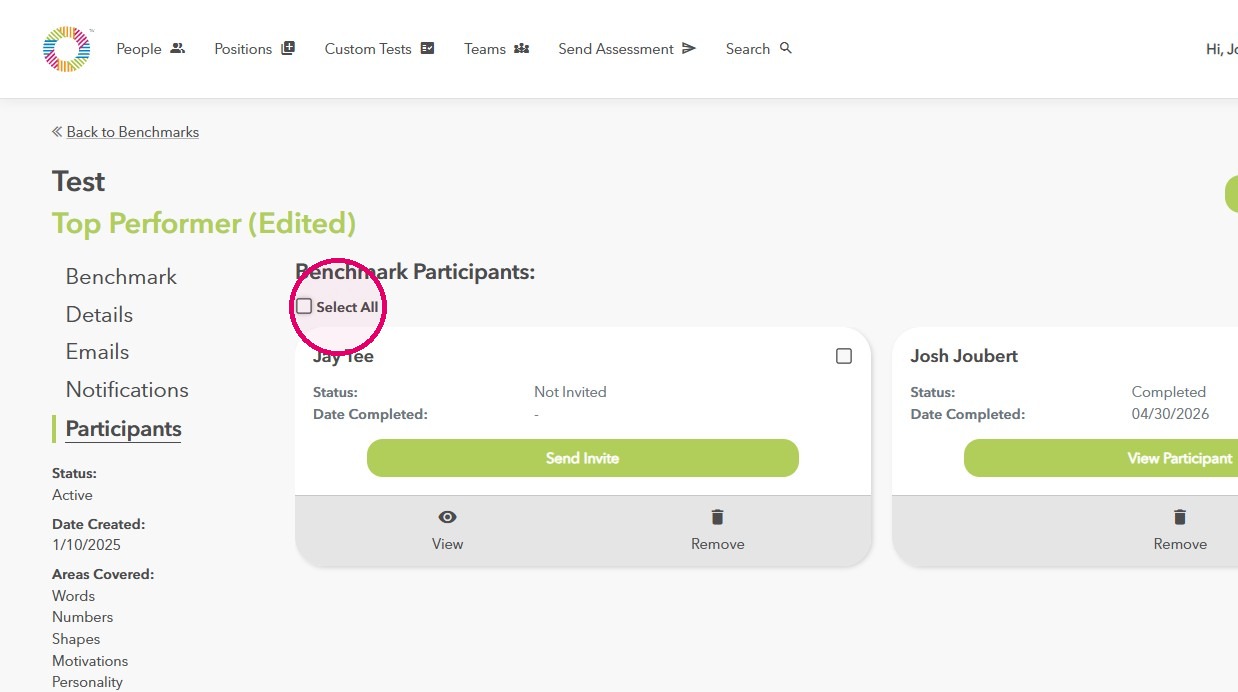
21. To build your benchmark, click Select All.
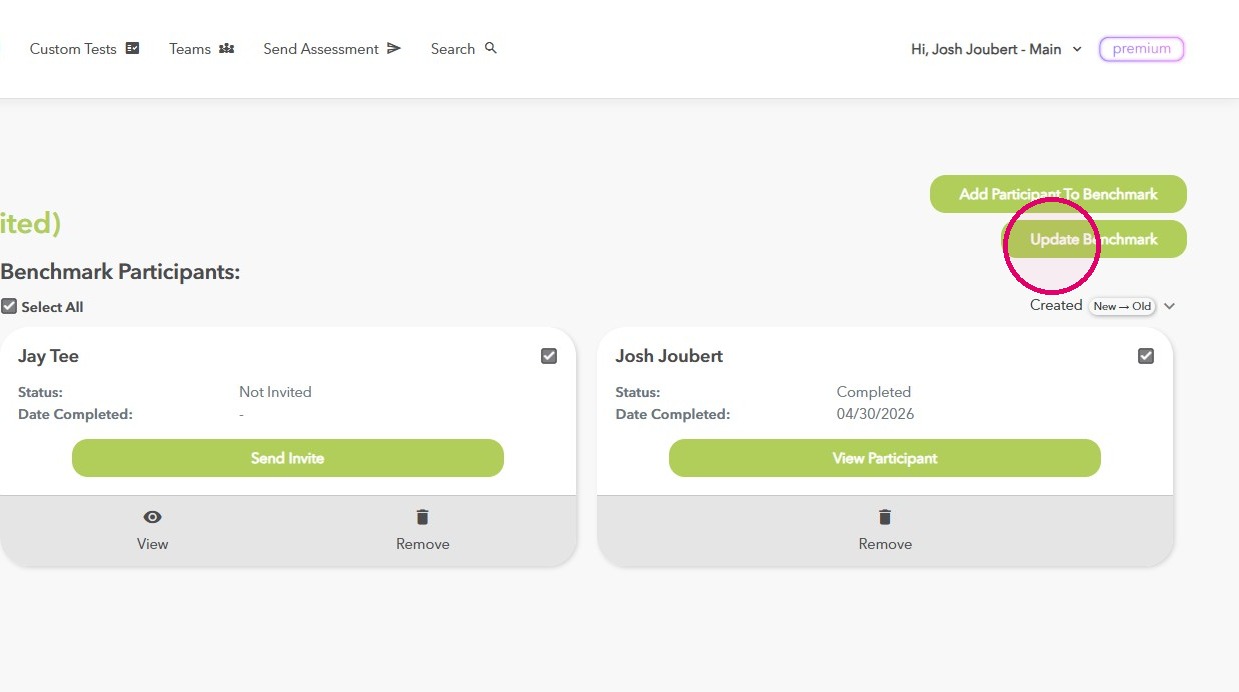
22. Click Build/Update Benchmark.
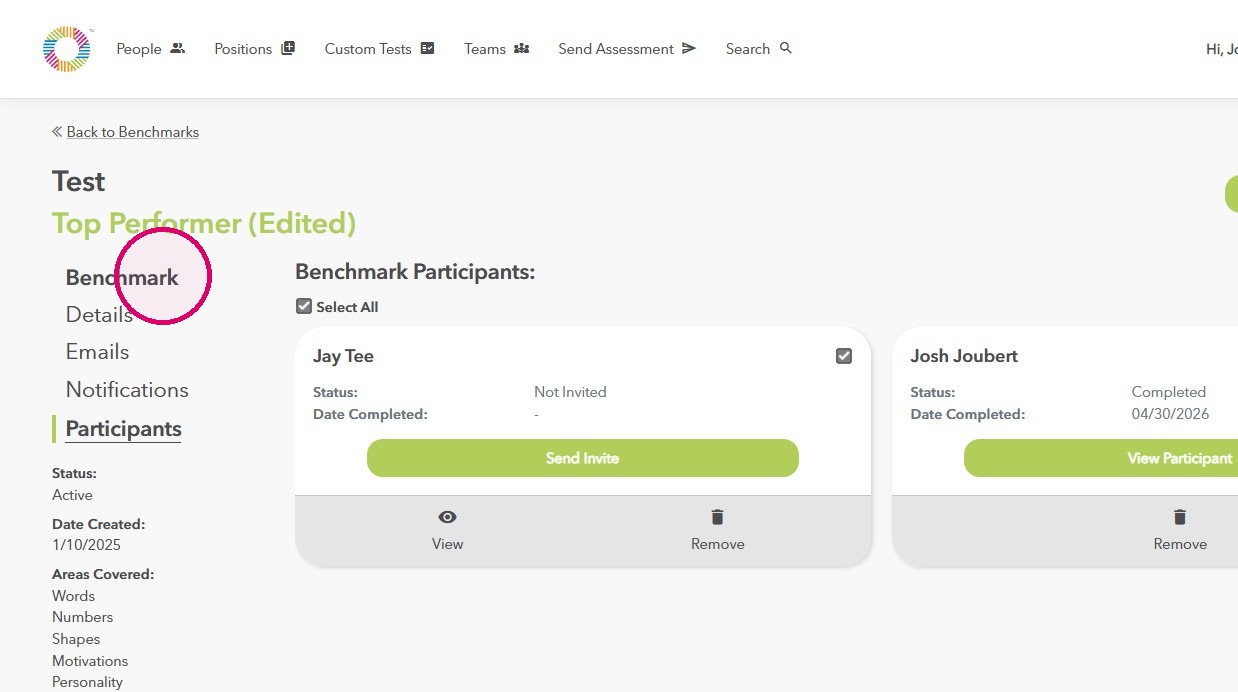
23. Click Benchmark to review your new/updated benchmark.