![support.png]](https://help.prevuehr.com/hs-fs/hubfs/support.png?height=40&name=support.png)
Error: "Uh oh! Something went wrong."
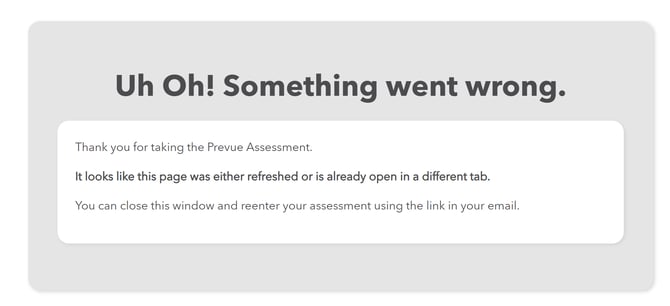
This error may appear if the candidate:
- Closed the assessment browser window
- Lost internet connection during the assessment
- Refreshed the assessment browser window
Error: Hmm, that's not quite right.
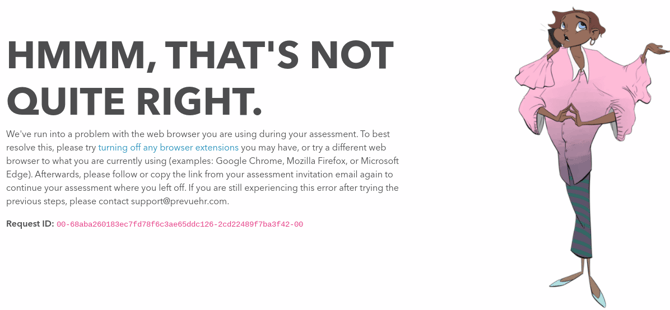
This error may appear if the candidate:
- Has browser extensions interfering with the assessment
- Is using an outdated browser
- Does not have JavaScript enabled
- Has slow internet or high latency
Error: 404 - Oops! Page not found.

This error may appear if:
- The assessment link was revoked
- The candidate profile was deleted in Prevue Hub
- The assessment link was copied incorrectly
Error: Time is up! ( Early Timer )
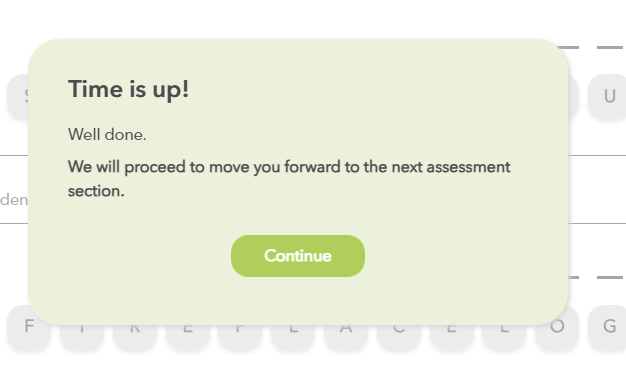
This error may appear if the assessment timer ended earlier than expected.
Common causes include:
- Slow internet or high latency
- Temporary loss of internet connection
- An outdated browser
How to Resolve an Assessment Error
To troubleshoot an assessment error:
- Go to the candidate’s Candidate Profile.
- Scroll to the Prevue Assessments section.
- Click Options.
- Select Troubleshoot.
- Choose the appropriate troubleshooting option.
- Click Resolve Issue.
If the Timer Ended Early
For timer-related issues, you may need to:
- Reset the section causing the error.
- Revoke the assessment.
- Resend only the missing sections to the candidate.
This is the most common resolution for early timer issues.